Python Fundamentals
Python Installation
Getting Python on Your Machine
Before you can start writing Python code, you need to install the Python interpreter on your computer. Think of the interpreter as the engine that understands and runs your Python instructions. The best place to get it is from the official source, python.org.
Head to the downloads page and grab the latest stable version for your operating system, whether it's Windows, macOS, or Linux. The website usually detects your system and suggests the right file.

During installation on Windows, you'll see a checkbox that says "Add Python to PATH." It is very important to check this box. It allows you to run Python from your computer's command line, which is a powerful tool you'll use later. For macOS and Linux, the installer typically handles this for you.
Your Coding Workshop
Now that you have the Python interpreter, you need a place to write and run your code. While you could use a simple text editor, most developers use an Integrated Development Environment, or IDE. An IDE is like a carpenter's workshop. It's not just a space to work, it's a space with all the tools you need, like a text editor, a way to run your code, and tools for debugging, all in one place.
Python's installation includes a basic IDE called IDLE, but we'll use one called Thonny. It's designed specifically for beginners. It has a simple, clean interface and provides helpful feedback as you learn.
Go to thonny.org and download the version for your operating system. The installation is straightforward. Once it's done, open it up. You'll see a main window for writing code and a smaller window at the bottom called the "Shell," where you'll see the output of your programs.

Your First Program
It's a tradition for a programmer's first script to print "Hello, World!" to the screen. In Thonny's main editor window, type the following line of code.
print("Hello, World!")
This code uses Python's built-in print() function. A function is a reusable block of code that performs a specific action. In this case, it prints whatever you put inside the parentheses to the screen.
Now, save the file. Go to File > Save and name it hello.py. The .py extension is important, it tells your computer this is a Python file. To run it, simply click the green play button in Thonny's toolbar. You should see Hello, World! appear in the Shell window below your code.
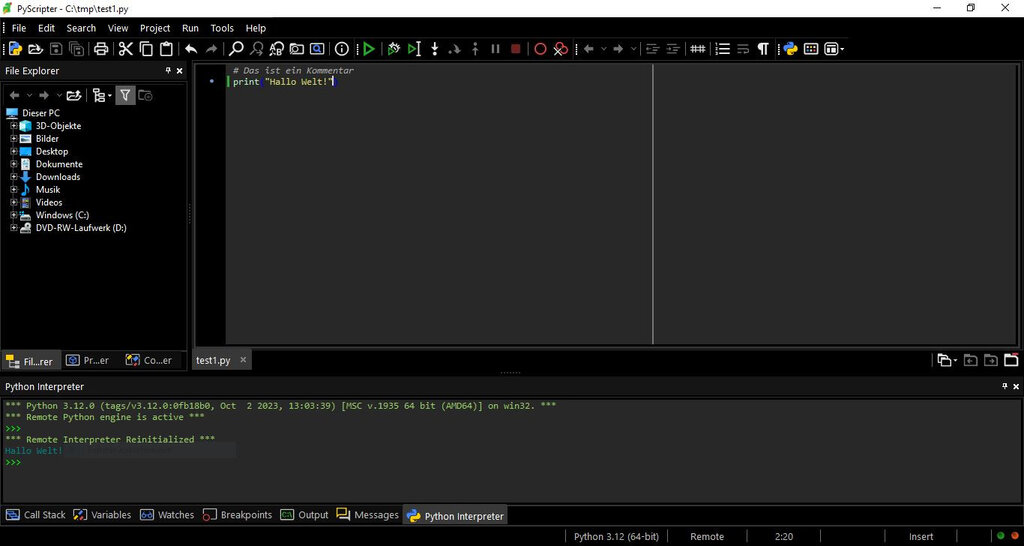
Congratulations! You've successfully set up your development environment and run your first Python program.
What is the official and recommended source for downloading the Python interpreter?
During Python installation on Windows, why is it important to check the "Add Python to PATH" box?