Python App Development for C++ Programmers
Python Development Environment
Setting Up Your Workspace
Coming from C++, you're used to compilers, linkers, and managing header files. Python's setup is simpler. The first step is to install the Python interpreter itself, which reads and executes your code. The best place to get it is from the official source, python.org.
Download the installer for your operating system (Windows, macOS, or Linux) and run it. During installation on Windows, make sure to check the box that says "Add Python to PATH." This lets you run Python from your command line or terminal just by typing python, which is a huge convenience.

Once installed, you can verify it's working by opening a terminal (or Command Prompt on Windows) and typing:
python --version
You should see the version number you just installed. With the interpreter ready, the next step is to choose where you'll write your code.
Your Coding Environment
While you can write Python in a plain text editor, an Integrated Development Environment (IDE) makes life much easier. It bundles a code editor with tools for running, debugging, and managing your code. Two of the most popular choices are Visual Studio Code and PyCharm.
Visual Studio Code (VS Code): A lightweight but powerful editor from Microsoft. It's highly customizable with extensions. If you already use it for C++, you can just install the official Python extension from the marketplace.
PyCharm: An IDE built specifically for Python by JetBrains, the same company that makes CLion for C++. It has a free Community edition that's perfect for getting started. PyCharm offers deep code analysis and great debugging tools right out of the box.
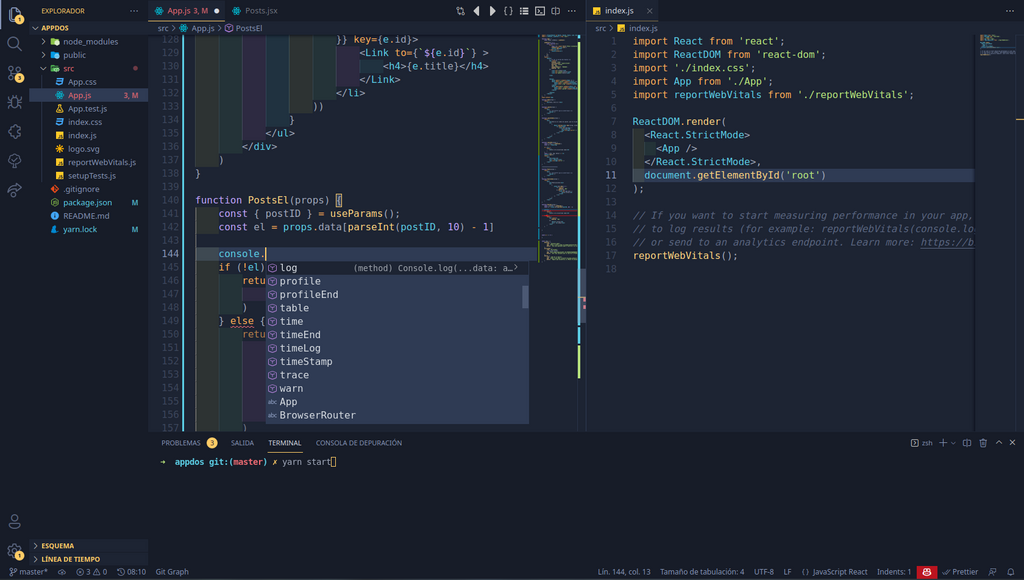
Choose one, install it, and you're almost ready to code. But first, there's one more crucial concept to master: isolated environments.
Keeping Projects Tidy
In C++, you might use a specific compiler version or link against particular library versions for a project. Python's equivalent is the virtual environment. It's an isolated directory that contains a specific version of Python and any packages your project needs.
Think of it like having a separate toolbox for each job. When you're fixing the plumbing, you grab your plumbing toolbox. When you're building a bookshelf, you grab your woodworking tools. You don't mix them up. Virtual environments prevent package conflicts between projects.
Using a virtual environment for every project is a best practice. It saves you from countless headaches down the road.
Python comes with a built-in tool called venv to create them. Open your terminal, navigate to your project folder, and run this command:
python -m venv venv
This creates a new folder named venv inside your project directory. This folder contains a copy of the Python interpreter and a place to install packages. To use it, you need to "activate" it.
On macOS or Linux:
source venv/bin/activate
On Windows:
venv\Scripts\activate
Once activated, your terminal prompt will change to show the environment's name. Any Python packages you install now will be placed inside the venv folder, leaving your global Python installation clean. For example, to install the popular requests library for making HTTP requests:
pip install requests
To leave the environment, just type deactivate.
Your IDE can help manage this. Both VS Code and PyCharm will automatically detect and use the virtual environment in your project folder, making the process seamless.
Writing Your First Script
With your environment set up, let's write a simple script. Open your IDE, create a new file named app.py, and add the following code:
def greet(name):
    """A simple function to greet someone."""
    print(f"Hello, {name}!")

if __name__ == "__main__":
    greet("World")
This defines a function and then calls it. The if __name__ == "__main__": block is a standard Python convention. It ensures the code inside only runs when the file is executed directly, not when it's imported as a module into another file. Most IDEs have a "run" button (often a green play icon) that will execute the current file for you.
When installing Python on Windows from python.org, which specific action is highly recommended to ensure you can easily run the python command from any terminal?
What is the primary purpose of using a Python virtual environment, such as one created with venv?
You now have a complete, professional setup for Python development. You've installed the interpreter, chosen an IDE, and learned the essential practice of using virtual environments.