Python 3.5 Essentials
Python Installation
Getting Python on Your Machine
Before you can start programming, you need to install the Python interpreter. Think of this as the engine that reads and runs your code. We'll be using Python 3.5 for this course.
First, head to the official Python website at python.org. Navigate to the downloads section and look for Python 3.5. If you're using Windows, you'll want the executable installer. For macOS or Linux, you'll grab the appropriate package for your system.
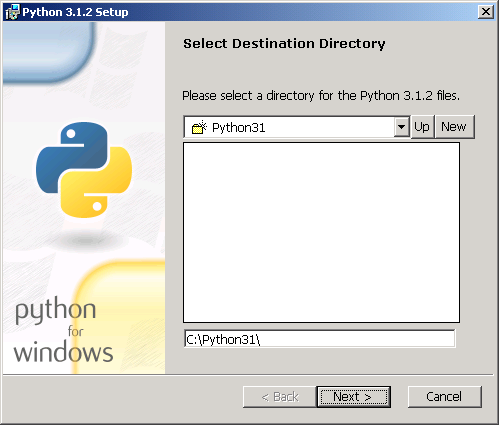
When you run the installer, you'll be presented with a few options. The default settings are usually fine, but there is one crucial step you can't miss.
On the first screen of the installer, make sure to check the box that says "Add Python 3.5 to PATH". This allows you to run Python from your computer's command line, which we'll need to do.
If you forget this step, you'll have to configure your system's PATH variable manually, which can be a bit tricky. Checking the box handles it for you automatically. Once you've done that, proceed with the standard installation.
Verifying Your Installation
Once the installer finishes, it's a good idea to confirm that everything is working correctly. You can do this using your computer's command line interface. On Windows, this is the Command Prompt or PowerShell. On macOS or Linux, it's the Terminal.
Open a new command line window and type the following command, then press Enter:
python --version
If the installation was successful, your computer will respond with the version of Python you installed.
Python 3.5.x
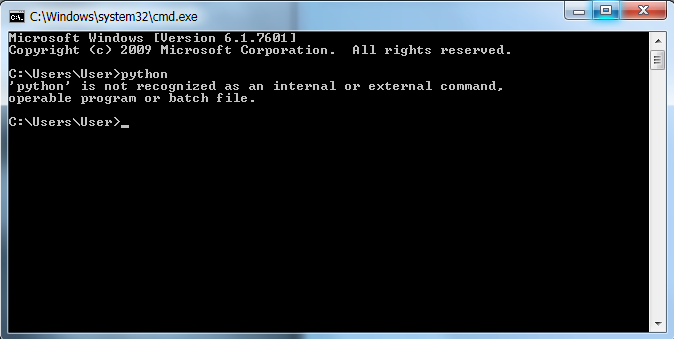
The x will be a specific number for the minor release you downloaded. If you see this, you're all set. If you get an error message like "command not found," it likely means Python was not added to your system's PATH during installation.
The Interactive Shell
Python comes with a built-in tool that lets you run code one line at a time. It's called the interactive shell, or REPL. This is a great way to experiment with code snippets without having to save them in a file first.
REPL
noun
Stands for Read-Eval-Print Loop. It's an interactive programming environment that takes single user inputs, executes them, and returns the result to the user.
To open the REPL, just go to your command line and type python with nothing after it, then hit Enter.
python
You should see a new prompt, which usually looks like three angle brackets (>>>). This means Python is waiting for your instructions. You can type a simple command, like a math operation, to see it in action.
>>> 2 + 2
4
Python reads your input (2 + 2), evaluates it, prints the result (4), and then loops back to wait for your next command. That's the Read-Eval-Print Loop. To exit the REPL and return to your regular command prompt, you can type exit() and press Enter.
What is the official website to download the Python interpreter?
During installation on Windows, which option is crucial to select to ensure you can easily run Python from the command line?
Now that you have Python installed and know how to access the interactive shell, you're ready to start writing code.