Professional RPA Development with UiPath
Architecture and Design
Designing for Scalability
Since you're familiar with the basics of RPA, we can skip the introductions and get straight to building better, more robust automations. Good design is the difference between a bot that works once and a bot that works reliably for years. In UiPath Studio, this starts with choosing the right type of workflow for the job.
The core of professional automation isn't just making a process work, it's making it maintainable, scalable, and easy to understand.
Your main tools for structuring automation logic are Sequences, Flowcharts, and State Machines. Each has a distinct purpose, and selecting the correct one is the first step in solid architectural design.
Workflow Types
Let's break down the three fundamental workflow layouts.
Sequence
noun
A linear workflow layout where activities are executed one after another. It's ideal for simple, straightforward processes that don't require complex decision-making.
A Sequence is your go-to for small, linear tasks. Think of it as a simple to-do list for the robot. It executes activities from top to bottom, without deviation. They are perfect for snippets of automation that will be reused inside larger workflows. A good rule of thumb is to keep Sequences under 15-20 activities. If it gets more complex than that, it's time to consider a Flowchart.
Next, we have Flowcharts. A Flowchart provides more flexibility and is better suited for complex business logic. Unlike a Sequence, it allows you to use branches, decision points, and loops to model processes that aren't strictly linear. If your automation needs to answer questions like "if this, then that," a Flowchart is the right choice.
For example, processing an invoice might involve checking if the total amount is over $10,000. If it is, the bot needs to send it for manager approval. If not, it can proceed directly to payment. This kind of conditional logic is exactly what Flowcharts are designed for.
Finally, there are State Machines. These are for more advanced scenarios, typically involving long-running, event-driven processes. A state machine exists in one of several states at any given time and transitions to another state based on a trigger or condition. Think of a bot that processes insurance claims. It might be in an 'Awaiting Documents' state, a 'Reviewing Claim' state, or a 'Claim Approved' state. It moves between these states based on events like receiving an email with the required documents or a user marking the review as complete. State machines are powerful but should be reserved for processes that are truly state-driven.
| Workflow Type | Best For | Structure | Key Feature |
|---|---|---|---|
| Sequence | Simple, linear tasks | Top-to-bottom | Simplicity and readability |
| Flowchart | Complex logic with branching | Free-form, multi-directional | Decision points (If/Switch) |
| State Machine | Event-driven, long-running processes | States and transitions | Responds to triggers |
Project Structure and Modularity
A well-designed automation is more than just a single workflow file. It's a structured project. When you create a new project in UiPath Studio, it generates a folder containing all your files, including a critical file named project.json.
This file is the heart of your project's configuration. It lists all the project dependencies, such as the specific versions of the Excel, Mail, or UI Automation activity packages you're using. Managing these dependencies properly ensures that your automation will run consistently across different machines and environments.
{
  "name": "InvoiceProcessing",
  "description": "A bot to process vendor invoices.",
  "main": "Main.xaml",
  "dependencies": {
    "UiPath.Excel.Activities": "[2.12.3]",
    "UiPath.Mail.Activities": "[1.15.2]",
    "UiPath.System.Activities": "[22.4.4]",
    "UiPath.UIAutomation.Activities": "[22.4.7]"
  }
}
The most important principle of good design is modularity. Instead of building one massive, monolithic workflow file that does everything, you should break down your process into smaller, reusable components. For example, in an invoice processing bot, you could have separate workflows for:
- Logging into the financial application.
- Reading invoice data from an Excel sheet.
- Entering a single invoice into the system.
- Logging out and sending a summary email.
You then use the Invoke Workflow File activity in your main workflow (e.g., a Flowchart) to call these smaller pieces in the correct order. This approach makes your project dramatically easier to debug, maintain, and update. If the login process changes, you only need to edit one small file, not hunt through a giant, confusing workflow.
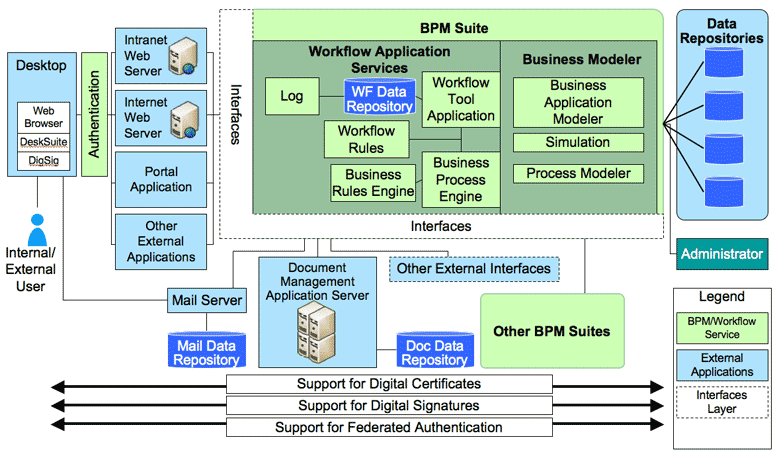
Workflow Design Over Word Engineering: The focus shifts from perfecting individual prompts to architecting entire AI-powered processes
This modular design, combining the right workflow types with invoked components, is the foundation for building professional-grade automations that are robust and scalable.
Which workflow type is best suited for a small, linear process that will be reused within a larger automation, such as a workflow to log in to an application?
You are building an automation that processes employee expense reports. If a report's total is over £500, it must be sent to a manager for approval; otherwise, it can be processed for payment immediately. Which workflow layout is the most appropriate for managing this business logic?
Building robust automations begins with a solid architectural foundation. By choosing the right workflow type and breaking down your logic into modular, reusable components, you create bots that are not only effective but also easy to maintain and scale.