Professional iOS Development with Xcode and Swift
Xcode and Project Architecture
Welcome to Xcode
When you move from writing simple scripts to building applications, your code needs a home. For iOS, macOS, and other Apple platforms, that home is Xcode. It's an Integrated Development Environment, or IDE, which is a fancy way of saying it’s an application that bundles everything you need to build software: a text editor, a compiler, a debugger, and an interface builder.
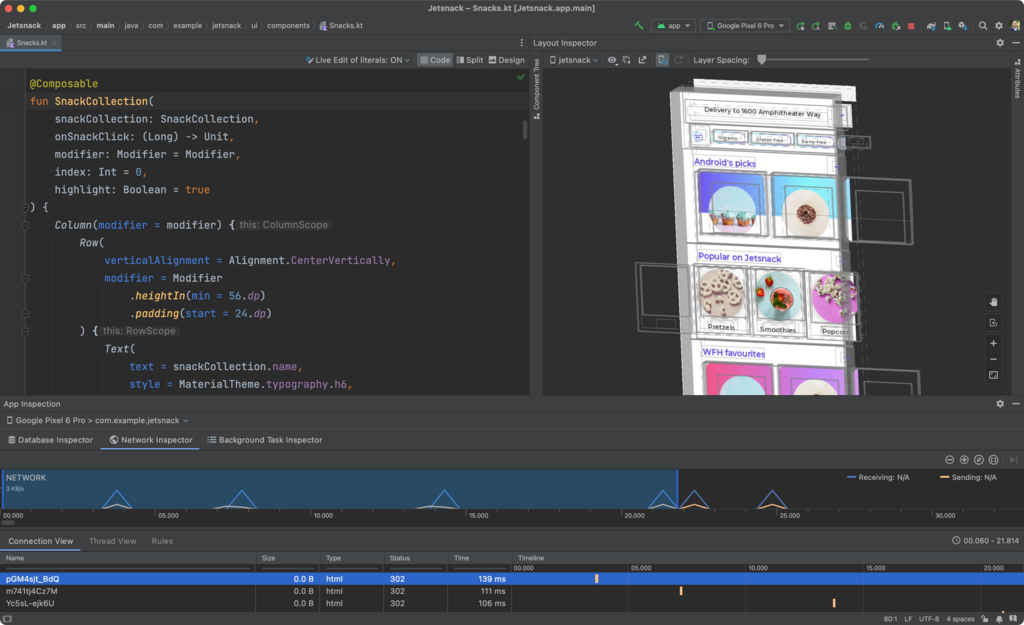
At first glance, the interface can seem overwhelming, but it’s logically organized. The main window is typically split into a few key areas. On the left, you'll find the Project Navigator, which shows all your files. The center is the Editor, where you'll write your code. To the right is the Inspector, which displays details and settings for whatever you've selected. And when you're working with SwiftUI, you'll have a live Preview or Canvas that instantly shows you what your user interface looks like.
The App's Starting Point
Every program needs an entry point, a place where execution begins. In a command-line tool, this might be a main.swift file. In older iOS apps using UIKit, this was handled by a pair of files: AppDelegate.swift and SceneDelegate.swift. They managed the application's lifecycle, like what happens on launch, and the lifecycle of individual UI windows, or scenes.
With SwiftUI, Apple introduced a much simpler, more declarative approach. Instead of those delegate files, your app's lifecycle is now defined by a structure that conforms to the App protocol. A single attribute, @main, tells the system that this struct is the launch point for the entire application.
import SwiftUI

@main
struct MyCoolApp: App {
    var body: some Scene {
        WindowGroup {
            ContentView()
        }
    }
}
This small block of code is all you need to define an app. The body property describes the app's scenes, which are the windows that contain your user interface. It’s a clean and modern way to structure the foundation of your software.
Projects, Targets, and Assets
An Xcode project (.xcodeproj) is the main container for everything that makes up your app. It holds all your source files, resources, and configuration settings. Within a project, you have one or more Targets.
A Target defines a single product to be built. Think of the project as the master blueprint for a housing development and a target as the plan for one specific house. You could have one project that contains multiple targets: one for your main iOS app, another for a companion watchOS app, and a third for an interactive widget. Each target has its own settings, like its unique app icon, bundle identifier, and the specific files from the project that it should include.
Xcode provides developers a unified workflow for user interface design, coding, testing, and debugging.
Visual resources like images and icons aren't just dropped into a folder. They’re managed by an Asset Catalog (.xcassets). This is a special folder inside your Xcode project that organizes your assets in a structured way.
Using an asset catalog allows Xcode to do some powerful things for you. You can provide different versions of an image for light and dark mode, or different sizes for various devices. During the build process, the system uses this information to optimize your app for each user's device, a process called App Thinning.
From Code to App
When you click the 'Build' or 'Run' button in Xcode, a complex process begins. Xcode's build system compiles your Swift code into machine code, links it with necessary frameworks, and packages it together with all your resources from the asset catalog and elsewhere.
The final output is an App Bundle. This is a directory with an .app extension that the operating system treats as a single file. Inside this bundle, you'll find your compiled executable, your images, your file (which contains metadata about your app), and any other resources it needs to run.
Understanding this structure helps you see how a project in Xcode is more than just a collection of code files. It’s a complete blueprint that defines how to build, package, and configure a piece of software for a specific platform.
Time to check your understanding of these core concepts.
What is the primary role of an Integrated Development Environment (IDE) like Xcode?
In a modern SwiftUI application, what attribute is used to identify the structure that serves as the entry point for the app?
With a solid grasp of the project structure, you're ready to start filling it with code and building functional user interfaces.