PowerShell Mastery
PowerShell Basics
What is PowerShell?
PowerShell is both a command-line shell and a scripting language, built by Microsoft for task automation and managing system configurations. Think of it as a super-powered version of the old Command Prompt. Instead of just typing commands to run programs, you can use PowerShell to control nearly every aspect of the Windows operating system.
PowerShell is the most powerful automation tool that Microsoft has to offer, and its both a shell and a scripting language.
It's designed to handle repetitive tasks quickly. Need to rename a hundred files at once? Or check the status of a specific service on ten different computers? PowerShell can do that with a short script, saving you hours of manual clicking.
The PowerShell Environment
You can access PowerShell in two main ways: the console and the Integrated Scripting Environment (ISE). The console is a straightforward command line, much like the Command Prompt. It's great for running single commands quickly.
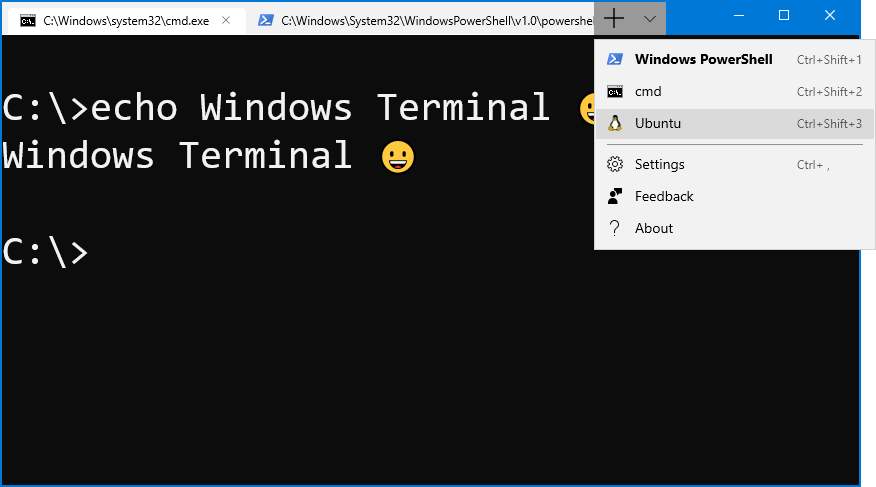
The PowerShell ISE is more powerful. It includes a script editor with syntax highlighting, a command pane, and an output pane all in one window. This makes it much easier to write, test, and debug longer scripts. For now, we'll focus on commands that work in either environment.
Understanding Cmdlets
The building blocks of PowerShell are commands called cmdlets (pronounced "command-lets"). They follow a simple, predictable naming convention: Verb-Noun. The verb describes the action to take, and the noun describes what the action affects.
This
Verb-Nounstructure makes PowerShell commands easy to understand and guess. If you want to find a running application, you might try a command with the verbGetand the nounProcess.
Let's look at an example. The cmdlet to see a list of all running processes on your computer is Get-Process.
Get-Process
Here are a few common verbs you'll encounter:
| Verb | Action |
|---|---|
| Get | Retrieve information. |
| Set | Change a value. |
| Start | Begin an operation. |
| Stop | Halt an operation. |
| New | Create a new resource. |
Many cmdlets also accept parameters, which are extra pieces of information that modify the command's behavior. For example, to get information about a specific process, like Chrome, you would use the -Name parameter.
Get-Process -Name chrome
Finding Your Way Around
You don't need to memorize every cmdlet. PowerShell has a built-in help system that is incredibly useful. The Get-Help cmdlet is your best friend when you're starting out.
To get help on any cmdlet, just type Get-Help followed by the cmdlet's name.
# Get detailed information about the Get-Process cmdlet
Get-Help Get-Process
If you want to see examples of how to use a cmdlet, add the -Examples parameter.
Get-Help Get-Process -Examples
What if you don't know the name of the cmdlet you need? You can use Get-Command to search for commands. You can use wildcards (*) to search for patterns. For instance, to find all commands that have to do with services:
# Find all commands with "Service" in their name
Get-Command -Noun *Service*
This command will show you cmdlets like Get-Service, Start-Service, Stop-Service, and New-Service, reinforcing the Verb-Noun pattern and helping you discover what's possible.
Time to review these core concepts.
Let's test your understanding.
What is the primary purpose of PowerShell?
Which PowerShell environment is specifically designed with features like a script editor, syntax highlighting, and a debugging pane to make writing and testing longer scripts easier?
With these fundamentals, you have a solid starting point for exploring PowerShell. The key is to practice using Get-Help and Get-Command to discover new cmdlets and learn how they work.