PowerShell for Pi and AI Projects
PowerShell Basics
Your New Remote Control
Think of your computer's operating system as a house. You can walk around and interact with things using a graphical user interface, or GUI. That's like using light switches and doorknobs. But what if you had a central remote control that could do anything, from dimming the lights to locking all the doors at once? That's PowerShell. It's a command-line tool that gives you direct, powerful control over Windows.
Shell
noun
A user interface for accessing the services of an operating system. It's the program that takes your commands and gives them to the computer to execute.
Unlike the old , which was like a simple set of keys, PowerShell is a smart remote. It's built on a framework called .NET, which lets it handle complex information, not just text. It’s both a shell for running commands and a language for writing scripts to automate tasks.
You might see two versions: Windows PowerShell (often with a blue icon) comes pre-installed on Windows. PowerShell 7 (or higher, with a black icon) is a separate, newer installation. We'll stick to the basics that work in both, but it's good to know the newer version is cross-platform, meaning it also runs on Linux and macOS.
The Language of Commands
PowerShell's best feature for beginners is its predictable command structure: Verb-Noun. You pair an action (the verb) with a thing you want to act on (the noun). This makes commands easy to guess and remember. For example, to get a list of running services, you use Get-Service. To stop a specific process, you might use Stop-Process.
This Verb-Noun pattern applies to all native PowerShell commands, which are called 'cmdlets'.
Here are some of the most common verbs you'll encounter:
| Verb | Purpose |
|---|---|
Get | Retrieve information about something. |
Set | Define or change something. |
Start | Begin an operation or process. |
Stop | Halt an operation or process. |
New | Create a new resource. |
Remove | Delete an existing resource. |
Let's Get Started
First, you need to open PowerShell. On any modern Windows machine, just press the Windows key, type "PowerShell", and press Enter. An application window with a blinking cursor will appear. This is your command line.
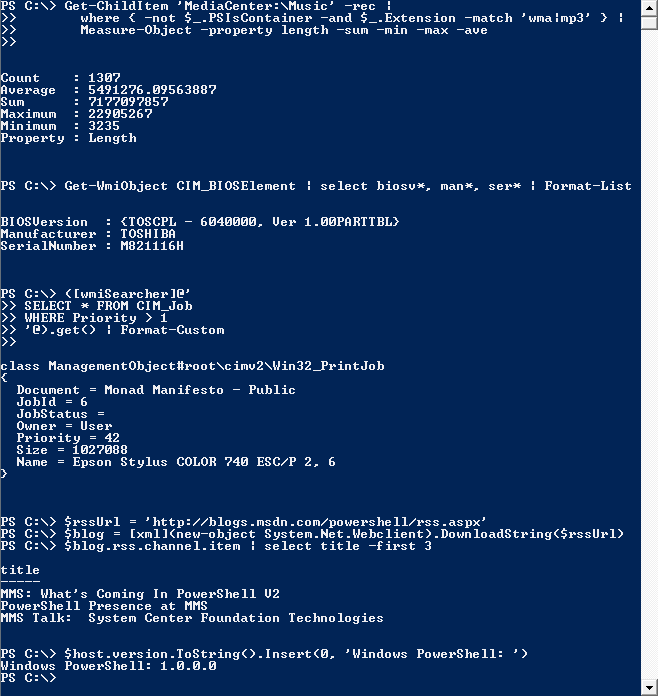
Let's try a few fundamental commands for navigating the file system.
To find out where you are, use
Get-Location.
PS C:\Users\YourName> Get-Location

Path
----
C:\Users\YourName
This command tells you the current directory, or folder, you're in. Now, let's change our location. To move into a different folder, like your Desktop, use Set-Location.
PS C:\Users\YourName> Set-Location Desktop
Your prompt will change to PS C:\Users\YourName\Desktop>, showing you've successfully moved. PowerShell uses for common commands to make things faster. For Get-Location, you can type pwd. For Set-Location, you can use cd, which you may know from other command-line tools.
Once you're in a folder, you'll want to see what's inside. For that, use the Get-ChildItem cmdlet. Its aliases are ls (from the Linux world) and dir (from the old Command Prompt).
PS C:\Users\YourName\Desktop> Get-ChildItem
This will list all the files and folders on your Desktop.
Getting Help
You can't memorize everything, and you don't have to. PowerShell has a fantastic built-in help system. If you want to know more about any command, just use Get-Help followed by the command name.
PS C:\> Get-Help Get-ChildItem
This will give you a full description of the command, its syntax, and all the parameters you can use with it. If you're not even sure what command to use, Get-Command can help you search. For example, if you want to find commands related to processes, you can use a wildcard (*).
PS C:\> Get-Command *-Process*
This command searches for any cmdlet that has "Process" in its name, helping you discover commands like Get-Process, Start-Process, and Stop-Process. With these basic navigation and help commands, you have the tools to start exploring your system with PowerShell.
What is the primary advantage of PowerShell over the traditional Command Prompt?
What is the standard naming convention for PowerShell commands, also known as cmdlets?