PowerShell Essentials for Beginners
PowerShell Basics
What Is PowerShell?
PowerShell is a command-line tool and scripting language developed by Microsoft. Think of it as a supercharged version of the classic Command Prompt. While you can use it to navigate your file system just like the old Command Prompt, its real strength lies in automating tasks and managing system configurations.
Initially a Windows-only tool, PowerShell is now cross-platform, meaning you can use it on Windows, macOS, and Linux. It's built on the .NET framework, which allows it to work with structured data like JSON and XML, not just plain text. This makes it incredibly powerful for system administrators and developers who need to automate complex, repetitive tasks.
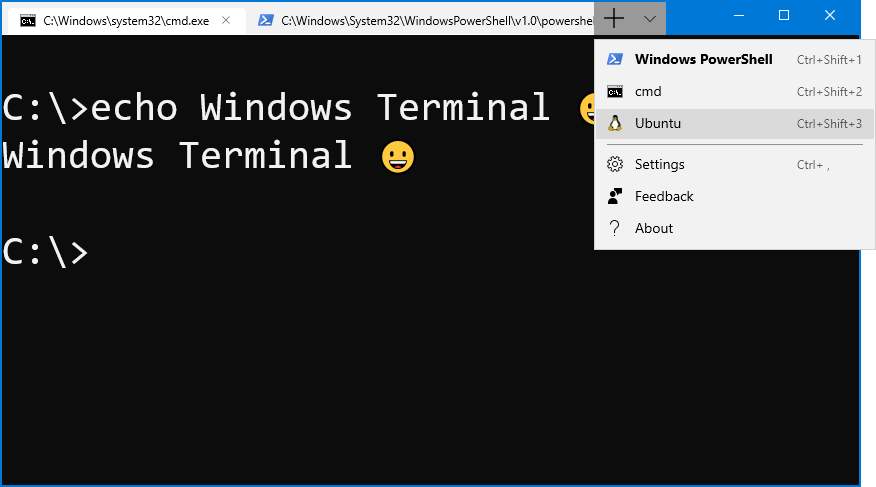
The core commands in PowerShell are called "cmdlets" (pronounced command-lets). They follow a consistent Verb-Noun naming convention, like Get-Process or Stop-Service. This structure makes the commands intuitive and easier to remember once you get the hang of it.
Installation and Setup
Most modern versions of Windows come with an older version called Windows PowerShell pre-installed. However, the latest, open-source version is just called PowerShell (it used to be called PowerShell Core). This is the version you'll want to use for the newest features and for working on non-Windows systems.
On Windows, the easiest way to install it is using the Windows Package Manager (winget) from a Command Prompt or an existing PowerShell terminal.
winget install --id Microsoft.PowerShell --source winget
For macOS, you can use Homebrew (brew install --cask powershell), and for most Linux distributions, you can find it in your system's package manager.
Once installed, you can launch it by searching for "PowerShell" in your start menu or by typing pwsh in another terminal.
Navigating and Basic Commands
When you open PowerShell, you'll see a prompt that looks something like this:
PS C:\Users\YourName>
This tells you that PowerShell is active (PS) and shows your current location in the file system. From here, you can start running commands.
Let's try a few basic cmdlets. To see a list of all the processes running on your computer, you can use Get-Process.
Get-Process
That's a lot of information! You can also use commands you might already know from the Command Prompt or Linux, like cd to change directories and ls (or dir) to list the files and folders in the current directory.
# List items in the current directory
Get-ChildItem

# This also works (it's an alias for Get-ChildItem)
ls
One of the most useful commands is Get-Help. You can use it to learn about any other command. If you want to know what Get-Process does and what options it has, just ask for help.
Get-Help Get-Process
Using aliases like
lsandcdmakes PowerShell feel familiar to users coming from other shells, but it's good practice to learn the full cmdlet names likeGet-ChildItemandSet-Location.
What is the standard naming convention for PowerShell cmdlets?
True or False: The latest version of PowerShell is a Windows-only tool.
That's a quick look at the fundamentals. You now know what PowerShell is, how to get it running, and how to execute your first few commands. From here, you can begin exploring its power for automation.