PowerPoint Presentation Design Mastery
PowerPoint Basics
Getting Started in PowerPoint
When you first open PowerPoint, you'll see options to start a new presentation. You can choose a pre-made template with existing colors and fonts, or you can begin with a blank canvas. For learning the ropes, let's start with a "Blank Presentation." This gives you a clean slate: a single title slide waiting for your ideas.
Exploring the Interface
The PowerPoint window might look busy at first, but it’s organized into a few key areas that you’ll use all the time. Getting to know them is the first step to feeling comfortable.
Let's break these down:
- The Ribbon: This is the toolbar that runs across the top of your screen. It’s organized into tabs like Home, Insert, and Design. Each tab contains groups of related tools. The Home tab, for example, has all your basic text formatting options.
- Thumbnail Pane: This is the vertical column on the left. It shows small preview images (thumbnails) of all the slides in your presentation. You can click a thumbnail to jump directly to that slide or drag them to reorder your presentation.
- Slide Pane: This is your main workspace in the center. Whatever slide you select in the thumbnail pane appears here, ready for you to edit.
- Notes Section: Located at the bottom, this space is for your private speaker notes. Anything you type here is visible to you during a presentation but not to your audience. It's perfect for reminders, stats, or quotes you don't want to forget.
Building Your First Slides
Every new slide you add is based on a layout. A layout is just a pre-arranged set of placeholders for things like titles, text, and pictures. Using them keeps your presentation looking consistent and organized.
To add a slide, go to the Home tab on the ribbon and click the "New Slide" button. You can either click the top half of the button to add a slide with the default "Title and Content" layout, or click the bottom half to choose a different layout, like "Title Only" or "Blank."
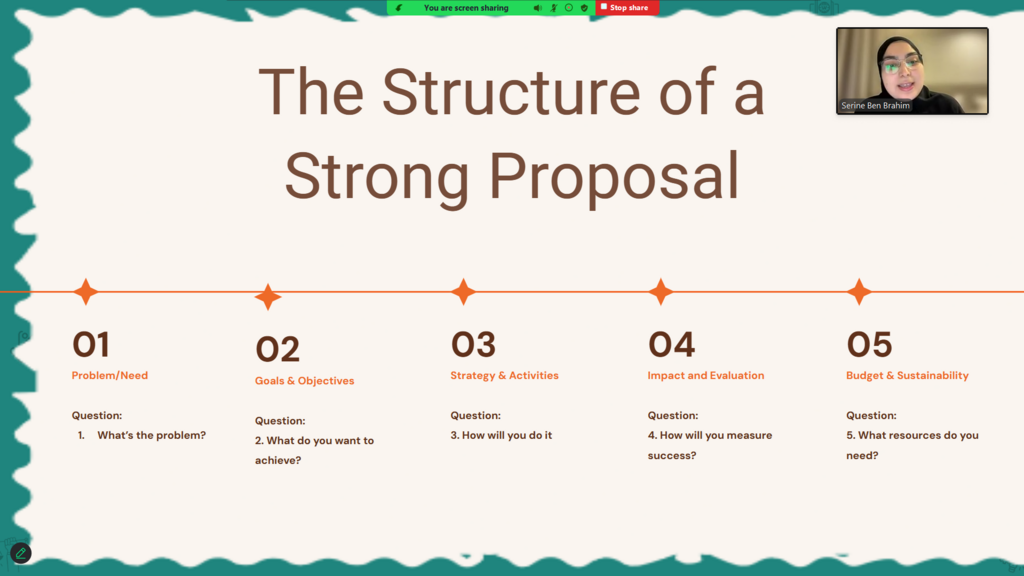
Once you have a slide, just click inside a text box that says "Click to add title" or "Click to add text" and start typing. You can format your text using the tools in the Home tab. Common options include:
- Font: Change the typeface and size.
- Emphasis: Make text bold, italicized, or underlined.
- Lists: Create bulleted or numbered lists to organize information.
- Alignment: Align your text to the left, center, or right of the text box.
Pro tip: Keep text on slides to a minimum. Use keywords and short phrases. Your slides should support what you're saying, not be a script for the audience to read.
Saving Your Work
It's a good habit to save your presentation early and often. To save for the first time, go to the File tab and choose Save As. This lets you pick a location on your computer and give your presentation a name. After that, you can just click the floppy disk icon in the top-left corner or press Ctrl+S (Cmd+S on Mac) to save any changes.
PowerPoint presentations are typically saved as a .pptx file. This format preserves all your text, formatting, and (once you learn to add them) images and animations.
Now that you know your way around the basics, let's test your knowledge.
What is the primary function of the Ribbon in PowerPoint?
The vertical column on the left that shows small previews of all your slides is called the __________.
With these fundamentals, you're ready to start creating simple, clean presentations.