Photoshop Essentials
Photoshop Interface
Your Digital Art Studio
Opening Photoshop for the first time can feel like walking into a pilot's cockpit. There are buttons, menus, and panels everywhere. But don't worry, each part has a specific job, and learning where things are is the first step to feeling comfortable.
Think of the Photoshop interface as your personal art studio. Everything you need is within reach, you just need to know what it's called and where to find it. Let's take a quick tour of the main layout.
The Core Components
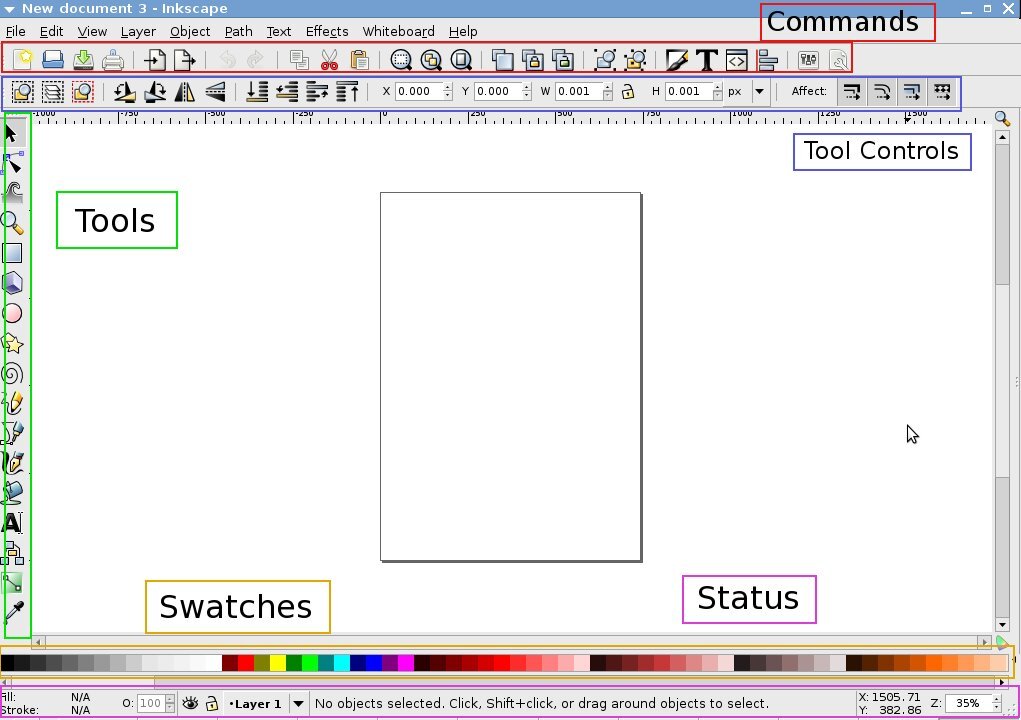
Your workspace is built around a few key areas. At the center of it all is the Canvas. This is your digital document, whether it's a photo, a blank slate for a painting, or a graphic design project. It's the main stage where all your creative work happens.
At the very top of the screen is the Menu Bar. You'll see familiar words like File, Edit, and View. This is the command center where you can find nearly every function, from saving your work to applying complex filters.
To the left, you'll typically find the Toolbar. This is your toolbox, holding all the creative instruments you'll use to edit and create. It has selection tools, brushes, the eraser, the text tool, and much more. Simply click a tool to activate it.
Notice that some tool icons have a tiny triangle in the bottom corner. This means more tools are hiding underneath. Click and hold the icon to see them.
Directly connected to the Toolbar is the Options Bar, which runs along the top of your screen, just below the Menu Bar. This bar is dynamic; its contents change depending on which tool you've selected. If you pick the Brush Tool, the Options Bar will show settings for brush size, hardness, and blending mode. If you switch to the Type Tool, it will show font choices, text size, and alignment.
Finally, on the right side of the screen are the Panels. These are smaller windows that give you deep control over your project. You'll find panels for managing colors, adjusting image properties, viewing your document's history, and most importantly, organizing layers. Panels are the heart of Photoshop's power.
Customizing Your Space
One of the best things about Photoshop is that you can rearrange the interface to fit your workflow. You're not stuck with the default layout.
Panels can be dragged around, grouped together, or closed entirely. You can click and drag a panel's tab to move it. Drag it to the edge of another panel to "dock" them together, or pull it away from the edge to let it float freely. You can also save your favorite layouts as a custom workspace by going to Window > Workspace > New Workspace.
Photoshop also comes with several preset workspaces tailored for specific tasks like painting, photography, or web design. You can switch between these anytime from the same Window > Workspace menu.
Navigating Your Canvas
When you're working on an image, you'll constantly need to zoom in to focus on details and zoom out to see the bigger picture. The two most important tools for this are the Zoom Tool and the Hand Tool.
The Zoom Tool, which looks like a magnifying glass, lets you zoom in and out. Select it, then click on your canvas to zoom in. To zoom out, hold the Alt (Windows) or Option (Mac) key while you click.
A faster way to zoom is by using keyboard shortcuts. Press Ctrl + (Windows) or Cmd + (Mac) to zoom in, and Ctrl - or Cmd - to zoom out.
The Hand Tool, which looks like a hand, allows you to pan around your image when you're zoomed in. It's like sliding a physical photo around on a desk. Just select the tool, then click and drag on the canvas to move your view.
The quickest way to use the Hand Tool is to simply hold down the spacebar. Your cursor will temporarily turn into a hand, allowing you to pan. When you release the spacebar, you'll switch back to the tool you were using before.
In the Photoshop interface, what is the name of the main area where you create and edit your document?
You've selected the Brush Tool. Where would you find the specific settings for that tool, such as its size and hardness?
Now that you're familiar with the basic layout, you can start exploring what each tool and panel does. Getting comfortable with the interface is the foundation for everything else you'll do in Photoshop.