Phone Data Recovery After Reset
Understanding Factory Resets
The Ultimate Reset
A factory reset, sometimes called a hard reset or master reset, is the process of restoring a smartphone to its original manufacturer settings. It’s like a digital spring cleaning that wipes the slate completely clean.
Think of it as returning the device to the exact state it was in when you first took it out of the box.
This process erases all the information stored on the device, including your apps, photos, contacts, custom settings, and personal accounts. The operating system and pre-installed manufacturer apps remain, but everything you've added since day one is removed. The main purpose is to delete all user data from the device, either for security or troubleshooting reasons.
When to Reset
A factory reset isn't something you do often, but it's a powerful tool in specific situations. Here are the most common reasons to perform one:
-
Selling or Giving Away Your Device: Before you hand your phone over to someone else, you must wipe your personal data. A factory reset ensures your photos, messages, and account information don't fall into the wrong hands.
-
Troubleshooting Major Issues: If your phone is constantly crashing, running incredibly slow, or plagued by glitches that simpler fixes can't solve, a factory reset is often the last resort. It can resolve deep-seated software problems by giving the system a fresh start.
-
Removing Viruses or Malware: In the unfortunate event that your device gets infected with persistent malware, a factory reset is one of the most effective ways to remove it completely.
-
Starting Fresh: Sometimes, you just want to declutter. Over years of use, phones accumulate countless apps and files. A reset lets you start over with only the essentials.
Crucially, always back up your important data before you start a factory reset. Once the process begins, there's no going back.
How it Works
The most common way to initiate a factory reset is through the device's settings menu. On Android, you'll typically find the option under Settings > System > Reset options > Erase all data (factory reset). The phone will ask you to confirm several times, making sure you understand that all your data will be deleted.
Once you confirm, the device will reboot and begin the wiping process, which can take several minutes. When it's finished, you'll be greeted by the original setup screen, just like with a brand-new phone.

But what if your phone won't even turn on properly? For situations where you can't access the settings menu, there's another method: Recovery Mode. This is a special, bootable partition that exists separately from the main Android operating system.
To access it, you typically turn the phone off and then press a combination of physical buttons (like Power and Volume Down). From the Recovery Mode menu, you can navigate to an option like 'Wipe data/factory reset' to perform the same action.
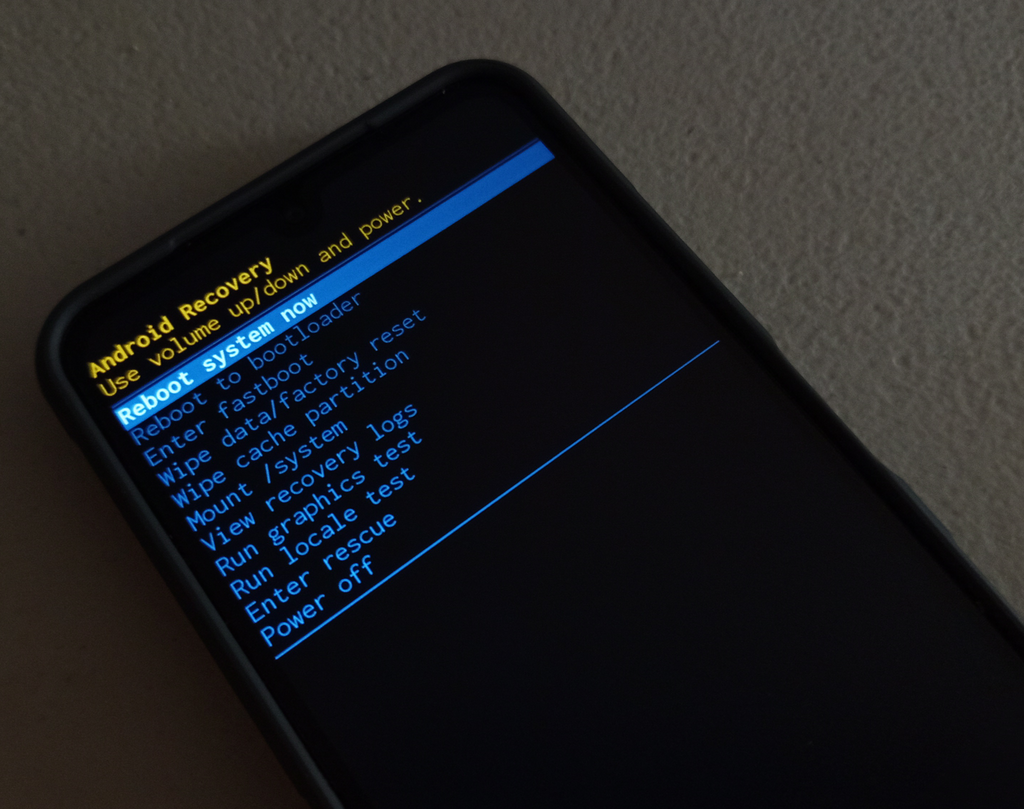
Regardless of the method, the outcome is the same. The phone's internal storage is wiped, and it restarts as a clean slate, ready to be set up from scratch or passed on to a new owner.
Ready to check your understanding?
Which of the following is NOT a common reason to perform a factory reset?
True or False: A factory reset deletes the phone's operating system, requiring you to reinstall it from a computer.
Understanding when and how to perform a factory reset is a key skill for managing your device securely and effectively over its lifespan.