PC Hard Drive Cleanup Masterclass
Understanding Disk Space
Where Your Files Live
Every file on your computer, from your operating system to your family photos, lives on a storage drive. Think of it as your computer's long-term memory. For decades, the primary type of storage was the Hard Disk Drive, or HDD.
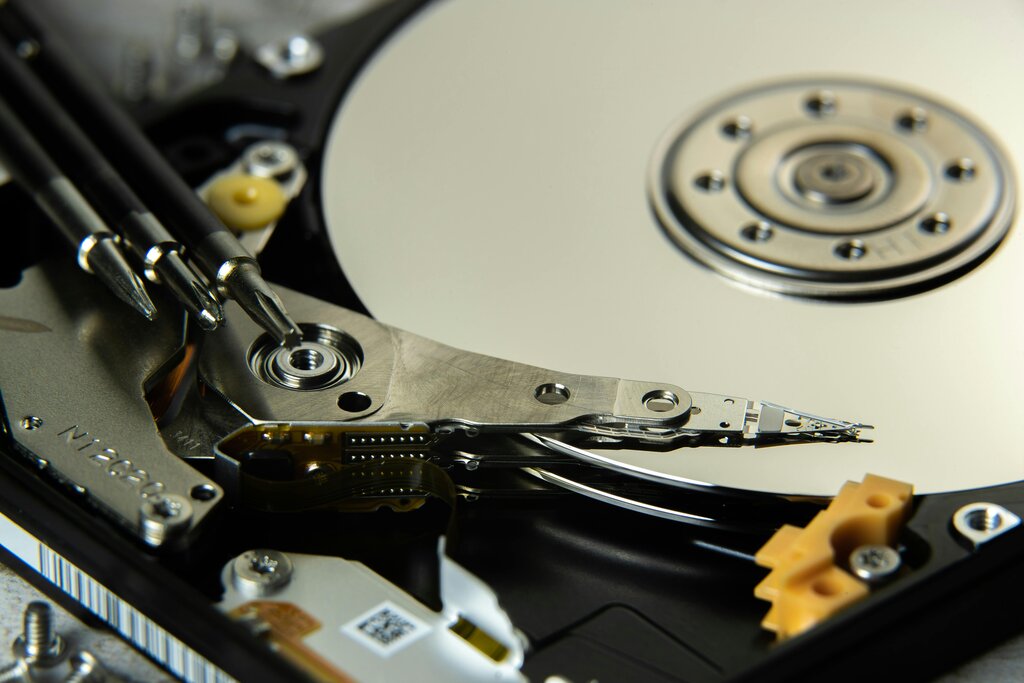
An HDD works like a tiny, incredibly fast record player. It has spinning magnetic platters that store data and a read/write head on a mechanical arm that moves back and forth to access it. When you save a file, the head magnetically writes the data onto a specific spot on a platter. When you open a file, it moves to that spot to read it.
More modern computers use Solid-State Drives, or SSDs. Unlike HDDs, SSDs have no moving parts. They store data on interconnected flash memory chips, similar to a USB flash drive or a smartphone's memory.
Because SSDs are purely electronic, they are much faster, quieter, and more durable than their mechanical HDD counterparts. Accessing a file is nearly instant because there's no need to wait for a platter to spin up or a physical head to move.
Organizing the Space
A brand new drive is just a vast, empty space. To make it useful, it needs a system for organizing files. This system is called a file system. It acts like a digital librarian, keeping a detailed index of where every piece of data is located so your computer can find it quickly. Without it, finding a file would be like searching for a single book in a library with no catalog and no shelves.
file system
noun
A system that controls how data is stored and retrieved. It manages files and folders, and keeps track of their location on a storage drive.
Storage drives can also be divided into separate sections called partitions. A single physical drive can be partitioned into two or more virtual drives. For instance, you might see a C: drive and a D: drive on a computer that only has one physical disk inside. This is often done to separate the operating system files from personal data, making it easier to manage and back up information.
Scattered Files and Fragmentation
When you first save a file to a new HDD, the operating system writes it into a neat, continuous block. But as you use your computer, things get messy. You edit files, making them larger. You delete other files, leaving empty gaps.
Eventually, when you save a new file, the operating system might not find a single empty block large enough to hold it. So, it breaks the file into pieces and tucks them into the available gaps scattered across the drive. This is called fragmentation.
Fragmentation forces the HDD's read/write head to jump all over the platter to assemble the different pieces of a single file, which slows down your computer. Think of it as reading a book whose pages have been torn out and shuffled. You can still read it, but it takes much longer because you have to hunt for the next page.
Because SSDs have no moving parts and can access any memory chip instantly, fragmentation doesn't cause the same performance problems. Modern operating systems are smart enough to manage SSDs differently and don't require manual defragmentation.
Why Free Space Matters
Your computer's operating system and applications are constantly creating temporary files to function properly. When you open a large document or edit a video, the software needs working space on your drive, like an artist needs an empty canvas. If the drive is nearly full, the system has to struggle to find this space, which can dramatically slow down performance.
A full drive also makes fragmentation worse on an HDD, as there are fewer large, continuous blocks of free space available for new files.
Ideally, you should have 15 to 20 percent of free storage space on your drive.
Keeping a healthy amount of free space ensures your computer has the room it needs to operate smoothly and efficiently.
What is the primary physical difference between a Hard Disk Drive (HDD) and a Solid-State Drive (SSD)?
What is the main purpose of a file system?