Operating System Fundamentals
Operating System Basics
What is an Operating System?
Think of an operating system (OS) as the general manager of a busy restaurant. The manager doesn't cook the food or serve the tables, but they make sure the chefs have the ingredients they need, the waiters know which tables to serve, and the whole operation runs smoothly. Without the manager, you'd have chaos.
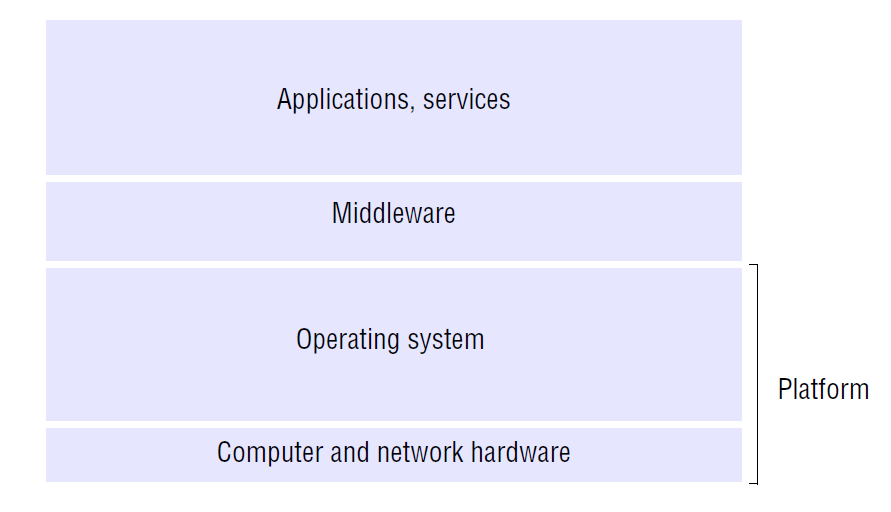
An operating system does the same for your computer. It's the essential software that manages all the hardware and software resources. It acts as a bridge, translating your requests—like clicking an icon or saving a file—into instructions that the computer's hardware can understand and execute.
An Operating System (OS) is the essential software layer that bridges the gap between a computer's hardware and its users.
Every computer, from your smartphone to a massive server, needs an operating system to function. It's the foundation upon which all other programs, or applications, are built. It handles everything in the background so you can write an email, play a game, or browse the web without needing to know the technical details of how the processor, memory, and storage devices work together.
The Core Components
While an OS is complex, its functions can be broken down into a few key components that work together. The most important of these are the kernel, the user interface, and system calls.
Kernel
noun
The central component of an operating system that manages the computer's resources and provides the most basic level of control over all its hardware.
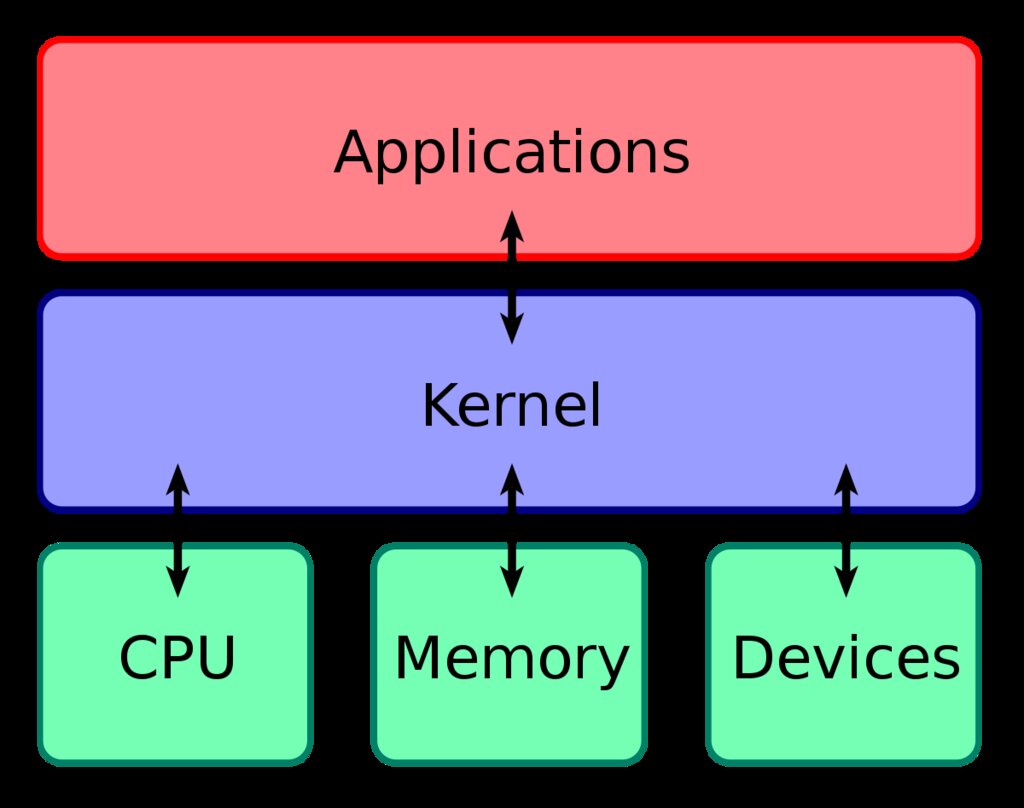
The kernel is the heart of the operating system. When you boot up your device, the kernel is the first piece of the OS to be loaded into memory. It stays there for as long as the computer is on, managing critical tasks. It handles communication between the software and hardware, deciding which programs get to use the central processing unit (CPU) and for how long. Think of it as the ultimate gatekeeper for the system's resources.
Next is the user interface (UI), which is how you interact with the computer. There are two main types you'll encounter.
A Command-Line Interface (CLI) requires you to type text commands to tell the computer what to do. It's powerful and efficient for developers and system administrators but can be intimidating for beginners.
A Graphical User Interface (GUI) is what most of us use daily. It uses windows, icons, menus, and a pointer (controlled by a mouse or touch) to make interaction visual and intuitive. When you tap an app icon on your phone, you're using a GUI.
| Feature | Command-Line Interface (CLI) | Graphical User Interface (GUI) |
|---|---|---|
| Interaction | Text commands | Visual elements (icons, menus) |
| Precision | High | Lower |
| Ease of Use | Steeper learning curve | Intuitive and easy to learn |
| Resource Use | Very low | Higher (uses more memory/CPU) |
Finally, we have system calls. Applications can't just access hardware directly—that would be insecure and chaotic. Instead, when a program needs the OS to do something for it, like read a file from the hard drive or send data over the network, it makes a special request to the kernel. This request is called a system call.
It's like ordering at a restaurant. You (the application) don't go into the kitchen (the hardware) yourself. You give your order to the waiter (the system call), who then communicates your request to the kitchen staff (the kernel).
Types of Operating Systems
Operating systems aren't one-size-fits-all. They are designed for different purposes, which has led to several distinct types. Let's look at three foundational types.
Batch Processing Systems These were some of the earliest operating systems. Users would prepare their jobs (programs and data) offline, often on punch cards, and submit them to the computer operator. The OS would then run these jobs in a batch, one after another, without any direct user interaction. It was efficient for repetitive tasks but not interactive at all.
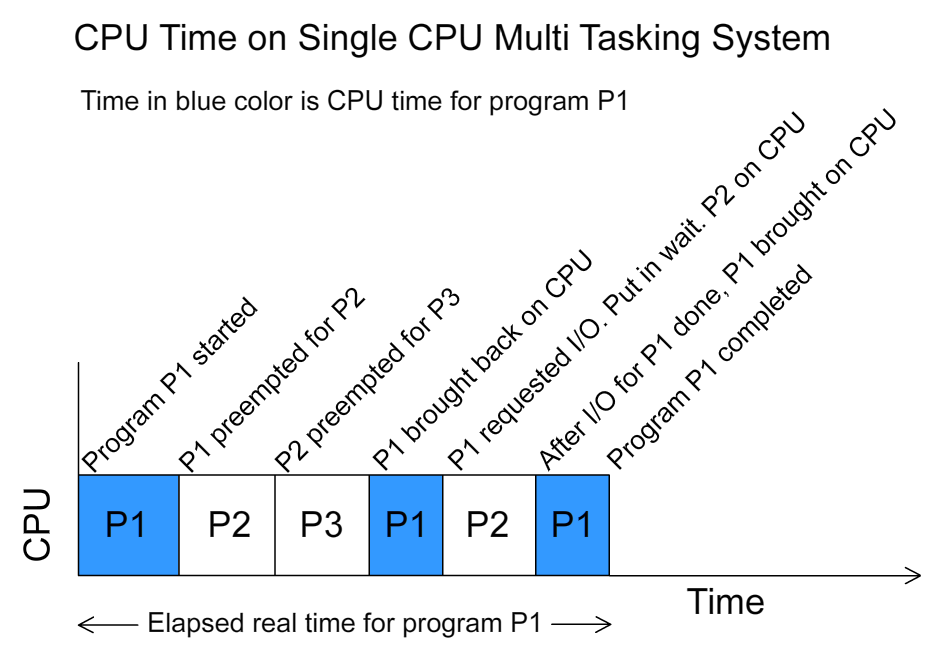
Time-Sharing Systems This was a major leap forward. Time-sharing systems allow multiple users to interact with a single computer simultaneously. The OS does this by rapidly switching the CPU between different jobs, giving each one a tiny slice of time. It happens so fast that it creates the illusion that each user has the computer all to themselves. This is the basis for most modern operating systems, from Windows to macOS and Linux.
Real-Time Operating Systems (RTOS) In some systems, getting the right answer is not enough; you have to get it at the right time. An RTOS is designed to process data as it comes in, without buffer delays. These systems are used in time-critical environments where a delay could be catastrophic. Think of the anti-lock braking system in a car, the controls for an airplane, or medical imaging equipment. The OS must guarantee a response within a strict timeframe.
Ready to check your understanding?
Based on the restaurant analogy, what is the primary role of an operating system?
What is the core component of the OS that manages communication between software and hardware?
Understanding these fundamentals provides a solid base for exploring how computers manage the complex tasks we ask of them every day.