Odoo Administration Essentials
Odoo Installation
Getting Odoo Up and Running
Installing Odoo is the first step toward managing your business processes in one place. Before you start, it’s important to make sure your system is ready. Odoo is flexible and can run on different operating systems, but a Linux-based server, like Ubuntu, is the most common and well-documented choice for production.
Setting up Odoo correctly is crucial for its smooth operation.
Think of it like building a house. You need a solid foundation before you can put up walls. For Odoo, the foundation is your server's hardware and software. Here are the general requirements for a small installation.
| Component | Minimum Requirement |
|---|---|
| Operating System | Ubuntu 22.04 or later (or other Debian-based Linux) |
| CPU | 2 Cores |
| RAM | 4 GB |
| Storage | 20 GB SSD |
| Database | PostgreSQL 14 or later |
These are minimums. If you plan to have many users or run a lot of apps, you'll need more powerful hardware.
Preparation and Setup
First, you need to get the Odoo source code. You can download it directly from the Odoo website or clone it from their official GitHub repository. Using GitHub is often preferred because it makes updating to new versions easier.
Odoo comes in two main flavors: Community and Enterprise. The Community edition is free and open-source, offering a powerful set of core features. The Enterprise edition is a paid version with additional apps and hosting services. For this installation, we'll focus on the Community edition, which you can get from GitHub.
# Clone the specific version you want, for example, version 17.0
git clone https://github.com/odoo/odoo.git --depth 1 --branch 17.0 odoo
Before installing Odoo itself, you need to prepare the environment. Odoo is a Python application that relies on a PostgreSQL database to store all its data. You'll also need to install several Python libraries that Odoo depends on.
To keep things clean and avoid conflicts with other Python projects on your system, it’s a best practice to use a virtual environment.
A Python virtual environment is a best practice for any Python development or application deployment, including your Odoo 19 Ubuntu 24.04 Install.
A virtual environment is like a self-contained bubble for your project. It holds all the specific versions of the libraries Odoo needs without affecting the rest of your system.
Step-by-Step Installation
Let's walk through the main commands for installing Odoo on an Ubuntu server. First, update your system's package list and install PostgreSQL.
sudo apt-get update
sudo apt-get install postgresql -y
Next, create a new PostgreSQL user for Odoo. Odoo will use this user to connect to the database. It’s a good security practice to create a dedicated user for each application.
sudo su - postgres -c "createuser --createdb --username postgres --no-createrole --no-superuser odoo17"
Now, we install Python and the tools needed to build Odoo's dependencies.
sudo apt-get install python3-pip python3-venv -y
sudo apt-get install -y git python3-dev libxml2-dev libxslt1-dev zlib1g-dev libsasl2-dev libldap2-dev build-essential libssl-dev libffi-dev libmysqlclient-dev libjpeg-dev libpq-dev
With the system dependencies installed, navigate to where you cloned the Odoo source code. We'll install the required Python libraries using the requirements.txt file provided by Odoo. This command tells Python's package manager, pip, to install all the libraries listed in the file.
# Assuming you cloned Odoo into a directory named 'odoo'
cd odoo
pip3 install -r requirements.txt
Finally, you need a way to generate PDF reports like invoices and sales orders. Odoo uses a tool called wkhtmltopdf for this. You'll need to download and install the correct version for your system.
Make sure to install version 0.12.6 of
wkhtmltopdf, as newer versions are not fully compatible with Odoo.
Verifying Your Installation
With everything installed, it's time to start the Odoo server. You can run it directly from the command line.
./odoo-bin
If the installation was successful, you'll see a series of log messages in your terminal. The last few lines should indicate that the server is up and running, typically on port 8069.
To see your new Odoo instance, open a web browser and navigate to your server's address followed by the port number, like http://your_server_ip:8069 or http://localhost:8069 if you installed it on your local machine.
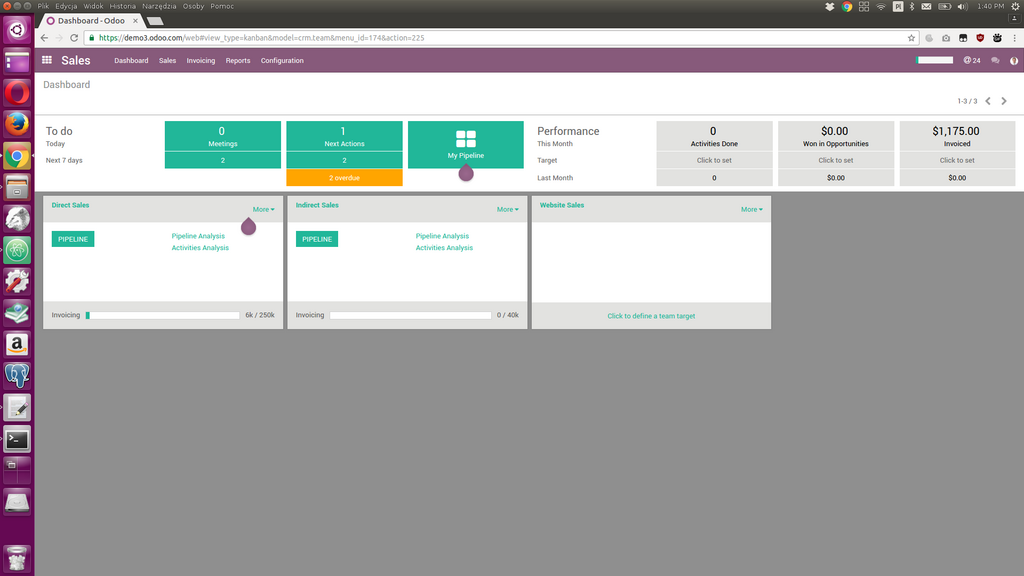
You should be greeted by the Odoo setup page. Here, you'll create your first database, set a master password, and provide details for the initial administrator user. Once you fill this out and create the database, your Odoo instance is ready to use.
That's it! You've successfully laid the foundation. Now you're ready to start exploring modules and configuring Odoo for your business needs.
Which operating system is the most common and well-documented choice for running a production Odoo server?
Odoo is a Python application that relies on which type of database to store its data?