Obsidian and Markdown Commands
Document Anatomy
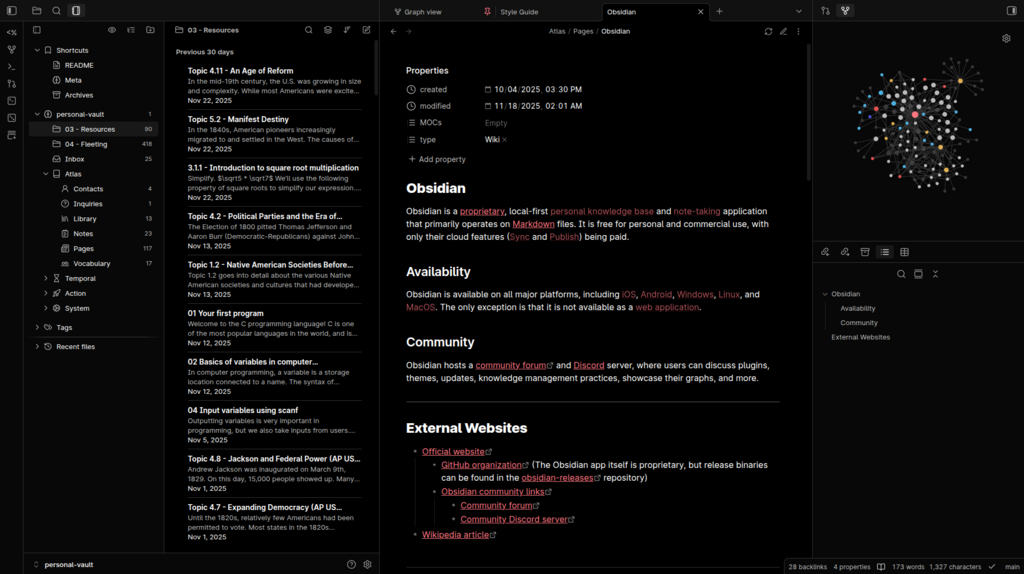
When you open to build your digital vault, you are looking at a blank canvas. To keep your thoughts from turning into a chaotic pile of words, you need a clear visual hierarchy. Just like a newspaper uses bold headlines to catch your eye before you dive into the paragraphs, your digital notes rely on structured headings to guide your brain through the information.
Heading Hierarchy with Hashes
In Markdown, creating a heading is incredibly simple: you just type the pound sign, or hash symbol (#), followed by a single space and your title text. The number of hashes you use determines the level of the heading, ranging from the largest H1 down to the smallest H6.
For instance, a main title uses a single hash, while a sub-topic uses two hashes:
# My Big Project (creates a Level 1 Heading)
## Specific Action Items (creates a Level 2 Heading)
Crucially, you must always include that single space after the hash characters. If you type #MyTitle without a space, Obsidian will interpret it as a metadata tag rather than formatting it as a structural heading.
Pro Tip: If you skip heading levels (like jumping straight from H1 to H4), you break the logical outline of your note. Always transition sequentially to keep your outline easy to read and navigate!