Notion Mastery for Organization
Notion Basics
Your Digital Workspace
Notion is an all-in-one tool for organizing your work and life. Think of it as a set of digital building blocks. You can use it for simple note-taking, tracking complex projects, or building a personal knowledge base. It's available on web, desktop, and mobile, so your workspace is always with you.
Unlike traditional apps that have a fixed structure, Notion gives you a blank canvas. This flexibility allows you to build exactly what you need, whether it's a to-do list, a travel planner, or a team wiki. It combines the functions of many different apps into one.
Notion has emerged as a powerful all-in-one workspace that combines the functionality of notes, databases, kanban boards, calendars, and more—all in a single, customizable interface.
The main screen is clean and simple. On the left, you'll find your navigation sidebar. This is where all your pages and nested pages live. The main area on the right is your active page, where you'll do all your creating and editing.
Everything is a Block
The most important concept to understand in Notion is the "block." Every piece of content you add to a page is a block. A paragraph of text is a block. An image is a block. A heading, a checklist item, or a bullet point are all individual blocks.
To create a new block, just start typing or press the + button that appears to the left of a new line. This will open a menu of block types you can choose from. You can add text, images, videos, to-do lists, and much more.
Think of blocks as individual pieces of content you can move, change, and combine in any way you like.
Because everything is a block, you can easily rearrange content on a page. Just click and drag the ⋮⋮ handle that appears next to any block to move it around. You can even drag blocks next to each other to create columns, giving you control over the layout of your page.
Creating and Organizing Pages
Pages are the foundation of your Notion workspace. A page can hold anything from a few lines of text to a complex system of nested pages and databases. To create a new page, click the + New Page button in your sidebar.
Pages can live inside other pages. This allows you to create a hierarchy and keep your information organized. For example, you might have a main page called "Projects," and inside it, a separate page for each project you're working on. This nesting structure is what makes Notion so powerful for knowledge management.
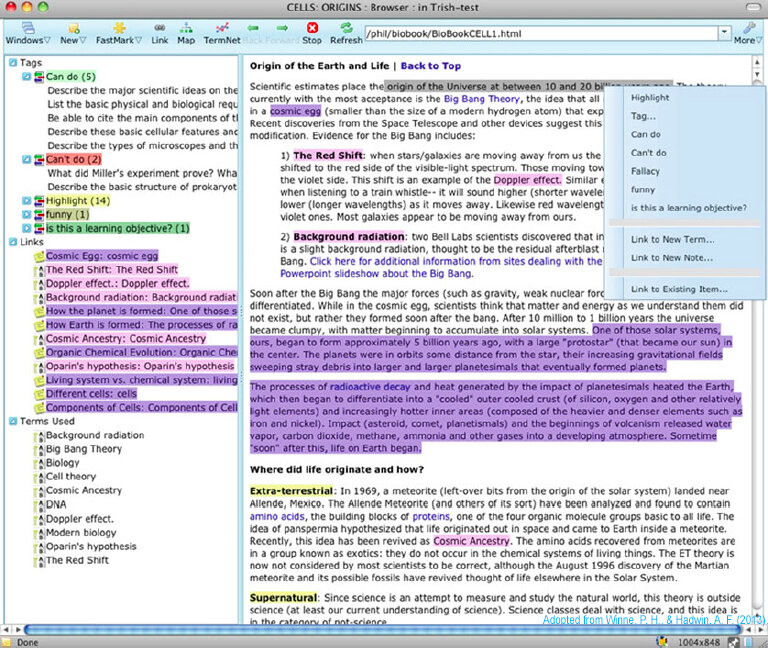
Once you have some text on a page, you can format it. Highlight any text to bring up the formatting toolbar. From here, you can make text bold, italic, or change its color. You can also turn a block of text into a heading, a quote, or a callout to make important information stand out.
Each page can also have its own icon and cover image. These small touches help you visually distinguish your pages and make your workspace feel more personal and organized.
Let's review these core concepts.
What is the fundamental building block of all content in Notion?
How can you create columns to place content side-by-side on a Notion page?