.NET MAUI Cross-Platform Development
Introduction to .NET MAUI
What is .NET MAUI?
.NET MAUI stands for .NET Multi-platform App UI. It’s an open-source framework from Microsoft that lets you build native apps for Android, iOS, macOS, and Windows from a single, shared codebase. Think of it as a "write once, run anywhere" tool for modern app development.
This is a big deal. Traditionally, if you wanted an app on both Android and iOS, you’d have to build two separate applications—one in Kotlin or Java for Android, and another in Swift or Objective-C for iOS. With .NET MAUI, you write your app's logic and user interface (UI) just one time using C# and another language called XAML.
.NET MAUI is the next step in the evolution of another Microsoft framework called Xamarin.Forms. It builds on the same ideas but modernizes the architecture to be faster, more flexible, and easier to use. It simplifies the project structure and boosts performance, making it a powerful choice for creating cross-platform apps.
Getting Set Up
To start building with .NET MAUI, you need Visual Studio 2022. It's the primary integrated development environment (IDE) for .NET development. If you don't have it installed, you can download the free Community edition from Microsoft's website.
During the installation process, Visual Studio will ask you which workloads you want to install. A workload is just a bundle of tools and components needed for a specific type of development. For .NET MAUI, you'll need to select one specific option.
In the Visual Studio Installer, find and select the workload named .NET Multi-platform App UI development. This will install the .NET MAUI SDK, templates, and all the necessary tools for building and running your apps.
Once the installation is complete, you're ready to create your first project. Launch Visual Studio 2022, and you'll be greeted with the startup screen. From here, you can create a new project.
Creating Your First App
Let's walk through creating a simple "Hello, World!" application. In Visual Studio, choose Create a new project. In the project template search box, type .NET MAUI to filter the options.
You'll see a few choices. Select the .NET MAUI App template and click Next. Give your project a name, like MyFirstMauiApp, choose a location to save it, and click Create.
Visual Studio will generate a new project for you. This starter project isn't empty; it's a small, functional app with a button that counts clicks. This gives you a working foundation to explore.
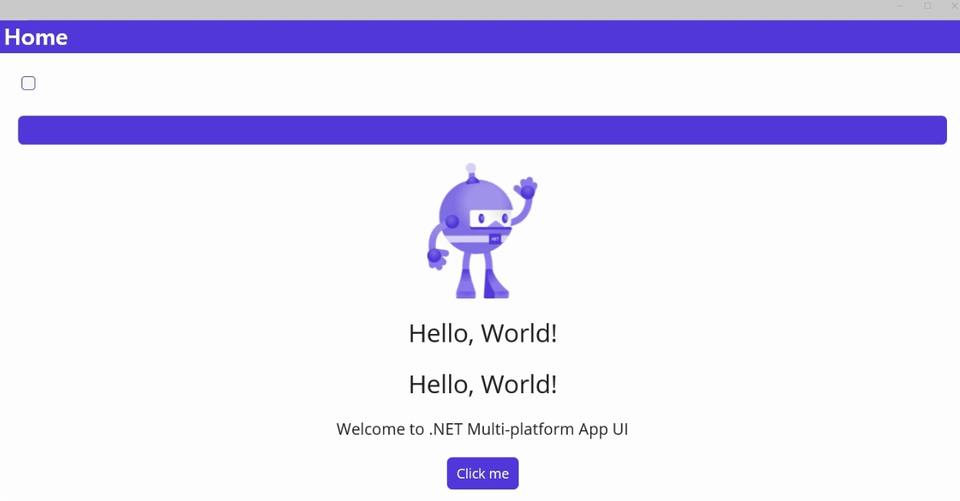
To run the app, look at the toolbar at the top of Visual Studio. You'll see a green play button. Next to it, there's a dropdown menu where you can choose your target. You can select an Android emulator, a connected Android device, your local Windows machine, or an iOS simulator (if you're on a Mac or connected to one).
Select a target and press the green button. Visual Studio will build and deploy the app. After a moment, you'll see your first .NET MAUI application running.
One Project, Many Platforms
One of the most powerful features of .NET MAUI is its single project structure. In the Solution Explorer panel in Visual Studio, you'll see just one project for your app. This is a major simplification compared to older frameworks where you had separate projects for each target platform (Android, iOS, etc.).
All your shared code, UI, and assets live together. The framework handles the platform-specific complexities behind the scenes. Let's look at the key parts of a new .NET MAUI project.
| File / Folder | Purpose |
|---|---|
Platforms | Contains platform-specific startup code. You'll rarely need to edit anything here. |
Resources | A shared location for app assets like images, icons, fonts, and raw data files. |
App.xaml.cs | The main entry point for your application logic. It defines the first page to show. |
MainPage.xaml | The XAML markup file that defines the layout and elements of your main user interface. |
MainPage.xaml.cs | The C# "code-behind" file where you write the logic for your main page. |
Your primary focus will be on the .xaml files for UI layout and the .xaml.cs files for the C# logic that powers the UI. For example, if you open MainPage.xaml, you'll see the code that creates the labels, button, and image on the default screen. If you open MainPage.xaml.cs, you'll find the C# code that runs when you tap the button.
What does the acronym MAUI in .NET MAUI stand for?
.NET MAUI is the evolution of a previous Microsoft framework. What was that framework's name?