Monetize Your Designs with Canva
Canva Basics
Getting Started in Canva
Canva is a design tool that makes it simple for anyone to create professional-looking graphics. You don't need any prior design experience to jump in and start making things. The platform is built to be intuitive, whether you're designing a social media post, a presentation, or a simple invitation.
The best part about using Canva is that you don't need to be a professional graphic designer to get started with it.
When you first log in, you'll land on your dashboard. This is your home base. From here, you can see your recent designs, access brand kits, and start a new project. The main features are easy to find. A search bar at the top lets you look for specific design types, like "Instagram story" or "resume." On the left, a navigation panel takes you to your projects, templates, and other tools.
Once you select a design type, you’ll enter the Canva editor. This is where the magic happens. The editor is your canvas. On the left side of the editor, you'll find the main toolbar with everything you need: templates, elements, text, uploads, and more. Your design-in-progress sits in the center, and any selected item will bring up a specific editing toolbar at the top.
Templates Are Your Best Friend
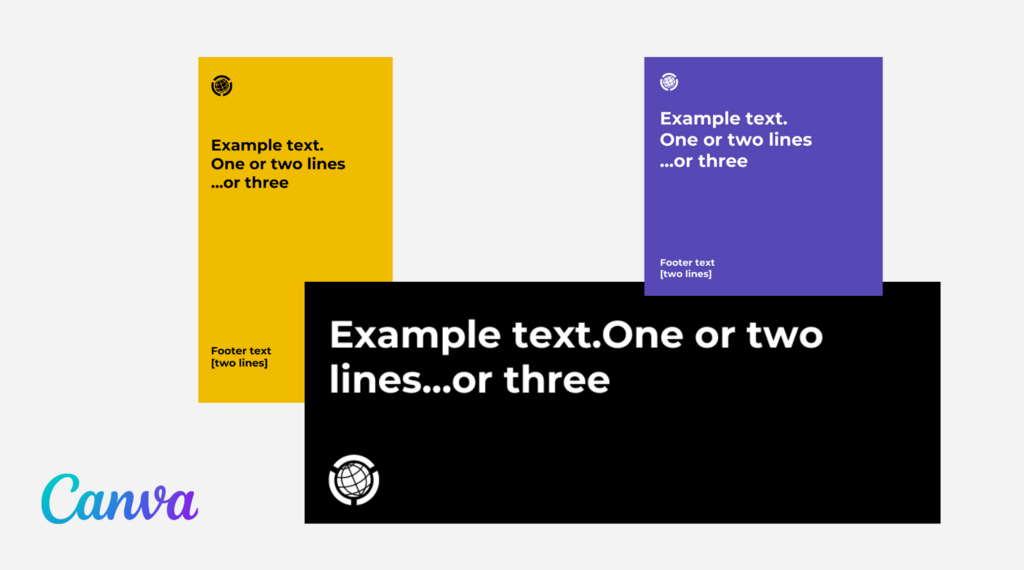
The fastest way to create something beautiful in Canva is by starting with a template. A template is a pre-made design that you can customize. It gives you a professional layout, color scheme, and font combination right from the start, saving you a ton of time.
Instead of creating your social media graphics from scratch, use Canva’s amazing library of templates, which you can use and customize — for free!
To find a template, simply use the search bar on your dashboard or in the editor. You can search for keywords like "birthday party" or broader categories like "brochure." Browse the results and click on one you like to open it in the editor. Every part of the template is editable, so you can change as much or as little as you want.
Making It Your Own
Once you have a template, it's time to personalize it. The most common changes involve text, images, and other visual elements.
To change text, just click on any text box in the template. You can type your own message and then use the toolbar at the top of the editor to change the font, size, color, spacing, and alignment. To add new text, click the "Text" tab in the left-side panel and drag a heading or paragraph box onto your design.
Pro-tip: Stick to two or three fonts at most to keep your design clean and professional. A simple sans-serif font for body text and a more decorative one for headlines often works well.
You can also swap out images or add new ones. To replace an existing photo, just drag a new one from the "Photos" or "Uploads" tab directly on top of it. Canva will automatically fit it into the same space. To add new visual elements, go to the "Elements" tab. Here, you'll find a huge library of photos, illustrations, shapes, and icons. Use the search bar to find what you need, then click or drag it onto your design. You can resize, rotate, and change the colors of most elements.
Saving and Sharing Your Work
Canva automatically saves your work as you go, so you don't have to worry about losing progress. All of your designs are stored in the "Projects" section of your dashboard.
When your design is finished, you'll want to export it. Click the "Share" button in the top-right corner of the editor. A menu will appear with several options. The most common one is "Download."
From the download menu, you can choose the file type. Here are the most common choices and when to use them:
- JPG: Best for photos and images with complex colors. It's a smaller file size.
- PNG: Ideal for graphics with transparent backgrounds, like logos or icons.
- PDF Standard: Good for documents that will be viewed online, like ebooks or reports.
- PDF Print: Use this for anything you plan to print professionally, like flyers or business cards. It provides the highest quality.
After selecting your file type and any other quality settings, click the "Download" button to save the file to your computer.
What is the primary function of the Canva dashboard?
According to the text, what is the fastest way to create a professional-looking design in Canva?
That's it for the basics. You now know how to navigate the interface, use templates, customize your designs, and export your final creation. The best way to learn is by doing, so try creating a few simple designs to get comfortable with the tools.