Modern Docker Mastery 2025
Modern Container Foundations
Beyond the Virtual Machine
For years, virtual machines (VMs) were the standard for isolating applications. Each VM bundles an application, its dependencies, and a complete guest operating system, all running on a hypervisor. This provides strong isolation but comes at a cost: each guest OS consumes significant CPU, RAM, and storage, leading to slow boot times and inefficient resource use.
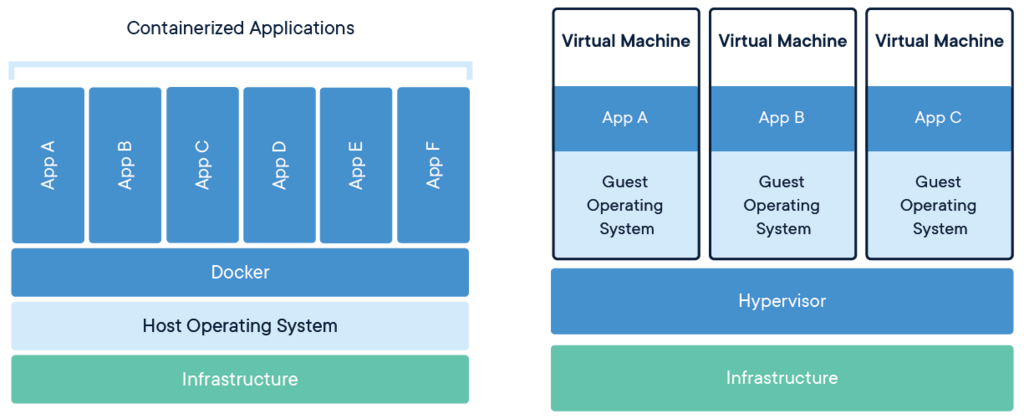
Containers take a more lightweight approach. Instead of virtualizing the hardware, they virtualize the operating system. A container packages an application and its dependencies into an isolated environment, but it shares the kernel of the host operating system. This direct access to the kernel means containers start in seconds and use far fewer resources.
The primary problem containers solve is the classic "it works on my machine" syndrome. By bundling the application with its specific libraries and configuration, a container creates a consistent, predictable environment that runs identically on a developer's laptop, a testing server, or a production cloud instance.
The Docker Engine
At the heart of this technology is the Docker Engine, a client-server application with three main components.
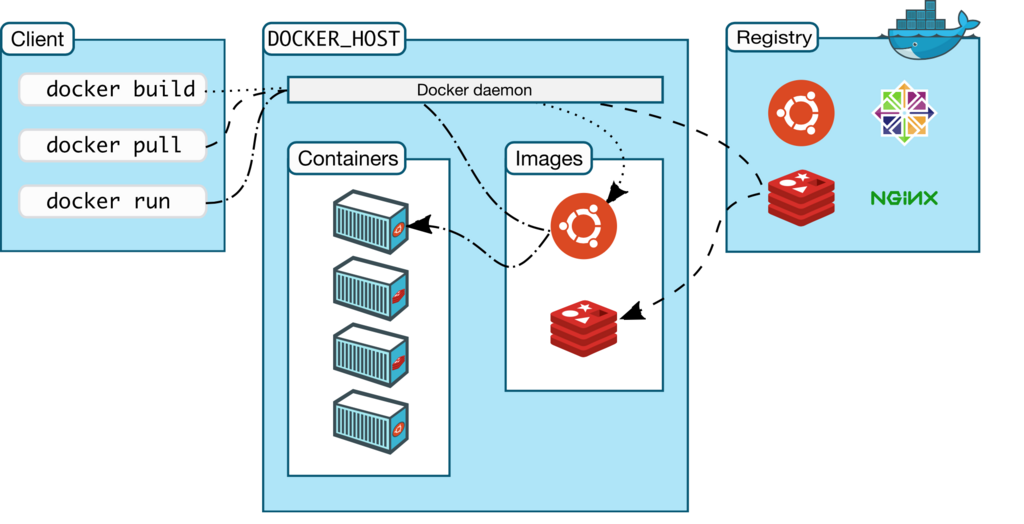
First is the Docker client, which is the command-line interface (CLI) tool that you interact with. When you type a command like docker run, you're using the client.
The client sends your commands to the Docker daemon (or dockerd), a persistent background process that manages Docker objects. The daemon builds, runs, and distributes your containers. It's the powerhouse doing all the heavy lifting.
Finally, the daemon doesn't run containers directly. It hands them off to like runc. These low-level tools are responsible for creating the container by interfacing with the operating system's kernel to set up the necessary isolation and namespaces.
Images and Containers
It's crucial to understand the difference between a Docker image and a Docker container.
An image is a read-only, inert template. It's a blueprint containing a set of instructions for creating a container. An image might include an operating system, application code, and all the necessary dependencies. Images are built from a file called a Dockerfile and are composed of layers, which makes them efficient to store and share.
A container is a runnable instance of an image. When you run an image, you create a container. This container has a writable layer on top of the immutable image layers, allowing you to create, modify, or delete files within it. You can create many containers from the same image, just like you can build many houses from one blueprint.
Images are typically stored in a registry. The default public registry is , which hosts hundreds of thousands of official and community-built images. When you first run an image that isn't on your local machine, Docker automatically pulls it from Docker Hub.
Core CLI Commands
Let's put this theory into practice with some essential commands. To start, you'll need Docker Desktop (for Mac/Windows) or Docker Engine (for Linux) installed.
The following examples use the
hello-worldimage, a tiny official image designed to test that your Docker installation is working correctly.
docker run
This command creates and starts a container from a specified image. If the image isn't available locally, Docker will pull it from Docker Hub.
docker run hello-world
docker ps
To list all currently running containers, use docker ps. By default, it only shows active containers. Since hello-world exits immediately, you won't see it. To see all containers, including stopped ones, add the -a flag.
# List running containers
docker ps

# List all containers (running and stopped)
docker ps -a
To demonstrate the next commands, let's run a more persistent container. The nginx image runs a web server.
# Run an Nginx container in the background (-d for detached)
docker run -d --name webserver nginx
docker stop
This command stops a running container. You can refer to the container by its ID or the name you assigned (webserver).
docker stop webserver
docker exec
This lets you run a command inside an already running container. It's incredibly useful for debugging. The -it flags make the session interactive. Here, we'll start our webserver again and then execute the bash shell inside it.
# First, start the container again
docker start webserver

# Execute an interactive shell inside the container
docker exec -it webserver bash

# Inside the container, you can now run commands like ls or ps aux
# Type 'exit' to leave the container's shell
docker logs
To view the standard output of a container, use the logs command. This is essential for seeing what an application has been doing or for diagnosing errors.
docker logs webserver
What is the fundamental difference between a virtual machine (VM) and a container?
In the Docker Engine architecture, what is the role of the Docker daemon (dockerd)?
These basic commands form the foundation of working with Docker, allowing you to manage the lifecycle of your containers effectively.