Modern CLI Tools and Claude Code
Introduction to CLI
Talking to Your Computer
Most of us interact with computers through a graphical user interface, or GUI. We click on icons, open windows, and drag files into folders. It's intuitive and visual. But there's another, older way to control a computer: the command-line interface, or CLI.
CLI
noun
A text-based interface used to run programs, manage files, and interact with the operating system.
The CLI is a simple prompt where you type commands and the computer types back its response. It’s a direct conversation. Instead of pointing and clicking, you tell the computer exactly what to do using a specific set of text-based instructions.
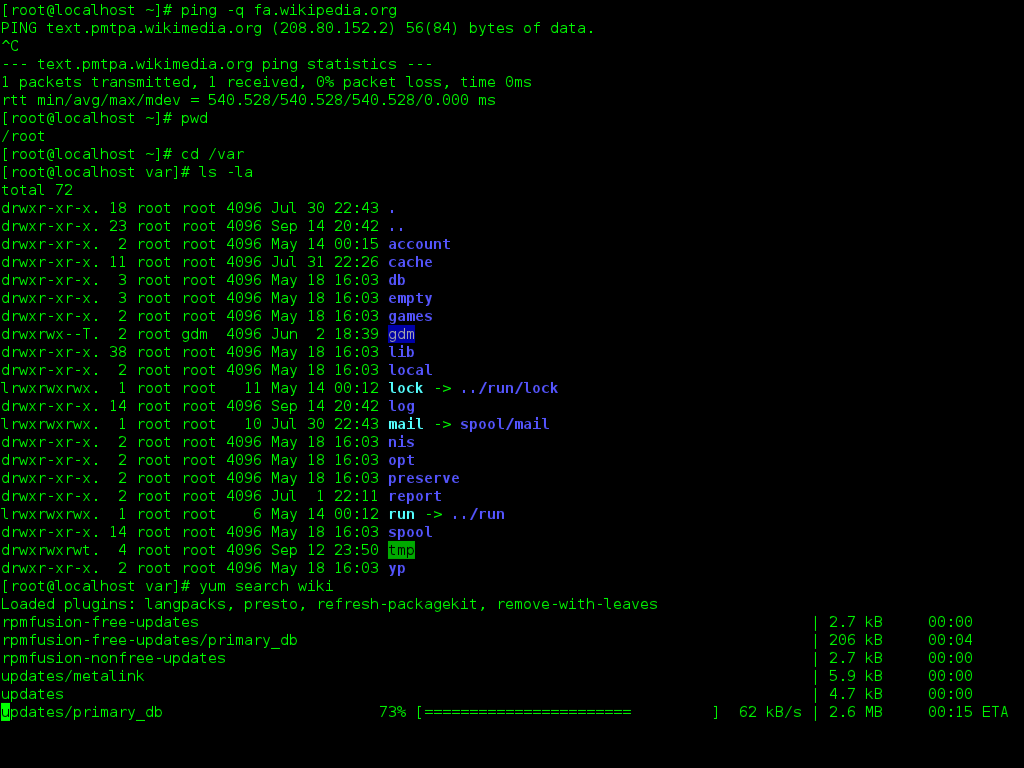
While a GUI might feel friendlier, the CLI has some serious advantages. For developers and system administrators, it's often faster and more powerful. You can combine simple commands to perform complex tasks in a single line, something that might take dozens of clicks in a GUI. The CLI is also the backbone of automation, allowing you to write scripts that perform repetitive tasks for you.
Think of it like this: a GUI is like ordering from a menu with pictures, while a CLI is like speaking directly to the chef to make a custom dish.
Finding Your Way Around
Your computer’s files are organized in a hierarchy of directories (you might know them as folders). When you open a CLI, you're placed in a specific directory, usually your "home" directory. From there, you need to navigate.
The most fundamental command for this is ls (list). It shows you the contents of your current directory.
# Lists files and directories in the current location
ls
To move between directories, you use cd (change directory). You follow the command with the name of the directory you want to go to. For example, if you see a directory named Documents when you type ls, you can move into it.
# Move into the Documents directory
cd Documents
What if you want to go back up? A special shorthand, .., represents the parent directory (the one that contains your current directory).
# Move up one level
cd ..
Working with Files
Once you can navigate, you'll want to manage your files. The CLI has simple, powerful commands for this. Let's say we have a file called report.txt.
To make a copy of it, you use cp (copy). You need to provide the source file and the name for the new copy.
# Copies report.txt to report_backup.txt
cp report.txt report_backup.txt
To move a file from one place to another, or to simply rename it, you use mv (move). If you're moving it to the same directory, it works as a rename command.
# Renames report.txt to final_report.txt
mv report.txt final_report.txt
And to delete a file, the command is rm (remove). Be careful with this one, as files deleted this way are usually gone for good; they don't go to a recycle bin.
# Deletes the backup file permanently
rm report_backup.txt
Managing Processes
Every application or program running on your computer is a process. Sometimes, a program might freeze or you might need to see what's running in the background. The CLI gives you direct control over these processes.
The ps (process status) command lists the processes currently running. This list can be long, but it gives you a snapshot of everything your computer is doing.
# Show running processes
ps
Each process has a unique number called a Process ID, or PID. If a program becomes unresponsive, you can use the kill command along with its PID to force it to stop. For instance, if you found an unresponsive application with PID 1234:
# Forcefully stops the process with PID 1234
kill 1234
This is a much more direct way to handle stuck applications than using a graphical task manager. It's a great example of the power and control the CLI provides.
What is the primary way a user interacts with a computer through a Command-Line Interface (CLI)?
Which of the following is a key advantage of the CLI over a GUI, particularly for developers?