Mobile Phone Essentials
Mobile Phone Basics
Getting to Know Your Phone
Your mobile phone is a powerful tool, but it's really just two things working together: the physical device you hold in your hand and the system that runs on it. The physical part is called hardware, and the system on the screen is the software. Let's look at both.
A Tour of the Hardware
Most modern phones have a similar layout. The biggest part is the touchscreen, which is your main window into the device and how you control it. You'll interact with it by tapping and swiping with your fingers.
On the sides, you'll find a few physical buttons. The power button turns the screen on and off. Holding it down will usually give you options to power off or restart the phone. You'll also have volume buttons to make sounds louder or quieter.
At the bottom, there is a charging port. This is where you plug in a cable to charge the battery. Some phones also have a headphone jack, but many newer models use the charging port for headphones or connect wirelessly.
Understanding the Software
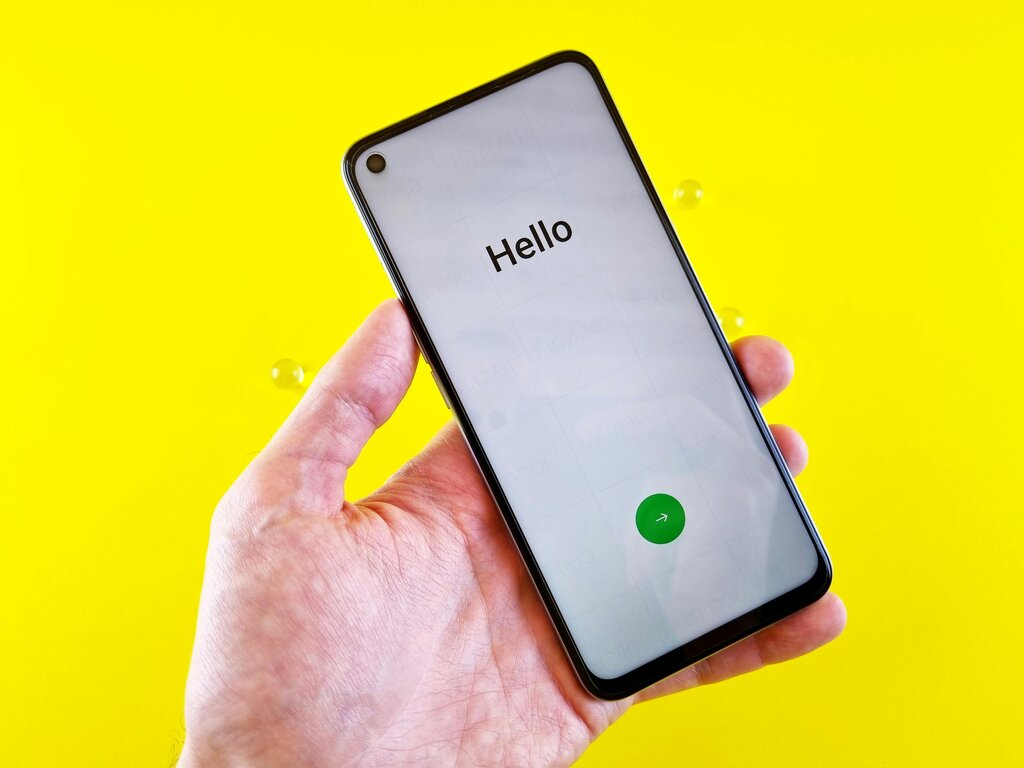
When you turn on your phone, you're greeted by the software. This is all managed by an operating system (OS). Think of the OS as the phone's brain. It manages all the hardware and runs all your apps. The two most common mobile operating systems are Google's Android and Apple's iOS (for iPhones).
What you see on the screen—the icons, menus, and keyboard—is called the user interface (UI). This is how you interact with the operating system. Though Android and iOS look different, they share many basic ideas.
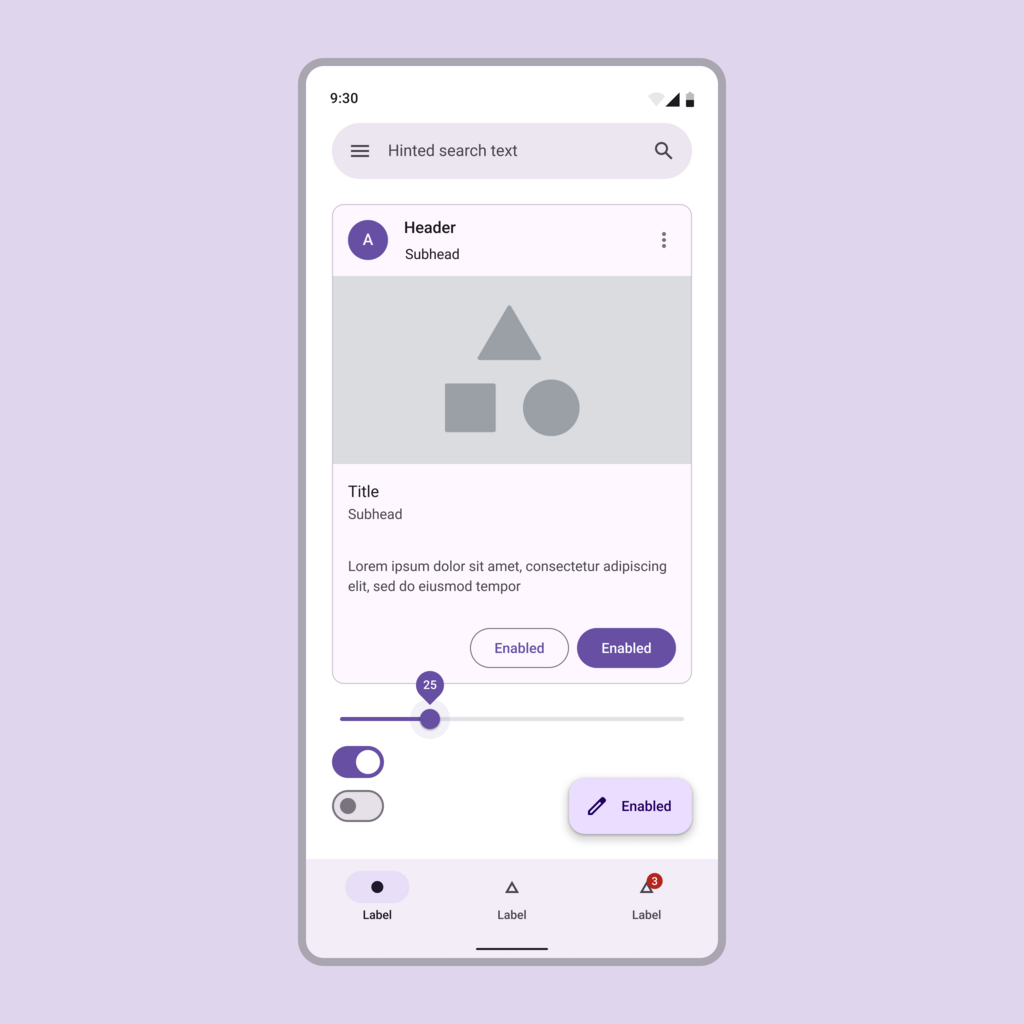
The main screen is the Home Screen. It's filled with small pictures called app icons. Tapping an icon opens that application, or 'app'. You can usually swipe left or right to see more pages of apps.
To control your phone without buttons, you'll use gestures. Tapping an icon or button selects it. Swiping your finger up, down, left, or right moves the screen. Pinching two fingers together or spreading them apart zooms in and out on photos and maps.
You can always get back to the Home Screen by swiping up from the bottom of the screen or pressing a dedicated Home button if your phone has one.
Making Calls and Sending Texts
Two of the most basic functions are calling and texting. You'll find a Phone app and a Messages app on your Home Screen. Their icons usually look like a classic phone receiver and a speech bubble.
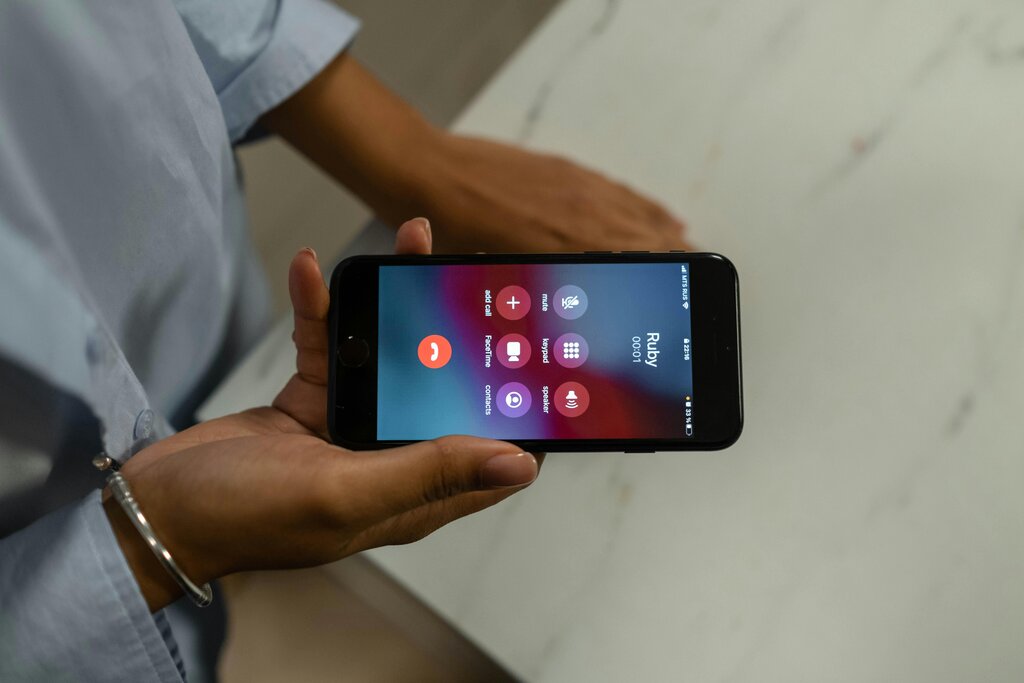
To make a call, open the Phone app. You'll see a keypad for dialing a number. You can also save numbers in your Contacts list so you can call people by tapping their name instead of their number.
To send a text, open the Messages app. You can start a new conversation or tap on an existing one to continue chatting. A keyboard will pop up on the screen, allowing you to type your message.
Finally, let's look at settings. There's a Settings app, often with an icon that looks like a gear. Here, you can adjust things like screen brightness, sound volume, and connect to Wi-Fi networks. Exploring the Settings app is a great way to customize your phone to your liking.
These basics cover the fundamentals of how your phone works. With this foundation, you're ready to explore what your device can do.