Minimalist Web App Development
Minimalist Development Environment
Your Minimalist Workspace
A good development environment gets out of your way. Instead of a heavy, all-in-one suite, we'll build a lean, focused workspace using Visual Studio Code and Git. The goal is a distraction-free setup that lets you focus on one thing: the code.
This approach isn't about having fewer tools; it's about having the right tools, configured to be nearly invisible. We'll prioritize keyboard-centric workflows to keep you in the flow state, minimizing the need to reach for the mouse and break your concentration.
VS Code as a Lean Powerhouse
VS Code is powerful because it starts simple. By default, it's a fast text editor. Its strength comes from its extensibility and a tool called the Command Palette. This is your central hub for almost every action you can perform, from opening files to running commands.
Access the Command Palette with the keyboard shortcut
Ctrl+Shift+P(Windows/Linux) orCmd+Shift+P(Mac). Try it now. You can type anything you want to do, and chances are, there's a command for it.
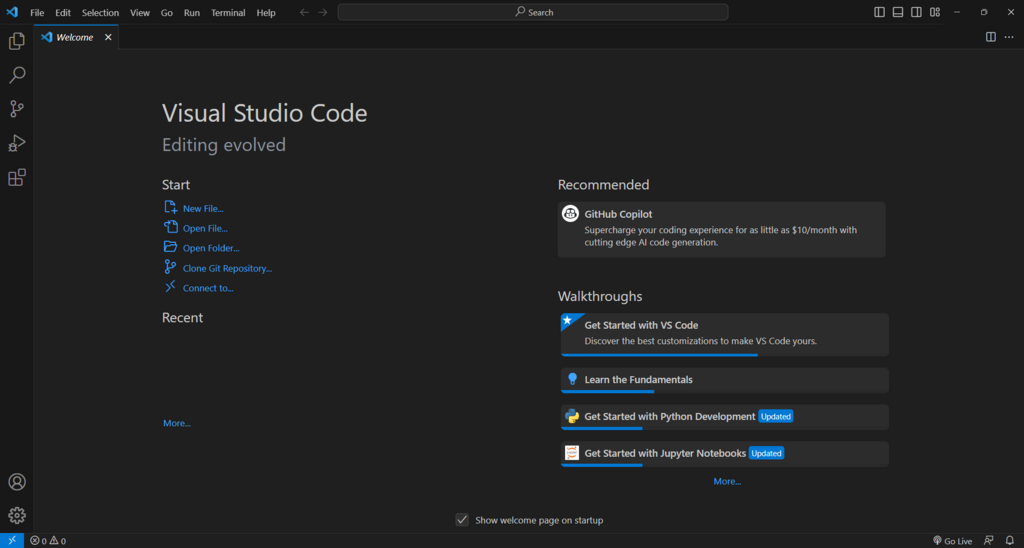
To keep our setup minimal but effective, we'll add just two essential extensions. Extensions are add-ons that give VS Code new capabilities.
- Prettier - Code formatter: This extension automatically formats your code to a consistent style every time you save. It ends debates about spacing and line breaks, ensuring your code is always clean and readable.
- ESLint: This tool analyzes your code to find problems. ESLint isn't just about style; it catches logical errors, potential bugs, and code that doesn't follow best practices. It's like having a senior developer looking over your shoulder.
Version Control for One
Even when working alone, version control is non-negotiable. Git is a system for tracking changes in your code over time. It lets you experiment without fear, roll back to previous versions if you make a mistake, and see the history of your project's evolution. To start tracking a project, you initialize a Git repository.
# Navigate to your project's root folder in the terminal
cd your-project-folder

# Initialize a new Git repository
git init
This single command creates a hidden .git directory in your project folder, where Git will store all of its tracking information. It's completely local to your machine.
Next, you need to tell Git what not to track. Your project will contain files that don't belong in version control, like dependencies downloaded from the internet (node_modules), system-specific files (.DS_Store), or logs. We specify these in a file named .gitignore.
A precise .gitignore file keeps your repository lean and focused only on the code you've written. A good starting point for a web project looks like this:
# Dependencies
/node_modules

# Build folder
/dist
/build

# Log files
npm-debug.log*
yarn-debug.log*
yarn-error.log*

# Environment variables
.env
.env.local

# System files
.DS_Store
Thumbs.db
This setup—a lean editor configured with essential helpers and a local Git repository—is the foundation. It's portable, fast, and doesn't hide what's happening. Unlike a heavy IDE that makes many decisions for you, this minimalist environment puts you in control, with your tools serving your code, not the other way around.
Time to check your understanding of these core concepts.
What is the primary philosophy behind the recommended development environment setup?
What is the main purpose of the .gitignore file?
With this foundation, your workspace is ready. It's a clean slate, optimized for focus and efficiency.