MikroTik for ISP Operations
MikroTik Basics
Getting Started with MikroTik
MikroTik is a Latvian company that builds networking hardware and software. For an Internet Service Provider (ISP), their products offer a powerful and affordable way to build and manage a network.
MikroTik's ecosystem is split into two main parts: the hardware, called RouterBOARD, and the operating system, called RouterOS.
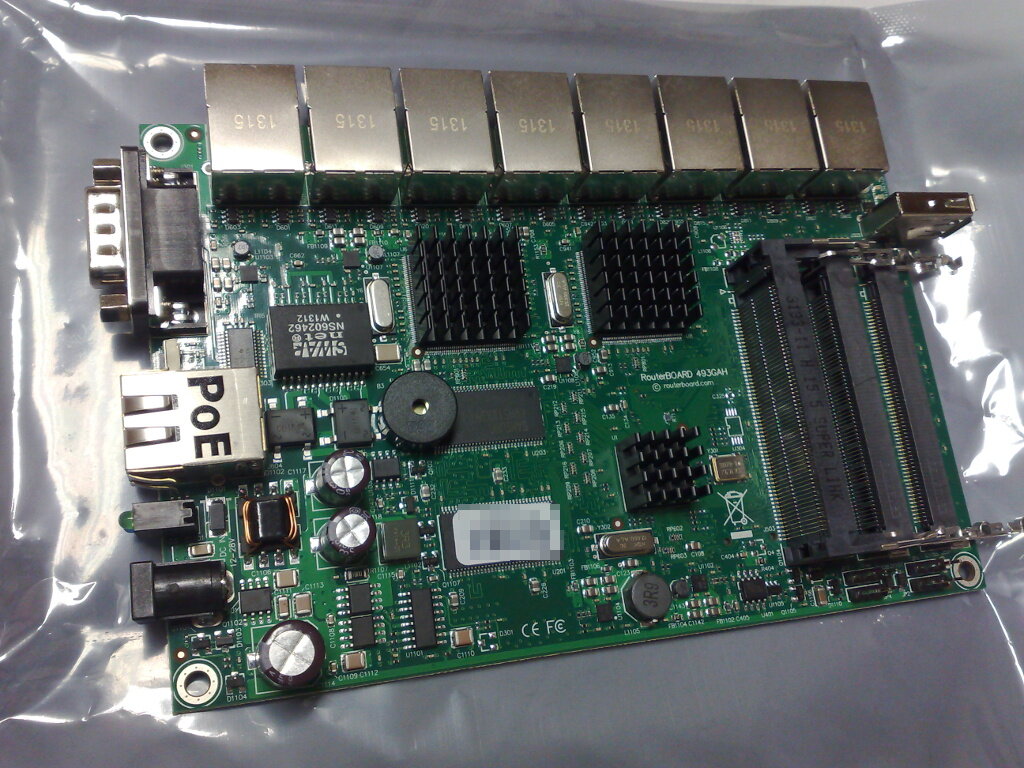
RouterBOARDs come in all shapes and sizes, from small home routers to powerful core routers capable of handling significant traffic. What makes them special is RouterOS, the software that runs on them. It's a highly versatile operating system based on Linux, giving you fine-grained control over everything from traffic shaping to firewalls.
Your First Setup
When you first unbox a MikroTik router, it's configured to be accessible right away. By default, it has the IP address 192.168.88.1. To start, connect your computer to one of its LAN ports (usually any port except the first one, which is often for the internet connection).
You can configure the router through a web browser by navigating to that IP address, which opens the WebFig interface. However, most network administrators prefer using a dedicated tool called WinBox. It's a small standalone application for Windows that provides a clean graphical interface for managing RouterOS.
The default username is
adminand there is no password. The very first thing you should do after logging in is set a strong password.
Once you're connected, there are two immediate tasks. First, set a secure password. Second, give your router a unique name. This helps you identify it on the network, which is crucial when you're managing multiple devices.
# In the terminal, type this to change your password.
# It will prompt you to enter the old and new passwords.
/password

# This command sets the router's name.
/system identity set name=ISP-Core-Router-1
Exploring the Interface
Whether you're using WinBox or WebFig, the layout is similar. You'll see a menu on the left-hand side that lists all the configuration options. Clicking on an item, like Interfaces or IP, opens up a new window with all the related settings and information.
Don't be overwhelmed by the number of options. For basic ISP operations, you'll spend most of your time in just a few key areas.
| Menu Item | Purpose |
|---|---|
Interfaces | Manages all physical and virtual network connections. |
Bridge | Groups multiple interfaces together to act as a single switch. |
IP | Handles all IP-related settings, like addresses, routes, and firewall rules. |
System | Contains general router settings like identity, users, and passwords. |
The main window displays lists of items, like IP addresses or firewall rules. You can double-click any item to edit it, or use the buttons at the top to add, remove, enable, or disable entries.
RouterOS also has a powerful command-line interface (CLI) for those who prefer typing commands. You can access it via SSH or by clicking New Terminal in WinBox. Every action in the GUI has a corresponding command in the CLI, making it a great tool for scripting and automation.
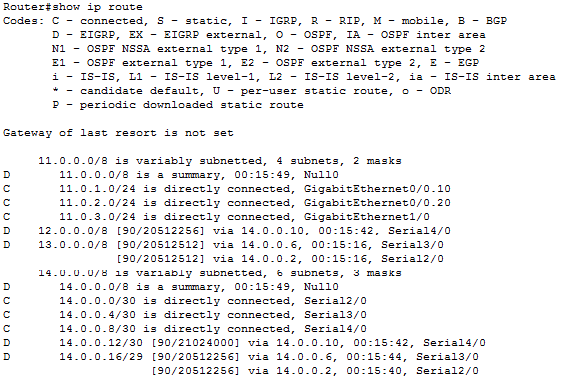
This foundation is all you need to get started. By understanding the hardware, the initial setup process, and the basic layout of the interface, you're ready to begin configuring your MikroTik device for your network.