Microsoft Word Essentials
Getting Started
Opening Your First Document
Let's start with the basics. To open Microsoft Word, you'll typically find it in your computer's applications list. On a Windows computer, click the Start menu and look for Word. On a Mac, you'll find it in the Applications folder. Click the icon to launch the program.
To open Microsoft Word, click on the application icon either on the taskbar or by searching for it in the Windows search bar.
Once Word opens, you'll see a start screen. This screen offers a variety of templates, from résumés to flyers. For now, we'll focus on the most common option: a blank document. Double-click on the "Blank document" thumbnail to open a fresh, empty page.
Navigating the Interface
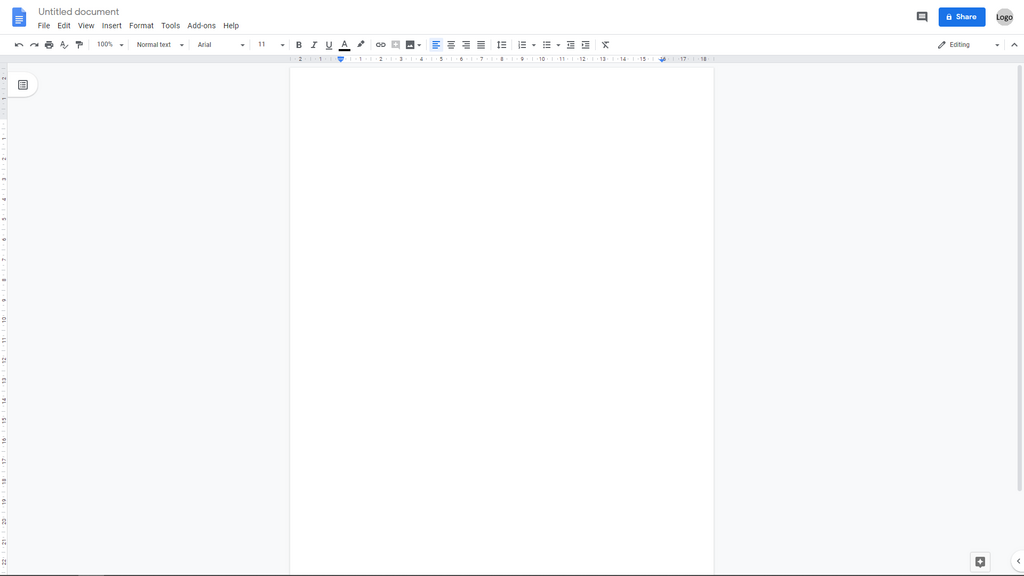
With your new document open, you're looking at the main Word interface. It might seem like there are a lot of buttons, but it's organized logically. Let's break down the three main areas you'll use most often.
The Ribbon: This is the big toolbar that runs across the top of your screen. It contains nearly all the commands you'll need. It’s organized into tabs like "Home," "Insert," and "Layout." The Home tab contains the most frequently used tools, such as font styles, text alignment, and bullet points.
Think of the Ribbon as your main control panel. Each tab opens up a different set of tools related to a specific task.
The Quick Access Toolbar: Located in the very top-left corner, this small toolbar is for your most-used commands. By default, it usually has buttons for Save, Undo, and Redo. The beauty of this toolbar is that you can customize it by adding any command you want for one-click access.
The Status Bar: At the bottom of the window, you'll find the Status Bar. This area provides useful information about your document at a glance. It shows the current page number, the total word count, and the language you're writing in. On the right side, you'll also find zoom controls and different page view options.
Time to Type
Now that you're familiar with the layout, you're ready to start writing. Your document is a blank canvas. You'll see a blinking vertical line called the cursor. This is where your text will appear.
Simply start typing. The text will flow from left to right. When you reach the end of a line, Word automatically moves the cursor to the next line for you. To start a new paragraph, just press the Enter key.
Which part of the Word interface contains the most frequently used tools, such as font styles, text alignment, and bullet points?
What is the primary function of the Status Bar at the bottom of the Word window?
You've taken the first steps. You can open Word, navigate its interface, and create a new document. That's a solid foundation for everything else you'll learn.