Microsoft Power Automate Essentials
Introduction to Power Automate
What is Power Automate?
Think of the small, repetitive tasks you do every day at work. Saving email attachments, copying data from one app to another, or notifying your team about an update. Individually, they don't take much time. But added together, they can fill a surprising amount of your day.
Microsoft Power Automate is a service designed to handle these tasks for you. It lets you create automated workflows between your favorite apps and services to synchronize files, get notifications, collect data, and much more. You build a "flow" once, and it runs automatically in the background, freeing you up to focus on more important work.
Microsoft Power Automate (formerly Microsoft Flow) empowers users to build powerful workflows across apps and services without writing a single line of code.
The best part is that you don't need to be a programmer. Power Automate uses a simple, visual interface, allowing anyone to build time-saving automations.
Triggers and Actions
Every automation in Power Automate is built on a simple concept: triggers and actions. It's a basic cause-and-effect relationship that powers every workflow.
Trigger
noun
The specific event that starts an automated workflow.
A trigger could be anything from receiving a new email in Outlook to someone adding a file to a Dropbox folder.
Action
noun
The task or set of tasks that the workflow performs after it's been triggered.
If the trigger is a new email, the action might be to save its attachment to a SharePoint site or send a push notification to your phone. A single trigger can lead to multiple actions.
Seamless Integration
Power Automate's real strength lies in its ability to connect hundreds of different applications. These connections, called "connectors," act as a bridge, allowing apps that weren't designed to work together to share information and automate processes.
This is especially powerful within the Microsoft 365 ecosystem. Power Automate integrates seamlessly with tools you likely use every day:
- Outlook: Automatically save attachments or create tasks from important emails.
- SharePoint: Start an approval process when a new document is uploaded.
- Microsoft Teams: Post automated updates to a channel when a task is completed.
- Excel: Add a new row to a spreadsheet whenever a form is submitted.
By linking these services, you can build powerful, cross-application workflows that handle the busywork for you.
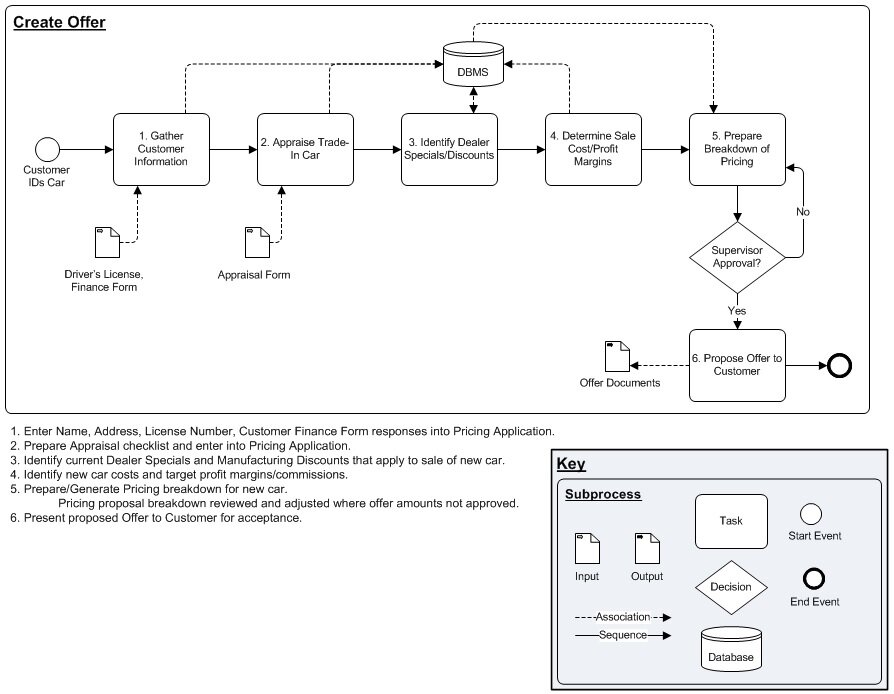
The goal is to create a more efficient and connected digital workspace. Instead of manually moving information between applications, you can let Power Automate do the work in the background.
Benefits of Automation
Adopting workflow automation offers clear advantages. It's not just about saving a few minutes here and there; it's about fundamentally changing how you work.
| Benefit | Description |
|---|---|
| Increased Productivity | Automate repetitive tasks to free up time for strategic, high-value work. |
| Improved Accuracy | Reduce the risk of human error in tasks like data entry and file transfers. |
| Better Consistency | Ensure processes are followed the same way every time, improving reliability. |
| Faster Turnaround | Automate approvals and notifications to eliminate manual delays and keep projects moving. |
Implementing even simple automations can lead to significant gains in efficiency for you and your team.
What is the primary purpose of Microsoft Power Automate?
Every automation in Power Automate is built on a simple cause-and-effect relationship between what two components?
Now you have a foundational understanding of what Power Automate is and how it helps create efficiency through automated workflows.