Microsoft Outlook Essentials
Getting Started
Welcome to Outlook
Microsoft Outlook is more than just a place to read emails. It’s a powerful tool for managing your messages, schedule, and contacts all in one spot. Let's get you set up and comfortable with the layout.
Setting Up Your Account
The first time you open Outlook, it will prompt you to add an email account. If you've used it before and want to add another account, you can find this option under the File menu by selecting Add Account.
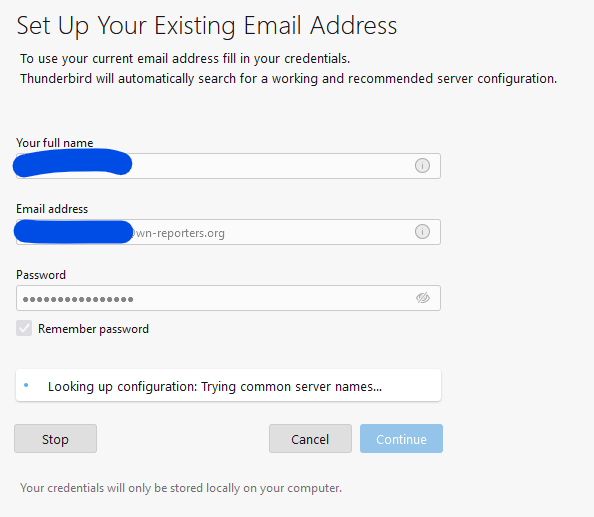
You'll need to enter your full name, email address, and the password for that account. In most cases, Outlook can automatically detect the correct server settings for popular email providers like Gmail, Yahoo, and of course, Outlook.com.
Once you enter your credentials and click Next, Outlook will connect to your email server to verify the information. It will then configure the incoming (IMAP/POP) and outgoing (SMTP) mail settings for you.
Finding Your Way Around
After setting up your account, you’ll land on the main Outlook screen. It might look busy at first, but it's organized into a few key areas that are easy to learn.
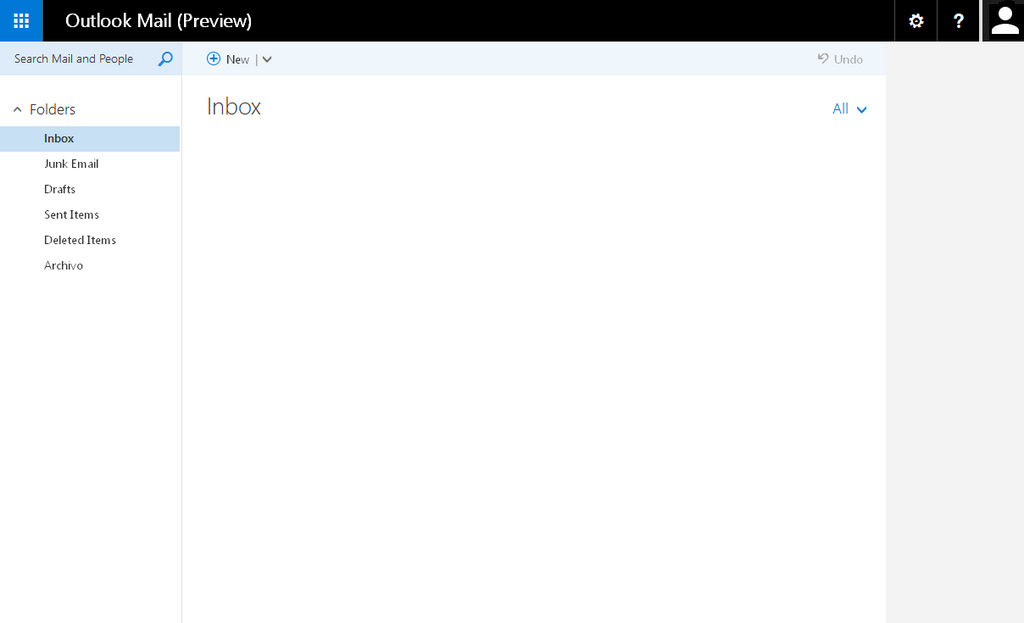
The interface is divided into three main sections:
- The Ribbon: Located at the very top, this is your command center. It contains tabs like
Home,Send / Receive, andView, which hold all the tools and actions you can perform, such as creating a new email, replying, or deleting messages. - The Navigation Pane: This is the column on the left. It lists all your email folders (Inbox, Sent Items, Drafts) for the account you've set up. You'll also use this pane to switch between the different parts of Outlook.
- The Reading Pane: This is the largest area in the middle, where you'll see your list of emails and the content of the selected message.
The Core Modules
At the bottom of the Navigation Pane, you'll find small icons that let you switch between Outlook's main functions or modules. The primary ones you'll use are Mail, Calendar, and People.
| Module | Icon | Purpose |
|---|---|---|
| ✉️ | This is where you'll spend most of your time. It's for reading, sending, and organizing your emails. | |
| Calendar | 📅 | Switch here to view your schedule, create appointments, and manage meeting invitations. |
| People | 👥 | This is your address book. It stores contact information for everyone you communicate with. |
Clicking any of these icons will change the main window to show that module's specific interface. For example, clicking the Calendar icon transforms the Reading Pane into your weekly or monthly schedule, and the Ribbon updates with calendar-specific commands like New Meeting.
Getting comfortable with switching between these modules is the key to using Outlook efficiently. For now, explore each one to see how the layout changes.
If you've already set up Outlook and want to add another email account, where can you find the 'Add Account' option?
The command center at the very top of the Outlook window, containing tabs like Home and Send / Receive, is called the ________.
Now that you're familiar with the basics, you're ready to start managing your digital life with Outlook.