Microsoft OneDrive for New Educators
OneDrive Basics
Your Files, Everywhere
Think of Microsoft OneDrive as your personal digital filing cabinet. Instead of saving documents, presentations, and research materials to a single computer's hard drive, you save them to the cloud. This means your files are stored securely online, ready for you to access from any device with an internet connection, whether it's your office desktop, your laptop at home, or your phone on the go.
When you use OneDrive, you can store and protect your school and personal files in the cloud, share them with other people, and access your files from anywhere.
This keeps your work safe and centralized. If your computer ever fails, your files remain untouched and accessible in your OneDrive.
Getting Files into OneDrive
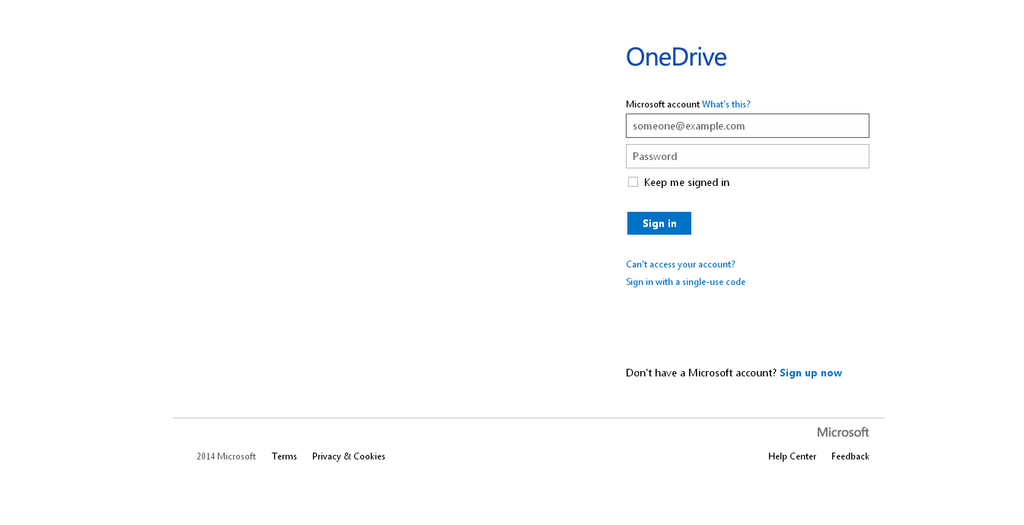
Uploading files is straightforward. When you log into OneDrive through a web browser, you'll see an interface that looks much like the file explorer on your computer. You can upload files in two main ways:
- Use the 'Upload' button: Look for a button labeled "Upload" or "New." Clicking this will let you browse your computer for the files or folders you want to add.
- Drag and drop: The simplest method. Just open a folder on your computer, select the files you need, and drag them directly into the browser window where OneDrive is open. They'll start uploading immediately.
Staying Organized
A messy filing cabinet is hard to use, and the same is true for cloud storage. OneDrive makes it easy to keep things tidy. You can create new folders to organize your files by course, project, or semester. Think about a structure that makes sense to you before you start uploading everything.
For example, you might create a main folder for each academic year. Inside that, you could have folders for each course you teach. Within each course folder, you could have subfolders for "Lecture Slides," "Assignments," and "Readings."
Once files are uploaded, you can move them between folders just like you would on your computer. This flexibility helps you adapt your organization as your needs change.
Working with Your Files
OneDrive is more than just storage; it's part of the Microsoft 365 ecosystem. This means it works seamlessly with applications like Word, Excel, and PowerPoint. When you open a document stored in OneDrive, it opens directly in the corresponding app, either in your web browser or on your desktop.
Any changes you make are saved automatically and continuously. This eliminates the need to constantly hit "Save" and ensures you're always working on the most up-to-date version of a file. It also means you can start editing a presentation on your office computer and pick up right where you left off on your tablet at home.
Now that you understand the basics of getting your files into OneDrive and keeping them organized, let's test your knowledge.
What is the primary benefit of storing files in OneDrive instead of just on your computer's hard drive?
Besides using the 'Upload' button in the web interface, what is another simple way to add files to your OneDrive?
Mastering these fundamentals will help you manage your course materials and personal documents efficiently and securely.