Microsoft Excel Mastery
Excel Basics
The Excel Workspace
At its core, Microsoft Excel is a spreadsheet program. Think of it as a massive digital grid designed to organize, calculate, and analyze information. This grid is your starting point for everything from simple lists to complex financial models.
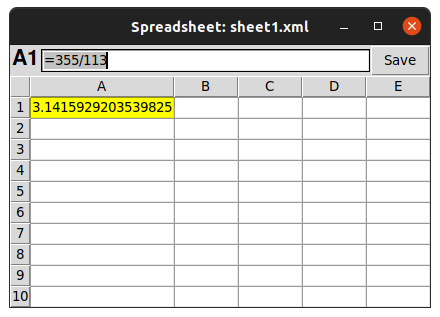
When you open Excel, you'll see a few key areas. Understanding them is the first step to feeling comfortable.
-
The Ribbon: This is the big toolbar at the top of the screen. It's organized into tabs like
Home,Insert, andPage Layout. Each tab contains groups of related commands. For example, theHometab has everything you need for basic formatting. -
The Formula Bar: Located just below the ribbon, this bar shows you the actual content of the selected cell. If a cell contains a formula, you'll see the formula here, while the cell itself shows the result.
-
Cells, Rows, and Columns: The grid is made up of cells. Each cell has a unique address, or reference, based on its column letter and row number (like A1, B2, C3). Columns run vertically and are labeled with letters, while rows run horizontally and are labeled with numbers.
-
Worksheets: At the bottom left, you'll see tabs like
Sheet1. An Excel file, called a workbook, can hold multiple worksheets. You can switch between them by clicking the tabs. This is useful for organizing different sets of related data within a single file.
Moving Around
Getting around your worksheet efficiently will save you a lot of time. You can navigate using either your mouse or your keyboard.
- Mouse: Simply click on any cell to select it.
- Arrow Keys: Use the arrow keys on your keyboard to move one cell at a time in any direction.
- Enter Key: Pressing
Entermoves the selection down one cell.- Tab Key: Pressing
Tabmoves the selection one cell to the right. To move left, useShift + Tab.
To switch between different worksheets in your workbook, just click on the desired sheet tab at the bottom of the window. You can also rename these tabs by double-clicking on them to keep your work organized.
Entering and Editing Data
Putting information into Excel is straightforward. You can enter three main types of data: text, numbers, and formulas. For now, we'll focus on text and numbers.
To enter data, select a cell, type your information, and then press
Enterto confirm the entry and move to the cell below. If you want to move to the cell on the right instead, pressTab.
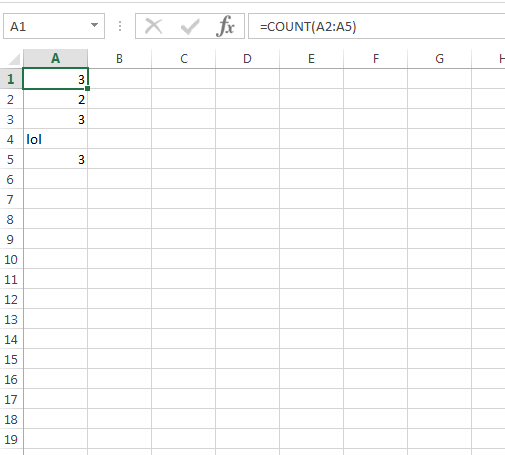
Made a mistake? No problem. To edit the contents of a cell, you have two options. You can double-click the cell to type directly within it, or you can select the cell and make your changes in the formula bar. When you're done, press Enter.
Basic Formatting
Raw data can be hard to read. Basic formatting helps make your spreadsheet clear and professional. Most of the tools you need are in the Font and Alignment groups on the Home tab of the ribbon.
| Formatting Type | Description |
|---|---|
| Font Styles | Make text bold (B), italic (I), or underlined (U). You can also change the font type and size. |
| Fill Color | Change the background color of a cell to make it stand out. |
| Font Color | Change the color of the text within a cell. |
| Alignment | Align text to the left, center, or right of a cell, and to the top, middle, or bottom. |
To apply formatting, just select the cell or range of cells you want to change, and then click the corresponding button on the ribbon. Experiment with these options to see how they affect the appearance of your data.
What is the primary function of Microsoft Excel?
You see the value 50 displayed in cell B2. However, when you select cell B2, the Formula Bar shows $$=B1*5$$. What does this mean?
Mastering these basics gives you a solid foundation for everything else you can do in Excel.