Microsoft Excel Mastery
Excel Basics
The Excel Workspace
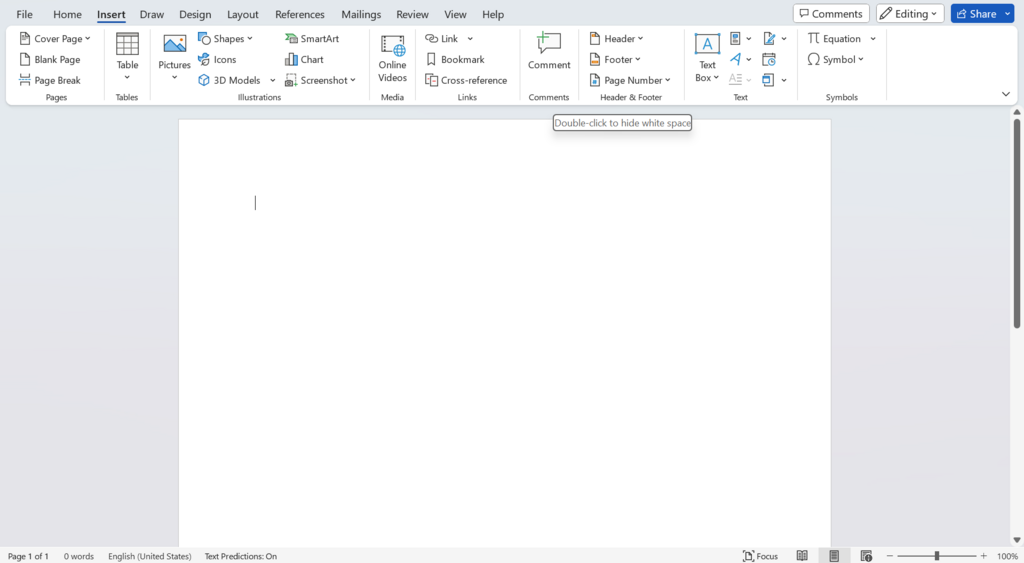
Opening Excel for the first time reveals a grid of cells, which might seem a bit intimidating. Let's break down the main parts of the screen. At the very top, you'll see a series of tabs like 'File', 'Home', 'Insert', and 'View'. This entire area is called the Ribbon. Each tab on the Ribbon organizes related commands into groups. For instance, the 'Home' tab contains all the common formatting tools you'll use.
Just below the Ribbon is the Formula Bar. This bar shows the actual content of the selected cell, which is handy for seeing long text entries or the underlying formula behind a calculated result. To the left of the formula bar is the Name Box, which displays the address of the active cell, like A1 or C5.
Workbooks and Worksheets
Think of an Excel file as a digital notebook. This entire file is called a Workbook. Inside this notebook, you have individual pages, and in Excel, these are called Worksheets, or just 'sheets'. You can see tabs for each sheet at the bottom-left of the window, usually starting with 'Sheet1'.
You can have many worksheets within a single workbook. This is useful for organizing related data. For example, you could have a workbook for your monthly budget with a separate worksheet for each month. To add a new sheet, just click the plus (+) icon next to the existing sheet tabs. You can also rename a sheet by double-clicking its tab and typing a new name, or delete one by right-clicking the tab.
Entering and Editing Data
The grid is where you'll do all your work. Each box in the grid is a cell, and it's the fundamental unit for storing data. Every cell has a unique address, determined by its column letter and row number. The cell in the top-left corner is A1, the one to its right is B1, and the one below it is A2.
To enter data, just click on a cell and start typing. You can input text, numbers, or dates. Press 'Enter' to confirm the entry and move to the cell below, or 'Tab' to move to the cell on the right.
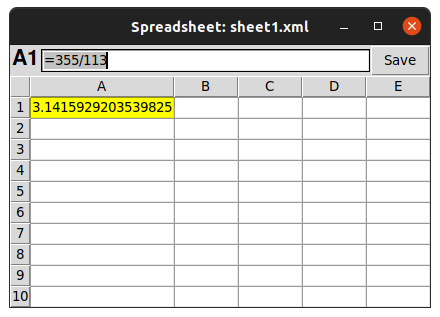
Made a mistake? No problem. To edit the contents of a cell, you can either double-click it to type directly inside the cell, or you can select the cell and then click into the Formula Bar to make your changes. If you want to clear a cell completely, just select it and press the 'Delete' key.
A handy shortcut is the Fill Handle. It's the small square at the bottom-right corner of a selected cell. Click and drag it down or across to quickly copy the cell's content or continue a series, like days of the week or a sequence of numbers.
Formatting Your Cells
Raw data can be hard to read. Formatting helps you present your information clearly. Most of the tools you'll need are in the 'Home' tab on the Ribbon.
You can change the look of your text using the options in the 'Font' group. This is where you can make text bold, italic, change its size, or apply a different color. The 'Alignment' group lets you control where the text sits within the cell: left, right, or center.
| Format Type | Description | Example |
|---|---|---|
| Bold | Makes text thicker for emphasis. | Total Sales |
| Italic | Slants text to the side. | Preliminary data |
| Font Color | Changes the color of the text. | Important |
| Fill Color | Changes the background color of the cell. | Header Row |
| Alignment | Positions text horizontally or vertically. | Centered Text |
Excel often tries to guess the type of data you've entered, but you can set it manually. The 'Number' group on the 'Home' tab lets you format numbers as currency ($1,234.56), percentages (25%), or dates (10/15/2024). This doesn't change the underlying value in the cell, only how it's displayed.
Finally, let's go over how to save your work. Go to the 'File' tab and choose 'Save' or 'Save As'. If it's a new file, 'Save As' will let you choose a location on your computer and give your workbook a name. It's a good habit to save your work often.
What is the name for the entire area at the top of the Excel window that contains tabs like 'File', 'Home', and 'Insert'?
In Excel, an entire file or 'digital notebook' is called a __________, while an individual page or tab within it is called a __________.