Microsoft Excel Fundamentals
Introduction to Excel
What is Excel?
Microsoft Excel is a spreadsheet program. Think of it as a digital grid of rows and columns, perfect for organizing information, performing calculations, and visualizing data. From simple grocery lists to complex financial models, Excel helps you make sense of numbers and text.
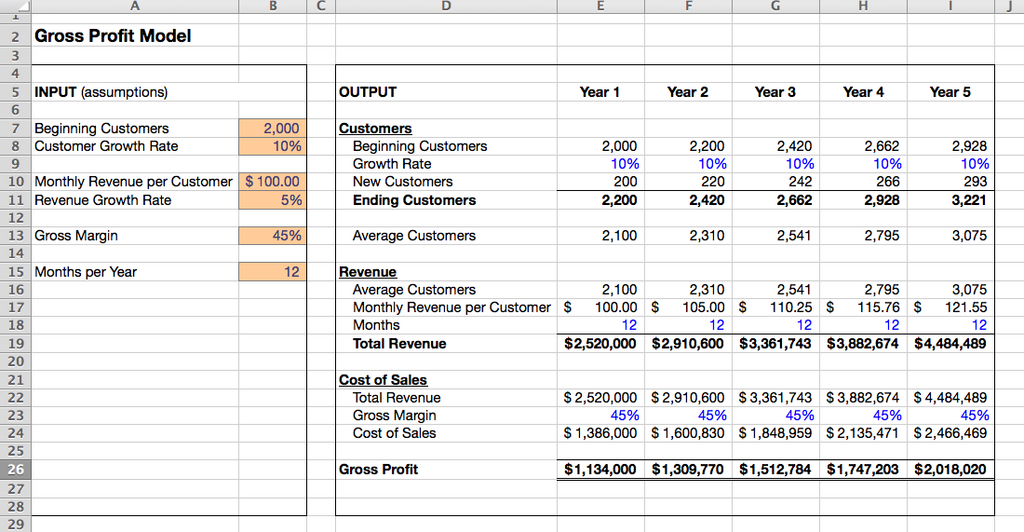
The power of Excel lies in its cells. Each box in the grid is a cell, and you can put numbers, text, or formulas into it. This structure makes it easy to manage everything from a personal budget to a company's sales records.
The Excel Interface
When you first open Excel, you'll see a few key areas. Getting to know them will make your work much smoother.
The main components are:
- The Ribbon: This is the big toolbar at the top of the screen. It's organized into tabs like
Home,Insert, andPage Layout. Each tab contains groups of related commands, such as formatting options or tools for adding charts. - The Formula Bar: Just below the Ribbon, this bar shows the contents of the currently selected cell. It's where you'll type or edit data and formulas.
- The Work Surface: This is the grid of cells itself, where you'll do most of your work. An Excel file is called a workbook, and each workbook can contain multiple worksheets, which you can switch between using the tabs at the bottom.
Each cell has a unique address, or reference, based on its column letter and row number. The cell in the top-left corner is A1. The cell to its right is B1, and the cell below it is A2. The currently selected cell is called the active cell, and its border is highlighted.
Your First Spreadsheet
Let's create a simple grocery list. First, open Excel. It will usually start you with a new, blank workbook.
To start, click on cell A1 and type "Item". Then, press the Tab key to move to cell B1 and type "Quantity". Press Tab again to move to C1 and type "Price". When you press Tab, you move one cell to the right. When you press Enter, you move one cell down.
Now, fill in a few rows of data under your headers.
| Item | Quantity | Price |
|---|---|---|
| Milk | 1 | $3.50 |
| Bread | 2 | $2.75 |
| Eggs | 1 | $4.20 |
To save your work, go to the File tab on the Ribbon and select Save As. Choose a location on your computer, give your file a name like "Grocery List", and click Save. Your file will be saved with an .xlsx extension.
Basic Formatting
Raw data can be hard to read. Basic formatting makes your spreadsheet clearer and more professional. Let's make our grocery list headers stand out.
First, select the cells you want to format. You can click and drag your mouse from A1 to C1 to select all three headers.
With the cells selected, go to the Home tab on the Ribbon. In the Font group, you'll find several options:
- Bold: Makes text thicker. Click the B icon.
- Fill Color: Changes the background color of the cell. Click the paint bucket icon and choose a light color like yellow.
- Font Color: Changes the color of the text itself.
You can also adjust column widths. If your text in a cell is too long to be displayed, you can widen the column. Move your mouse to the line between two column headers (like between A and B). Your cursor will change to a double-sided arrow. Click and drag to resize the column, or simply double-click to automatically fit the widest content in that column.
What is the primary purpose of Microsoft Excel?
In the Excel interface, what is the name of the main toolbar at the top of the screen that is organized into tabs like 'Home' and 'Insert'?
You've now covered the essentials of the Excel interface, data entry, and basic formatting. This foundation is the first step toward using Excel for more powerful tasks.