Microsoft Excel Essentials
Excel Interface
Getting Around in Excel
Opening a new Excel workbook can feel like stepping into a command center. There are a lot of buttons and panels, but they’re all logically organized to help you work with your data. Let's take a quick tour of the main components so you know where everything is.
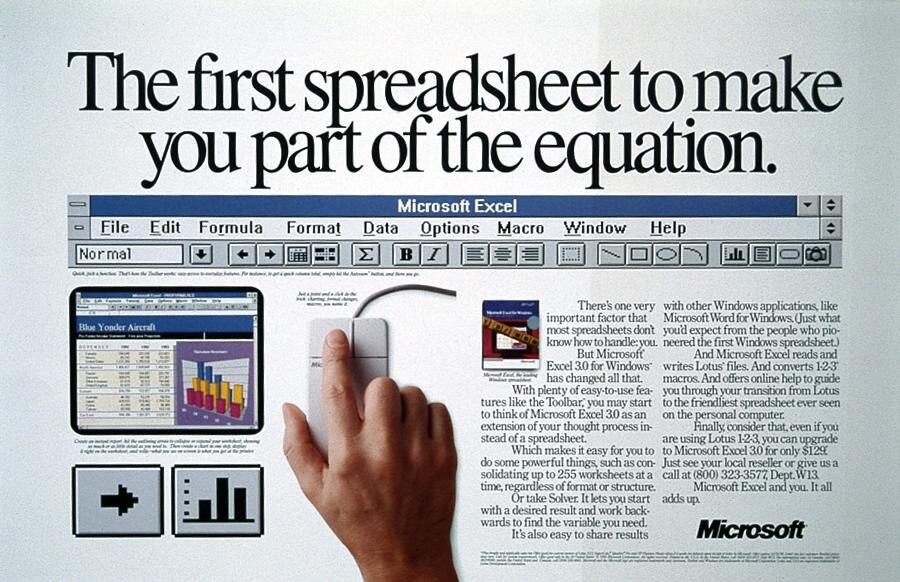
At the very top of the window, you'll find the Quick Access Toolbar. This is a small, customizable toolbar that sits either above or below the main set of commands. By default, it holds buttons for Save, Undo, and Redo. It's designed to keep your most frequently used commands just one click away, no matter which tab you're on.
The Ribbon Command Center
The large area below the Quick Access Toolbar is called the Ribbon. This is your primary tool for interacting with Excel. The Ribbon is organized into a series of tabs, each dedicated to a specific type of task.
For example, the Home tab contains common formatting commands like changing font size or color. The Insert tab is where you go to add things like charts, tables, and pictures.
Clicking on a tab reveals a set of commands grouped by function. On the Home tab, you'll see groups for "Font," "Alignment," and "Number." This structure makes it easy to find the tool you need without getting lost in endless menus. As you work, you'll naturally learn where your favorite commands live.
The Worksheet
The main part of the screen is the worksheet itself, a grid made of columns and rows. Columns are labeled with letters (A, B, C...) across the top, and rows are labeled with numbers (1, 2, 3...) down the side. The intersection of a column and a row is a single box called a cell.
Each cell has a unique address, or reference, based on its column and row. For instance, the cell in the top-left corner is A1. The cell below it is A2, and the one to its right is B1. This grid system is fundamental to how Excel organizes and calculates data.
Just above the worksheet grid is the Formula Bar. When you select a cell, this bar displays its contents. If you type text or a number into a cell, you'll see it here. More importantly, if a cell contains a formula (like ), the cell will show the result, but the Formula Bar will show the actual formula. This is where you'll edit and review your calculations.
Finally, at the very bottom of the Excel window is the Status Bar. This area provides useful information at a glance. For example, if you select a range of cells containing numbers, the Status Bar can automatically show you their sum, count, and average without you having to write a formula. It also holds the zoom controls, allowing you to zoom in and out of your worksheet for a better view.
Let's check your understanding of the Excel layout.
What is the primary interface for accessing Excel's commands, organized into tabs and functional groups?
If a cell displays the value 25, but it was calculated using =SUM(B2:B5), where would you see the actual formula "=SUM(B2:B5)"?
Now that you're familiar with the basic layout, you're ready to start entering and working with data.