Microsoft Copilot Fundamentals
Introduction to Microsoft Copilot
What is Microsoft Copilot?
Microsoft Copilot is an AI-powered assistant that works alongside you in the Microsoft 365 apps you use every day, like Word, Excel, and PowerPoint. Think of it as a partner that helps you with your tasks, freeing you up to focus on the more important parts of your work.
Microsoft 365 Copilot is an AI tool that integrates AI into Microsoft 365 applications and services.
It uses large language models to understand your requests, which you can make in plain, natural language. Whether you're writing a report, analyzing data, or creating a presentation, Copilot is designed to streamline the process and boost your creativity.
Your AI Partner for Productivity
The main goal of Copilot is to make you more productive. It helps you get started on a first draft, find insights in your data, and turn simple ideas into polished work, all within the applications you already know.
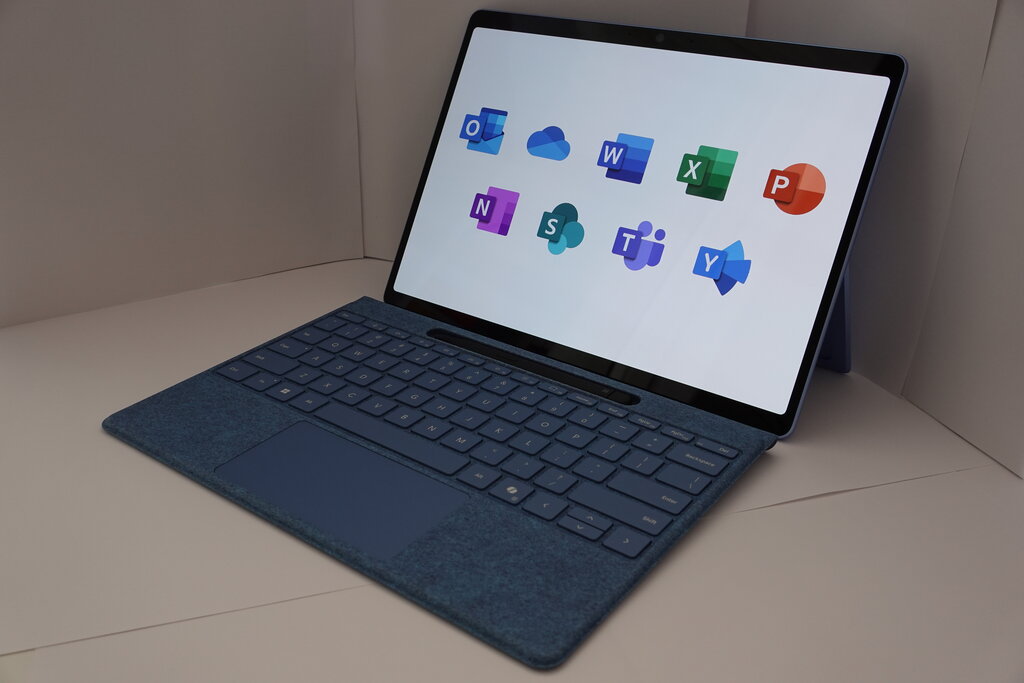
Microsoft 365 Copilot brings AI directly into your everyday workflow, helping you create content, automate tasks, and analyze data across your favorite apps.
For example, in Word, you can ask Copilot to write a draft based on a few bullet points or summarize a lengthy document. In Excel, you could ask it to identify trends in a dataset or create a chart to visualize your sales figures. And in PowerPoint, you can give Copilot a topic, and it will generate a full presentation with text and images.
| Application | How Copilot Helps |
|---|---|
| Word | Drafts, edits, and summarizes text. |
| Excel | Analyzes data and creates visualizations. |
| PowerPoint | Builds presentations from a prompt. |
| Outlook | Summarizes long email threads and drafts replies. |
| Teams | Recaps meetings and lists action items. |
Getting Started with Copilot
Accessing Copilot is straightforward. It's available as part of certain Microsoft 365 subscription plans for both businesses and individuals. Once your account has access, you'll start seeing the Copilot icon and features appear directly within your apps.
To get started, you don't need to learn a new piece of software. Copilot meets you where you are, inside the tools you already use.
In applications like Word or PowerPoint, you'll typically find a Copilot button on the Home tab of the ribbon. Clicking it opens a side panel where you can type your requests, or prompts. In Excel, you'll also find a Copilot button on the ribbon that can help you work with your data tables.
The key is to be clear and descriptive in your prompts. The more context you provide, the better Copilot can understand your needs and deliver a helpful result. Experiment with different requests to see what it can do.
With Copilot integrated into your workflow, you can handle routine tasks more efficiently and unlock new creative possibilities.