Microsoft 365 Admin Essentials
Cloud Management Basics
Your Digital Headquarters
Think of Microsoft 365 as a fully furnished apartment you rent for your organization. You don't have to worry about building the foundation, plumbing, or electrical wiring. The landlord, Microsoft, takes care of all the underlying infrastructure and maintenance. They also provide the furniture: powerful apps like Word, Excel, and Teams.
This model is called (SaaS). Your job isn't to build the apartment building; it's to manage who lives there and what they can do. You hand out the keys, set the rules, and make sure everything runs smoothly for your team.
Your role is to manage the people and their access, not the servers and the software code.
The digital 'apartment' your organization occupies is called a tenant. It's your own private, isolated space within the massive Microsoft cloud. No other organization can see your data, users, or settings. It’s completely yours.
The Control Room
So, how do you manage your tenant? You use the Microsoft 365 Admin Center. Think of it as the central control room or steering wheel for your entire organization. From here, you’ll add users, manage subscriptions, set security policies, and monitor the health of your services.
You can always access it by going to admin.microsoft.com in your web browser. This is the single most important website you'll use as an administrator.
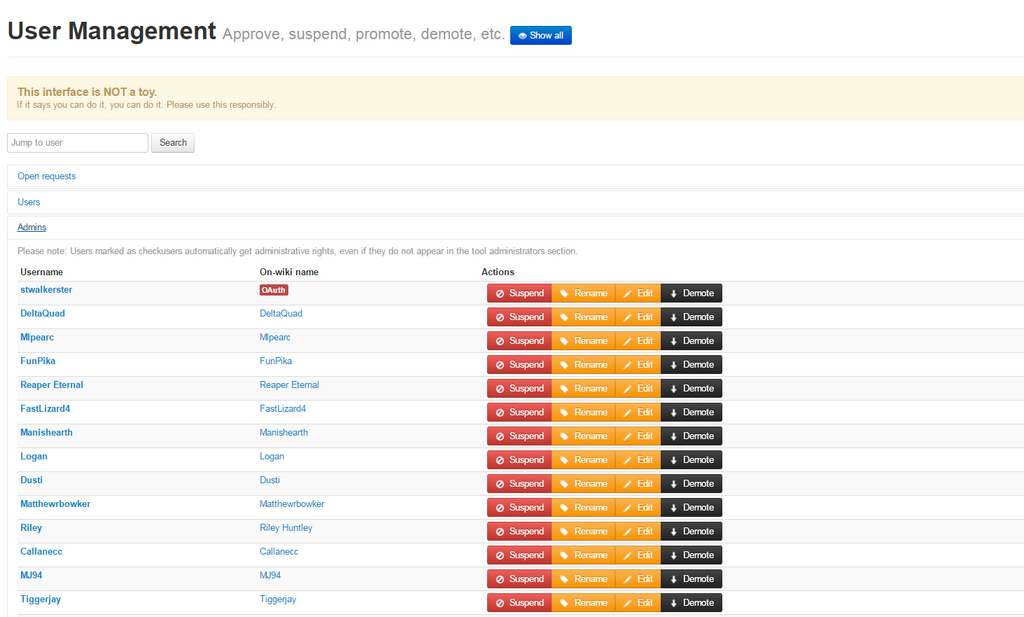
To get into this control room, you need the right keys. The most powerful set of keys belongs to the role. This account is the super-user for your tenant. It can do absolutely everything, from creating other admin accounts to deleting all your organization's data. When your organization first signs up for Microsoft 365, the account used for the purchase automatically becomes the first Global Administrator.
Your First Address
When your tenant is created, Microsoft gives you a starting domain name that looks like this: yourcompany.onmicrosoft.com.
This is your tenant's unique identifier and ensures you have a working email address right away, even before you connect your own custom domain (like yourcompany.com). Your first Global Administrator account, for example, might be admin@yourcompany.onmicrosoft.com.
Every tenant has an
.onmicrosoft.comdomain that can't be removed. It acts as a permanent, fallback address for your organization.
Once you log in to the Admin Center, you'll see the dashboard. This is your high-level overview. It uses 'cards' to show you important information at a glance, like user management shortcuts, service health status, and billing summaries. You can customize this dashboard by adding, removing, or rearranging cards to fit your needs.
The main navigation menu on the left side is where you'll find everything else. It's organized into sections like 'Users,' 'Billing,' and 'Support.' Clicking on 'Show all' will reveal even more specialized admin centers for services like Security, Compliance, and Exchange.
This is your starting point. You now know what a tenant is, where to manage it, and what role has the ultimate control. In the next steps, we'll start putting these concepts into practice.