MetaHuman Character Design for Animation
Introduction to Unreal Engine
Welcome to Unreal Engine
Unreal Engine is a powerful tool for creating 3D worlds. While it's famous for powering some of the biggest video games, its reach extends far beyond that. Filmmakers, architects, and designers use it to build breathtaking virtual environments and simulations. Think of it as a complete workshop for digital creation. You have tools for building landscapes, scripting events, designing lighting, and, of course, animating characters.
We'll start with the essentials. The goal is to get you comfortable with the platform itself, setting a solid foundation before we dive into creating characters and animations.
Installation and Setup
Getting Unreal Engine is a two-step process. First, you'll need the Epic Games Launcher, which is the hub for all of Epic's software and games. From there, you can install the engine.
Here’s how to do it:
- Go to the official Unreal Engine website and click the download button.
- You'll be prompted to download the Epic Games Launcher. You’ll need to create a free Epic Games account if you don't have one already.
- Install the launcher and sign in.
- Inside the launcher, navigate to the Unreal Engine tab on the left-hand side.
- Click the Install Engine button. It will typically default to the latest version, which is what you want. The engine is a very large file, so the download and installation might take a while depending on your internet connection.
Exploring the Interface
Once the engine is installed, you can launch it and create your first project. You'll see a window with several templates. For now, let's start with a Games project and choose the Third Person template. This template gives you a simple level and a playable character, which makes it perfect for exploring the interface.
When the project opens, you’ll be looking at the main editor window. It might seem like a lot at first, but it's organized into a few key panels.
Let's break down what each of these panels does.
- Viewport: This is your window into the virtual world. It’s where you can fly around, place objects, and see your creation come to life. You can navigate using your mouse and keyboard.
- World Outliner: This is a list of every single object, or 'Actor', currently in your level. Think of it as a scene inventory. You can select, find, and organize all your assets here.
- Details Panel: When you select an Actor in the Viewport or Outliner, this panel populates with all of its properties. You can change an object's location, rotation, scale, material, and many other settings here.
- Content Browser: This is where all your project's assets are stored—3D models, textures, sound files, and more. You can drag and drop assets from the Content Browser directly into the Viewport to build your scene.
Spend some time getting familiar with these panels. Click on different objects in the World Outliner and see how the Details panel changes. Try dragging an asset from the Content Browser into the Viewport.
Core Functionality
Unreal Engine operates on a few core concepts. Understanding them will make your journey much smoother.
Actors and Components Everything you place in a level is an Actor. A character, a light, a tree, a camera—they're all Actors. An Actor is a container that can have different Components attached to it. For example, a character Actor might have a Skeletal Mesh Component (its 3D model), a Camera Component (so the player can see), and a Character Movement Component (to handle walking and jumping). This modular system lets you build complex objects from simple pieces.
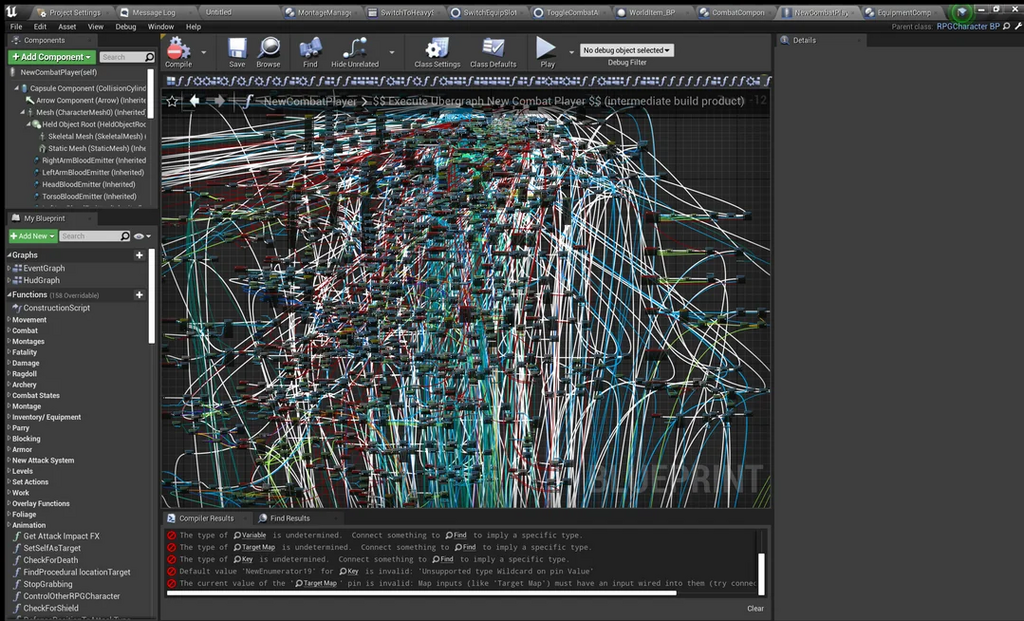
Blueprints Blueprints are Unreal Engine's visual scripting system. They allow you to add interactivity and logic to your projects without writing traditional code. You connect nodes that represent actions and events, creating a flowchart of what should happen. For example, you could create a Blueprint that says, "When the player presses a button, open this door."
Play In Editor (PIE) At any point, you can test your creation by clicking the "Play" button at the top of the editor. This lets you jump right into your level and experience it as a player would. It's an incredibly powerful feature for quick iteration and testing.
Unreal Engine's visual scripting system, which uses a node-based interface to create game logic without writing traditional code, is called _______.
You've placed a character in your level and want to modify its properties, such as its scale or material. Which editor panel would you use to do this?
That's a quick tour of the basics. Don't worry about mastering everything at once. The key is to get comfortable navigating the editor and understanding the main ideas. In the next step, we'll start putting this knowledge to use.