Mastering YouTube Channel Success
Channel Setup
Start with a Google Account
Your YouTube channel is linked to a Google account. If you already have a Gmail address, you have a Google account. However, it's a good idea to create a new, dedicated account just for your YouTube channel. This keeps your personal emails and files separate from your channel's business.
I recommend creating a new, dedicated account specifically for your YouTube channel.
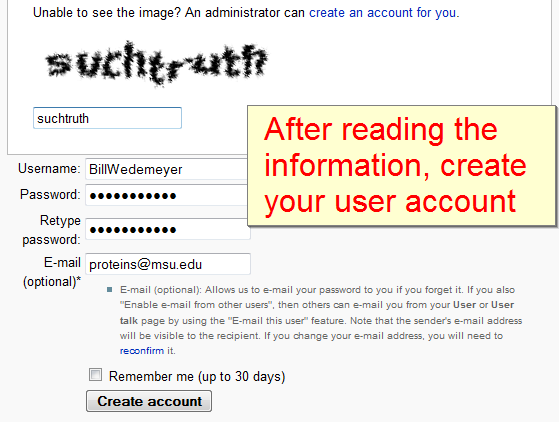
Creating a new account is straightforward. Go to the YouTube homepage and click 'Sign in,' then 'Create account.' You'll be prompted to enter some basic information like your name, desired email address, and a password.
Set Up Your Channel
Once you're signed in with your new Google account, click on your profile icon in the top-right corner and select 'Create a channel.' YouTube will then guide you through the initial setup. You'll be asked to upload a profile picture and choose a name for your channel. Don't worry, you can change these later.
You have the option to create a personal channel or a Brand Account. A Brand Account is a good choice if you plan to have multiple people manage the channel or if you want to use a different name than your Google account name.
Follow the on-screen prompts. Once you confirm, your channel is officially live. It's a blank canvas, ready for you to customize.
Branding Your Space
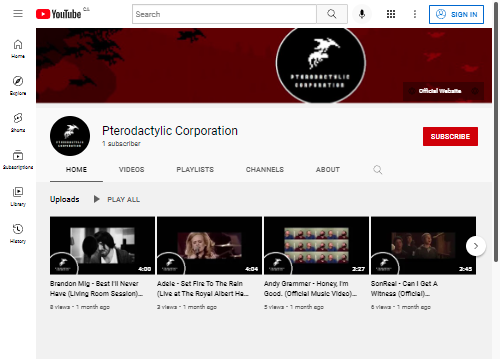
Your channel's appearance is the first thing viewers notice. Strong branding helps you look professional and memorable. This involves your channel name, profile picture, and banner image.
A complete and professionally presented channel builds trust with viewers and encourages them to subscribe.
Channel Name: Choose a name that is easy to remember, simple to spell, and relevant to your content. Check if the name is already taken on YouTube and other social media platforms for consistency.
Profile Picture: This is the small, circular image that appears next to your videos and comments. A clear headshot works well for personal brands, while a logo is great for businesses or groups.
Banner Image: This is the large rectangular image at the top of your channel page. Use this space to convey your channel's theme, tagline, and maybe even your upload schedule. Remember that it will look different on desktop, mobile, and TV screens, so keep important information centered.
Tell Your Story
Now it's time to fill in the details. Navigate to the 'Customize channel' button on your channel page. Here you can write your description and adjust key settings.
Your channel description, found in the 'About' tab, is a crucial spot to tell viewers what your channel is about and why they should subscribe. Use keywords related to your niche to help people find you through search.
Next, let's look at some essential settings. In YouTube Studio, go to 'Settings' on the left-hand menu.
Under the 'Channel' tab, you should:
- Select your country of residence.
- Add channel keywords that represent your content niche.
- Go to 'Advanced settings' and specify whether your content is made for kids. This is a legal requirement.
With these elements in place, your channel is set up and ready. Now you can focus on creating and uploading your first video.
What is the primary benefit of creating a new, dedicated Google account for your YouTube channel?
When designing your YouTube banner image, why is it crucial to keep important information like your channel name or tagline centered?
That's all for now. You have the foundations of a great YouTube channel.