Mastering Your First MikroTik Setup
Hardware Connections
Plugging In Your Router
Think of your new MikroTik router as the brain of your home network. Before it can direct all your internet traffic, you need to connect it properly. This is a quick process, but getting the physical connections right from the start is the most important step.
Router
noun
A device that forwards data packets between computer networks. Routers perform the traffic directing functions on the Internet.
On the back of your router, you'll see several ports that look the same. These are where you plug in your s, which act as the delivery pipes for your data. Despite looking identical, these ports have two very different jobs.
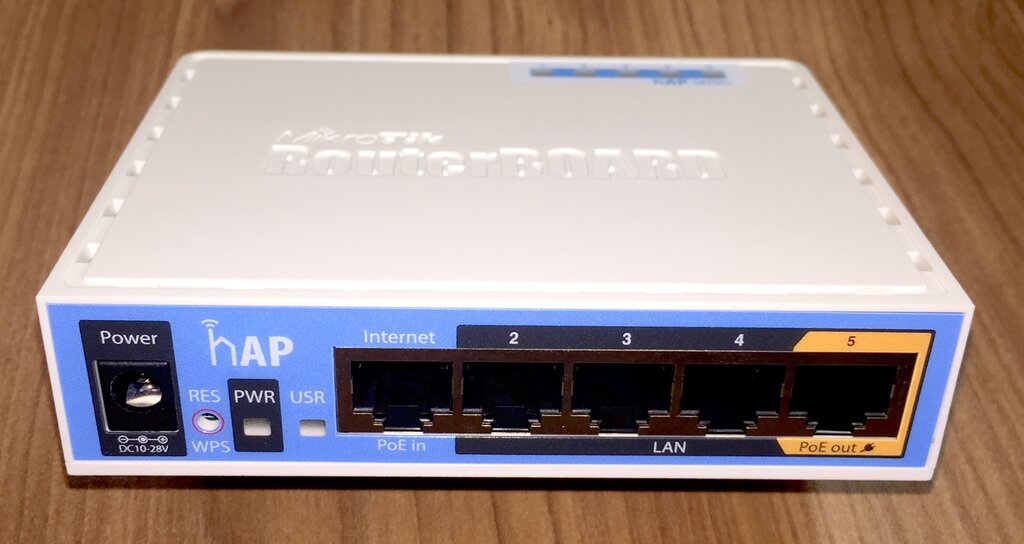
WAN vs. LAN Ports
One port is special. It's your gateway to the wider world. The other ports are for your personal devices.
The Internet Port (WAN): This port is usually labeled ether1 and might also say "Internet" or "PoE In". This is the Wide Area Network (WAN) port. It connects to the modem provided by your ISP (Internet Service Provider) and brings the internet into your router.
Local Ports (LAN): The other ports (e.g., ether2, ether3, etc.) are for your Local Area Network (LAN). These ports connect the router out to your own devices, like computers, printers, or gaming consoles.
Think of it this way: The WAN port is for bringing the internet in. The LAN ports are for sharing it with your devices.
Making the Connections
Let's get everything plugged in. It only takes a minute.
-
Power Up: First, connect the power adapter to the router and plug it into an outlet. The lights on the front will turn on.
-
Connect to the Internet: Take an Ethernet cable and plug one end into your internet modem. Plug the other end into the
ether1(or WAN/Internet) port on your MikroTik router. -
Connect Your Computer: Take a second Ethernet cable. Plug one end into your computer's Ethernet port. Plug the other end into any other port on the router besides
ether1. Portether2is a great choice.
With these three cables connected—power, internet, and your computer—the physical setup is complete. The router is now ready for you to configure its software.
Checking the Lights
The small lights on the front of the router, called LEDs, tell you what's happening. They're a quick way to check if everything is connected correctly. While the exact lights can vary by model, they generally follow this pattern:
| Light | Meaning |
|---|---|
| PWR | Solid light means the router has power. |
| USR | A user-configurable light, often off by default. |
| Port Lights (1-5) | A solid light means a device is connected. A blinking light means data is being transferred. |
You should see a solid power light and two blinking port lights: one for the internet connection (ether1) and one for your computer (e.g., ether2). If you see that, you're ready to move on to the software setup.