Mastering Warp Terminal
Introduction to Warp Terminal
Meet Warp
The command-line terminal is a powerful tool for developers, but let's be honest, it hasn't changed much in decades. It's often just a stream of text that can be difficult to read and navigate. Warp is a modern terminal, rebuilt from the ground up to work more like the other apps you use every day.
Warp is a modern, Rust-based terminal emulator that reinvents the traditional CLI experience.
It’s designed to be faster, more intuitive, and collaborative. Instead of an endless scroll of text, Warp organizes your workflow into logical blocks and integrates AI to help you find the right command or debug an error.
Key Features
Warp's most noticeable feature is its block-based interface. Each command you run, along with its output, is grouped into a block. This makes it incredibly easy to navigate your history, copy a command or its entire output, and share your work with teammates.
Think of blocks like conversations. You ask the computer to do something (the command), and it replies (the output). Warp keeps these conversations neatly organized.
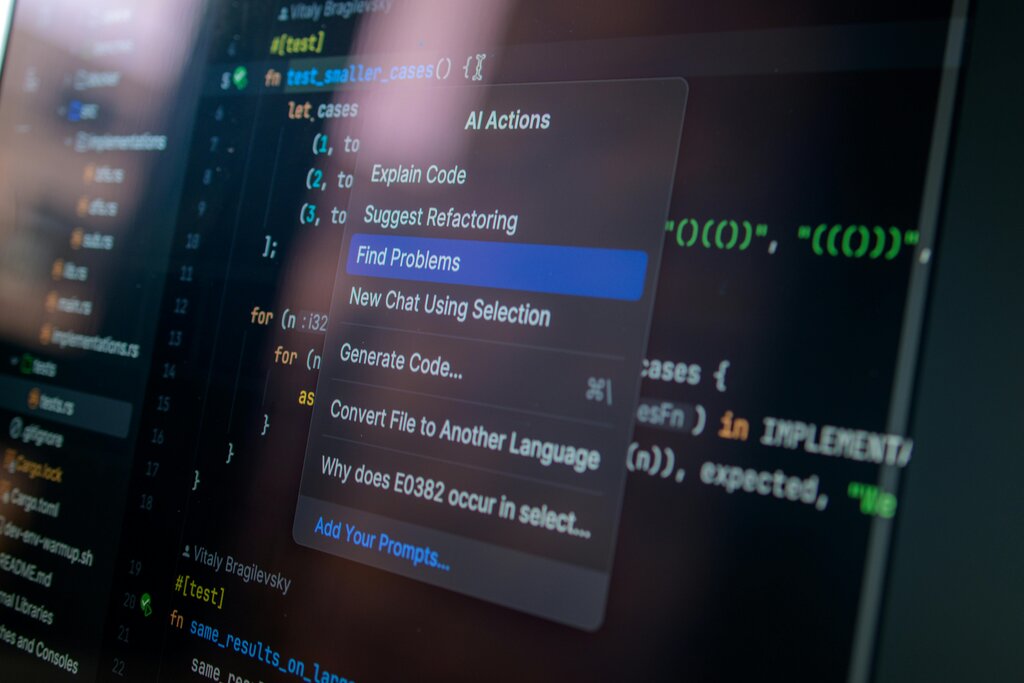
Another major feature is AI integration. Right in the terminal, you can ask Warp AI for help. If you've forgotten a command or need to debug a cryptic error message, the AI can provide suggestions and explanations. This turns the terminal from a simple command executor into an interactive assistant.
Warp also supports modern text-editor features, like cursors and selections, making it easier to edit long commands. Finally, it's cross-platform, meaning you can have a consistent terminal experience whether you're on macOS, Linux, or Windows.
Getting Started with Installation
Installing Warp is straightforward on all major operating systems. On macOS, the easiest way is with Homebrew.
# Install Warp on macOS
brew install --cask warp
For Linux users, Warp provides packages for different distributions. For example, on Debian-based systems like Ubuntu, you can add their repository and install it using apt.
# Add the repository key
sudo gpg --dearmor -o /usr/share/keyrings/warpdotdev-keyring.gpg <<'EOF'
-----BEGIN PGP PUBLIC KEY BLOCK-----

mQINBGNJpfsBEADb/iF2EnbB8p1aA3tS3PjM4syrz8rs9w5R6O5ksc+9v4nCh2cf
... (key omitted for brevity) ...
=vApO
-----END PGP PUBLIC KEY BLOCK-----
EOF

# Add the repository and install
sudo sh -c 'echo "deb [arch=amd64 signed-by=/usr/share/keyrings/warpdotdev-keyring.gpg] https://pkg.warp.dev/debian stable main" > /etc/apt/sources.list.d/warpdotdev.list'
sudo apt update
sudo apt install warp-terminal
On Windows, you can install Warp using the Winget package manager.
# Install Warp on Windows
winget install warp.warp
Navigating the Interface
When you first open Warp, you'll notice a clean, modern interface. The main area is where you'll see the command blocks. At the bottom, there's a permanent input editor where you type new commands. This editor feels more like a code editor than a traditional command line.
A powerful tool is the Command Palette, which you can open with Ctrl+P (or Cmd+P on Mac). From here, you can quickly search for features, commands, and workflows without needing to memorize keyboard shortcuts.
Now let's test your understanding of these core concepts.
What is the most defining feature of Warp's interface that distinguishes it from traditional terminals?
You encounter a cryptic error message after running a command. According to the text, what is the most efficient, integrated way to get help within Warp?
With these basics, you're ready to start exploring Warp and see how it can speed up your command-line work.