Mastering VS Code for AI Development
Optimizing Python Environments
Your Workspace, Your Rules
Moving from simple scripts to professional projects in Python requires more than just writing code. It demands a stable, predictable, and consistent development environment. In Visual Studio Code, you can tailor every aspect of your workspace to a specific project, preventing the dependency chaos that often plagues complex applications, especially in fields like AI where library versions are critical.
The first step is telling VS Code which Python interpreter to use for your current project. Instead of relying on a global system-wide Python, you should link your workspace to a project-specific virtual environment. This isolates your dependencies and ensures your code runs in a controlled setting.
To do this, open the Command Palette with Ctrl+Shift+P (or Cmd+Shift+P on Mac) and type Python: Select Interpreter. VS Code will present a list of all the Python interpreters it can find, including those inside virtual environments like venv, conda, or poetry.
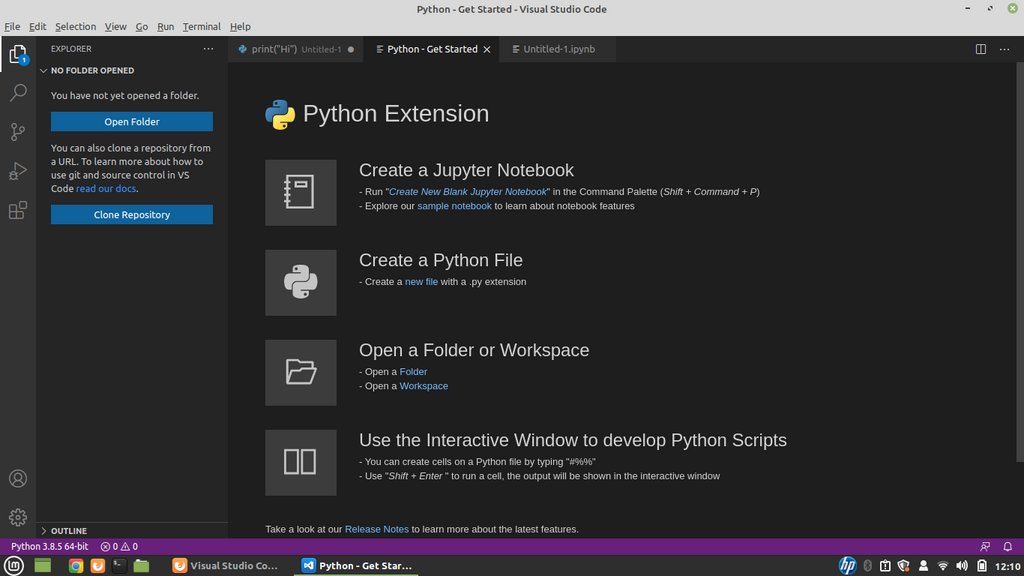
Once you select an interpreter, VS Code creates a .vscode directory in your project root and saves your choice in a settings.json file. This setting is specific to your workspace. Any new integrated terminal you open will now automatically activate this virtual environment. You'll see the name of the environment in your terminal prompt, confirming that your commands are running in the correct context.
Committing the
.vscode/settings.jsonfile to your version control system is a crucial step. It ensures that every developer on your team automatically uses the same interpreter path and settings, eliminating a common source of bugs.
Automate Code Quality
A professional environment does more than just run code—it helps you write better code. This is where linters and formatters come in. A linter analyzes your code for potential errors and stylistic issues, while a formatter automatically rewinds your code to conform to a specific style guide.
We can configure VS Code to use powerful modern tools like for linting and Black for formatting. Ruff is incredibly fast, and Black is 'uncompromising,' meaning it takes opinions out of code style debates. You can set them up to run every time you save a file by adding a few lines to your .vscode/settings.json.
{
  // File: .vscode/settings.json

  "python.analysis.typeCheckingMode": "basic",
  "python.testing.pytestArgs": [
    "tests"
  ],
  "python.testing.unittestEnabled": false,
  "python.testing.pytestEnabled": true,

  // Enable Ruff for linting
  "[python]": {
    "editor.defaultFormatter": "ms-python.black-formatter",
    "editor.formatOnSave": true,
    "editor.codeActionsOnSave": {
      "source.organizeImports": true
    }
  },
  "ruff.lint.args": [
    "--select=ALL",
    "--ignore=D1,D203,D212"
  ]
}
This configuration tells VS Code to use the Black formatter, run it on save, and also use Ruff to organize your imports automatically. The ruff.lint.args allow you to customize which rules to enforce or ignore. Now, your code is automatically cleaned, formatted, and checked with every save, enforcing consistency across the entire project.
Managing Secrets and Variables
Hardcoding sensitive information like API keys or configuration settings directly in your scripts is a major security risk. A better practice is to manage these using environment variables. The Python extension for VS Code makes this straightforward by automatically loading variables from a .env file located in your project's root directory.
Simply create a file named .env and add your key-value pairs. Your Python code can then access these variables as if they were set in the system's environment, keeping your secrets out of your source code. Remember to add .env to your .gitignore file to prevent accidentally committing it to your repository.
# File: .env

API_KEY="your-secret-api-key-goes-here"
DATABASE_URL="postgresql://user:password@host:port/dbname"
With these practices—selecting a workspace interpreter, automating code quality with settings.json, and managing secrets with .env files—you establish a professional development environment. This stable foundation is essential before you even begin to integrate more advanced tools, ensuring your projects are maintainable, collaborative, and secure.