Mastering TradingView for Traders
Getting Started
Setting Up Your Workspace
Before you can dive into analyzing markets, you'll need a TradingView account. Creating one is free and essential for saving your work. Without an account, any chart layouts or settings you create will disappear once you close your browser.

Head to the TradingView website and look for the sign-up button. The process is straightforward. You can register using an email address or connect with a Google, Facebook, or Apple account. Once you're signed in, you’ll be greeted by the main platform interface, ready for you to explore.
Finding Your Way Around
At first glance, the interface might seem busy, but it's organized into a few key areas. Let's break down the main components you'll interact with most often.
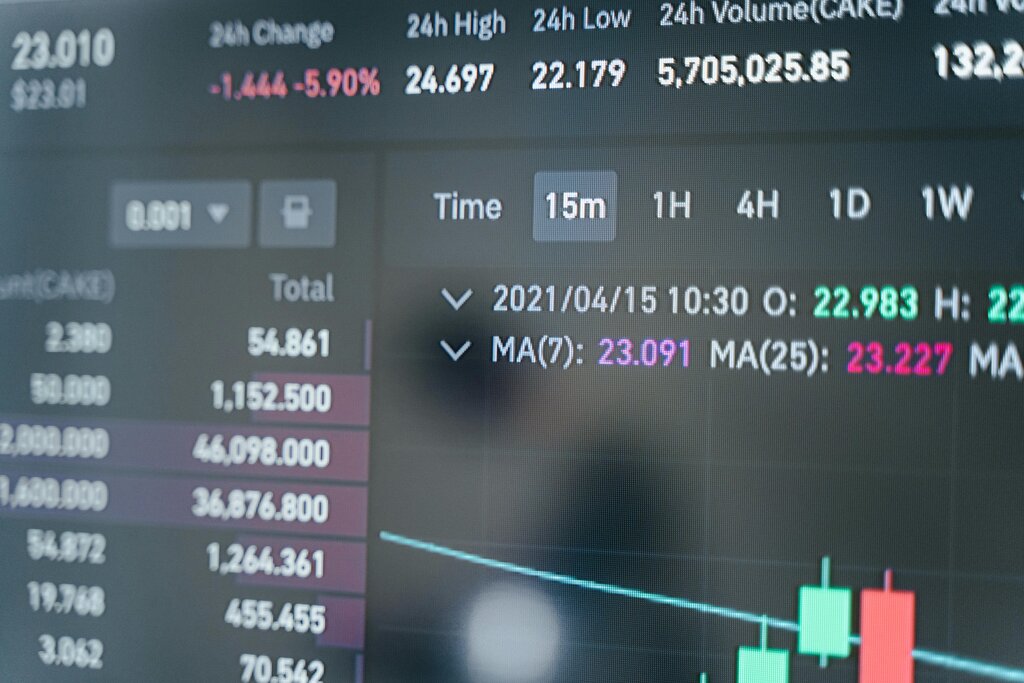
The largest part of your screen is the chart itself. This is your canvas for viewing price action. To the left of the chart, you'll find a vertical toolbar with drawing tools like trend lines and text notes. The top bar contains options for changing the financial instrument (like a stock or crypto pair), adjusting the time frame, and accessing chart properties. On the right, a side panel holds your watchlists, alerts, and news feeds.
| Area | Location | Purpose |
|---|---|---|
| Chart Area | Center | The main space for viewing price charts. |
| Drawing Tools | Left | A toolbar for adding lines, shapes, and notes. |
| Top Menu | Top | Search for assets and change time frames. |
| Side Panel | Right | Manage watchlists, alerts, and news. |
Making It Your Own
One of the best features of TradingView is its customizability. You can tailor the look and feel of your charts to match your preferences, which can make long hours of analysis much more comfortable. Start by right-clicking anywhere on the chart and selecting "Settings" or clicking the gear icon in the top bar.
This opens the Chart Settings window, where you can modify everything from the color of your candles to the background of your chart.
The "Appearance" tab lets you change the background, grid lines, and other visual elements. Don't like the default green and red candles? Go to the "Symbol" tab to pick colors that work for you. Many traders prefer a darker theme for late-night sessions. You can switch between light and dark themes using the menu at the top left of the platform.
Once you've arranged your chart just right, make sure to save it. Look for the cloud icon or the layout name at the top of the page. Clicking it allows you to save your current layout, so you can easily pull it up again later. This is where having an account really pays off.
What is the primary benefit of creating a TradingView account, according to the text?
On the TradingView interface, where are the drawing tools like trend lines and text notes typically located?
Now that you've set up your account and customized your first chart, you're ready to start exploring the markets.