Mastering the Web for Beginners
Mastering Browser Tabs
Beyond a Single Page
Most of what we do online involves juggling multiple websites. You might be comparing prices on a few shopping sites, referencing a report while writing an email, or keeping an eye on your social media feed. Instead of opening a new browser window for every page, you can use tabs.
Tabs let you open multiple webpages within the same browser window. This keeps your desktop tidy and makes it easier to switch between tasks. You already know the basics, but mastering a few shortcuts can make the process much smoother.
| Action | Windows/Linux | macOS |
|---|---|---|
| Open a new tab | Ctrl + T | Cmd + T |
| Close the current tab | Ctrl + W | Cmd + W |
| Reopen the last closed tab | Ctrl + Shift + T | Cmd + Shift + T |
The shortcut to reopen a closed tab is a lifesaver. If you accidentally close a tab, just use
Ctrl+Shift+T(orCmd+Shift+T) to bring it right back.
Sometimes you might need a completely separate window, perhaps to view pages side-by-side on a large monitor. Use Ctrl + N (or Cmd + N on Mac) to open a new browser window. To switch between open windows quickly without using your mouse, hold Alt and press Tab (Cmd + Tab on Mac).
Taming Tab Clutter
It's easy to get overwhelmed when you have dozens of tabs open. The titles become unreadable, and your computer's performance can slow down. This is often called 'tab overload'. Luckily, modern browsers have tools to help you stay organised.
Browser tab clutter is a significant productivity killer and exerts unnecessary strain on your RAM.
One of the simplest ways to manage important pages is to pin them. Pinning a tab shrinks it down to just the website's icon (the favicon) and moves it to the far left of your tab bar. Pinned tabs also stay put when you close and reopen your browser, making them perfect for sites you use every day, like your email, calendar, or a project management tool.
To pin a tab, simply right-click on it and select 'Pin'.
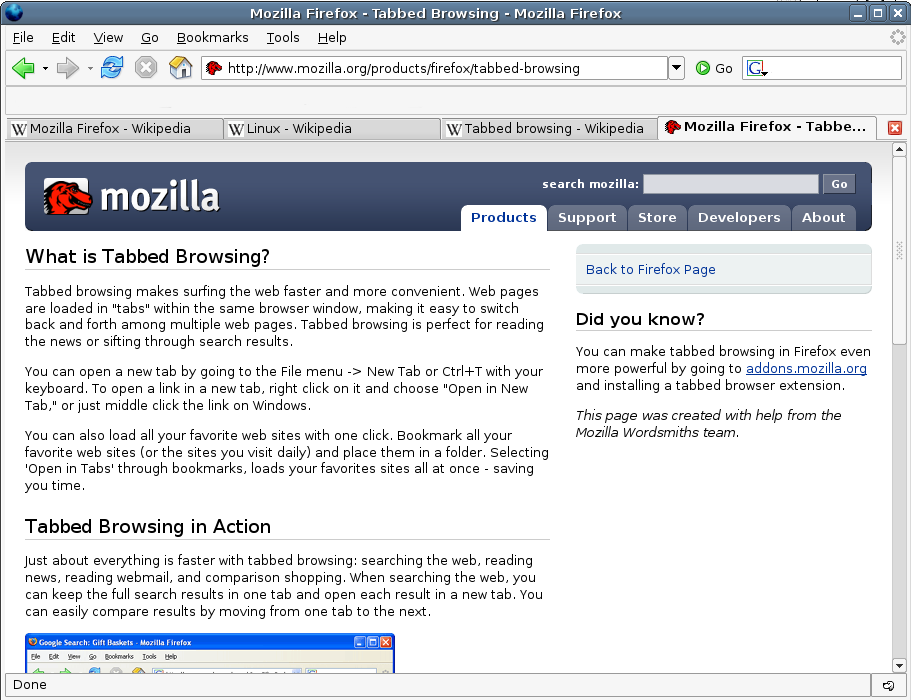
For more complex tasks, you can use tab groups. This feature lets you bundle related tabs together under a single, named group. For example, if you're planning a trip, you could create a 'Holiday' group containing tabs for flights, hotels, and activities. When you don't need them, you can collapse the entire group into a single button on your tab bar, clearing up space without closing the pages.
To create a group, right-click a tab and look for an option like 'Add tab to new group'. You can then give the group a name and a colour to make it stand out.
If you use your online calendar every day, what is the most efficient way to ensure it's always ready and easily accessible when you start your browser?
What is the primary benefit of using tab groups?
By using these features, you can turn your browser from a chaotic collection of pages into a well-organised workspace.