Mastering the Warp Terminal
Introduction to Warp
Meet Warp, Your New Terminal
The command-line terminal is a powerful tool for developers, but it hasn't changed much over the years. It's often a single, endless stream of text that can be hard to read, search, and share. Warp is a modern terminal that rethinks this experience from the ground up, making it more intuitive and collaborative.
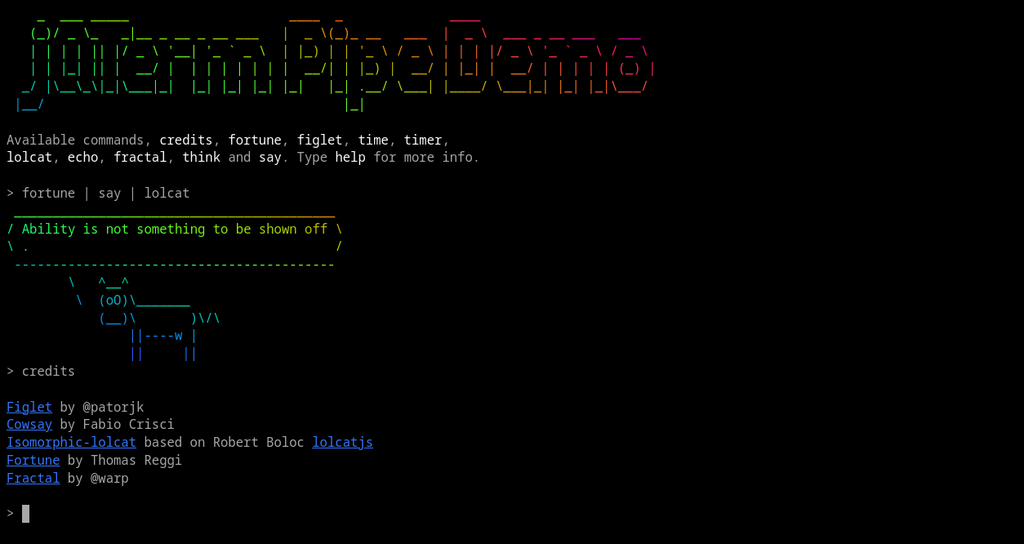
Instead of a wall of text, Warp organizes your commands and their outputs into distinct blocks. This simple change makes it much easier to navigate your history, copy results, or share a specific command with a teammate. It’s like turning a long, run-on sentence into a well-structured document.
Warp also integrates AI to help you work faster. If you mistype a command, it can suggest a correction. It also offers autocomplete for commands and arguments, saving you from having to remember every detail.
Warp allows developers to issue commands in natural language, making it easier to perform tasks without needing to remember specific syntax.
Collaboration is another key area where Warp shines. You can save and share frequently used commands as reusable Workflows. Imagine onboarding a new team member and giving them a set of one-click commands for setting up their entire development environment. That's the power of Workflows.
Installation and Setup
Getting Warp is simple. It’s available for macOS, Windows, and Linux. The process is similar for each platform.
| OS | Installation Method |
|---|---|
| macOS | Download the .dmg file or use Homebrew: brew install --cask warp |
| Windows | Download the .msi installer or use Winget: winget install warp.warp |
| Linux | Use your package manager (e.g., apt, dnf, pacman) with the provided instructions. |
After installing, Warp will guide you through a quick setup process. You'll be asked to sign in, which enables features like syncing your configurations and sharing content with your team. You can choose a color theme and configure keybindings to match terminals you're used to, like iTerm2 or VS Code's terminal. This makes the transition smooth and lets you feel at home right away.
The initial setup lets you customize fonts, themes, and keymaps. Spend a few minutes here to tailor the look and feel to your liking. You can always change these later in the settings.
That's it for the basics. You now have a powerful, modern terminal ready to go. The next step is to start using it for your daily tasks and discover how its features can improve your workflow.