Mastering the Ralph Wiggum Plugin in Cursor
Introduction to Cursor IDE
What is Cursor?
Think of your favorite code editor. It probably has syntax highlighting, file management, and maybe a terminal. Now, imagine that editor had a built-in expert programmer, ready to help you 24/7. That's Cursor.
Cursor is an AI-first code editor—a smart development environment powered by artificial intelligence.
Cursor is built on top of Visual Studio Code (VS Code), one of the most popular code editors in the world. This means if you're already familiar with VS Code, you'll feel right at home. You get all the features you already know, but with a powerful layer of artificial intelligence integrated directly into your workflow. It's designed to make writing, debugging, and understanding code faster and more intuitive.
IDE
noun
An Integrated Development Environment (IDE) is a software application that provides comprehensive facilities to computer programmers for software development. An IDE normally consists of at least a source code editor, build automation tools, and a debugger.
Core Features
Cursor isn't just about simple code completion. It's a suite of tools that work together to supercharge your programming. Let's look at the key features.
AI-Assisted Chat: You can chat with an AI assistant directly in the editor. Ask it to generate a new function, explain a complex piece of code, or brainstorm solutions to a problem. The AI has context on your entire project, so its answers are relevant and helpful.
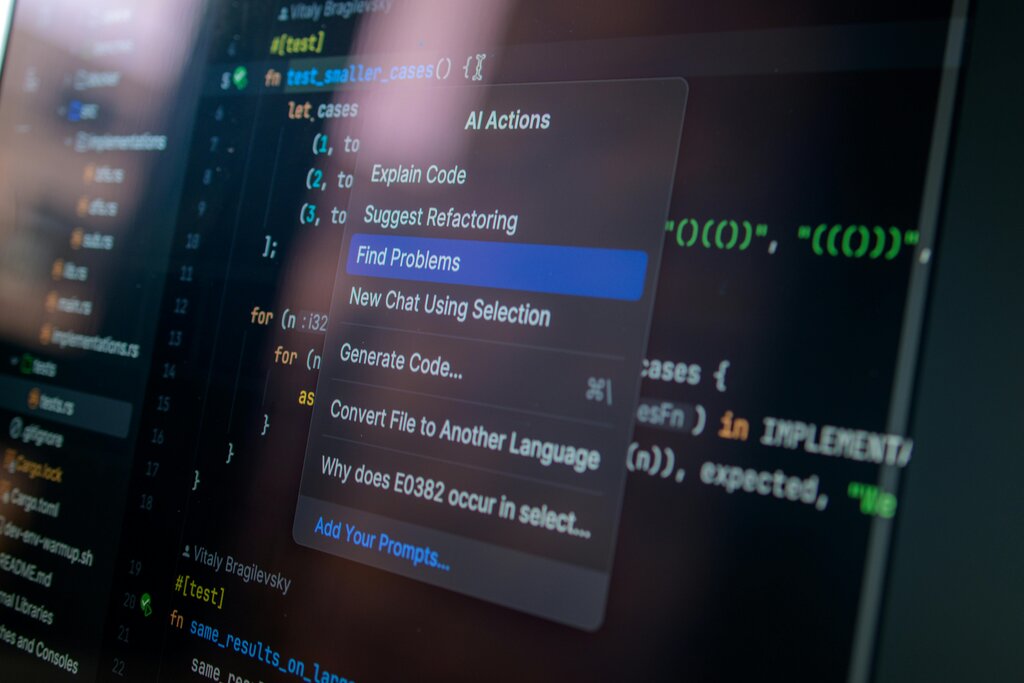
Inline Editing: You don't have to copy and paste code from a chat window. You can highlight any block of code and give the AI a command, like "Refactor this to be more efficient" or "Add error handling." Cursor will edit the code directly for you.
Smarter Debugging: When you run into an error, Cursor can help you fix it. It can analyze the error message and your code to suggest a solution. It can even automatically apply the fix with a single click.
Codebase Awareness: One of Cursor's most powerful features is its ability to understand your entire project. You can ask questions like, "Where is the user authentication logic defined?" and it will point you to the right files and functions. This makes navigating large, unfamiliar codebases much easier.
The Cursor Interface
Because Cursor is a fork of VS Code, its interface will be very familiar to many developers. The main components are laid out logically to keep you focused.
The key addition is the AI integration. This usually appears as a dedicated chat panel or through commands you can access by right-clicking or using keyboard shortcuts. This seamless integration means you don't have to switch contexts between coding and getting help.
Setting Up Your Workspace
Getting a new project started in Cursor is straightforward. Since it functions like a standard IDE, you'll follow a familiar process.
- Open a Folder: The first step is to open your project folder. You can do this via
File > Open Folder...or by dragging a folder onto the Cursor window. This folder becomes your workspace, and Cursor will index its files to provide context to the AI. - Install Extensions: Just like VS Code, Cursor supports a vast marketplace of extensions for different languages, linters, and themes. You can access the Extensions view from the Activity Bar to customize your environment.
- Configure Settings: You can tweak settings to your liking by opening the Settings editor (
File > Preferences > Settings). Here you can change your theme, font size, and configure how the AI behaves, such as selecting which AI model to use for chat and code generation.
// Example: A snippet from a settings.json file
{
  "workbench.colorTheme": "Default Dark+",
  "editor.fontSize": 14,
  "cursor.llm.model": {
    "chat": "claude-3-opus-20240229",
    "edit": "claude-3-sonnet-20240229"
  }
}
With your environment set up, you can start leveraging the AI. Try opening a file and asking the chat panel, "What does this file do?" to see the AI in action.
Ready to test your knowledge?
What is the relationship between Cursor and Visual Studio Code (VS Code)?
A developer working on a large, unfamiliar project needs to understand where user authentication is handled. Which Cursor feature is most helpful for this task?
Now that you have a solid grasp of what Cursor is and how it works, you're ready to explore how to connect it with powerful AI models and plugins to further enhance your coding workflow.