Mastering the macOS Terminal
Introduction to macOS Terminal
Meet the Terminal
Beyond the point-and-click interface of macOS lies a powerful tool called the Terminal. It's a command-line interface (CLI) that lets you communicate directly with your computer's operating system using text-based commands. Since macOS is built on a UNIX foundation, the Terminal gives you access to a set of tools prized by developers and system administrators for their speed and efficiency.
For many tasks, typing a single command is much faster than navigating through multiple windows and menus. The Terminal unlocks capabilities that aren't available through the graphical user interface, giving you more granular control over your system.
While it might seem intimidating at first, understanding the Terminal is a fundamental skill for anyone looking to go deeper into how their computer works. It's the difference between driving a car and being able to look under the hood to fine-tune its performance.
Opening and Customizing
Finding the Terminal is simple. The quickest way is to use Spotlight Search. Just press Command + Spacebar, type "Terminal," and press Enter. You can also find it in the Applications/Utilities folder in Finder.
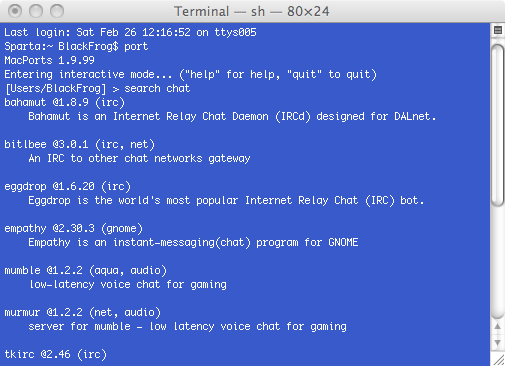
When you first open it, you'll see a plain window with a text prompt. You don't have to stick with the default look. You can customize almost every aspect of its appearance to make it your own.
To get started, go to Terminal > Settings (or Preferences on older macOS versions) from the menu bar. This opens a new window with several tabs:
- Profiles: This is where you can change the look and feel. macOS comes with several pre-built themes like Basic (the default), Pro, and themes with dark backgrounds like Homebrew. You can select one or create your own.
- General: You can set the default profile to use whenever you open a new Terminal window.
- Within a Profile: You can fine-tune settings like font type and size, background color and transparency, cursor style, and the color scheme for text.
The Command Prompt
Every time you open a new Terminal window, you're greeted by the command prompt. This line of text provides important context about your current session. It might look something like this:
username@hostname ~ %
It looks cryptic, but each part has a specific meaning. Understanding this structure is the first step to navigating with confidence.
username: This is the short name of your user account on the Mac.hostname: This is the name of your computer, which is how it identifies itself on a network. You can change this inSystem Settings > General > About.~(tilde): This symbol is a shortcut that represents your home directory. Your home directory is located at/Users/usernameand contains your personal folders like Documents, Downloads, and Desktop.%: This is the prompt symbol. It indicates that the shell is ready to accept your command. In modern versions of macOS, the default shell is Zsh (Z shell), which uses the%symbol. Older versions used the Bash shell, which typically uses a$symbol.
What is the primary function of the Terminal application in macOS?
Which keyboard shortcut opens Spotlight Search, the fastest way to find and launch the Terminal?
Now that you're familiar with the Terminal's purpose and its basic interface, you're ready to start exploring commands.