Mastering the Mac Terminal
Terminal Basics
Opening Terminal
The Terminal app is your direct line to the core of macOS. It provides a command-line interface (CLI) to the operating system's UNIX foundation, allowing you to perform tasks by typing commands instead of clicking icons.
There are two quick ways to open it:
- Spotlight Search: Press
Cmd + Space, type "Terminal," and press Enter. - Finder: Open Finder, go to the Applications folder, then open the Utilities folder. Terminal will be inside.
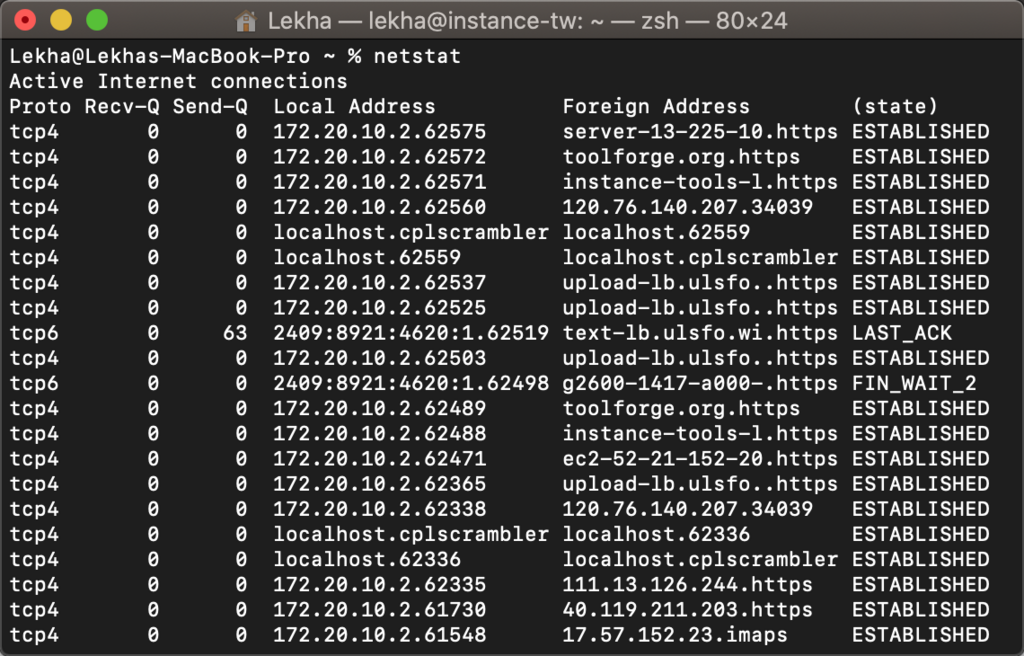
Understanding the Interface
When you open Terminal, you'll see a window with some text, ending in a blinking cursor. This line of text is called the prompt, and it's where you'll type your commands. The prompt usually contains three key pieces of information before the dollar sign ($).
The tilde character ~ is a shorthand for your home directory, which is where your personal files are stored. The $ symbol indicates that the shell is ready to accept a command from a standard user. The cursor shows where your text will appear as you type.
Executing Simple Commands
To execute a command, you type it at the prompt and press Enter. The computer runs the command and then displays the output, if any, on the next line, followed by a new prompt.
Let's try a few simple, safe commands. First, find out who the system thinks you are:
whoami
Pressing Enter will return your short username. Now, let's check the current date and time.
date
The echo command is one of the simplest. It just displays whatever text you give it. This is useful for printing messages or seeing the value of variables.
echo "Hello, Terminal!"
Remember, commands in the terminal are case-sensitive.
dateis a valid command, butDateis not.
Now you know how to open Terminal, understand its basic interface, and run your first few commands.