Mastering the M-TIBA Portal
Portal Onboarding
Secure Access and First Steps
Your first interaction with the M-TIBA portal is the login screen. Given the sensitive nature of health and financial data, security is paramount. The system uses (MFA) to ensure that only authorised personnel can access the platform. This adds a critical layer of security beyond a simple username and password.
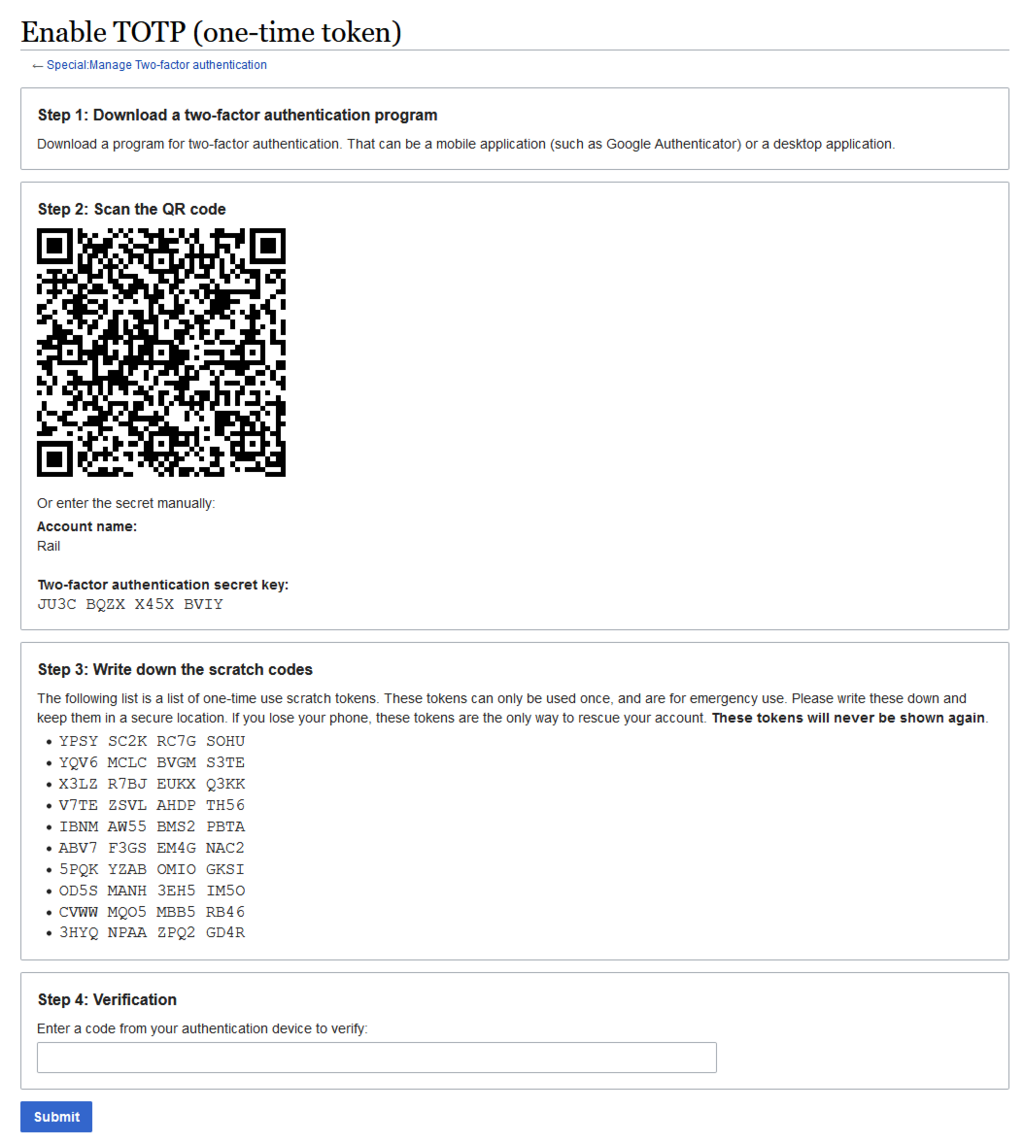
Typically, you'll be asked to set up MFA during your first login. This often involves linking an authenticator app on your smartphone, which will generate a time-sensitive code you must enter to proceed. This ensures that even if someone steals your password, they can't log in without physical access to your device.
For the best experience, please use a modern, up-to-date web browser such as Chrome, Firefox, or Safari. The portal is optimised for these environments, and using older browsers might lead to display issues or limited functionality.
Navigating Your Dashboard
Once logged in, you’ll land on the main dashboard. Think of this as your command centre. It provides a high-level overview of your scheme's activity, highlighting key metrics and recent activities. The layout is organised into distinct functional hubs, allowing you to quickly access the tools you need.
The primary navigation areas are typically focused on Membership Management, Claims Processing, and Reporting & Analytics.
You will notice that your view of the portal is specifically tailored to your responsibilities. The platform uses (RBAC) to determine which features and data you can see and interact with. As a benefit manager, you'll have access to tools for managing member enrolment and viewing claims data, but you won't see administrative functions reserved for system engineers.
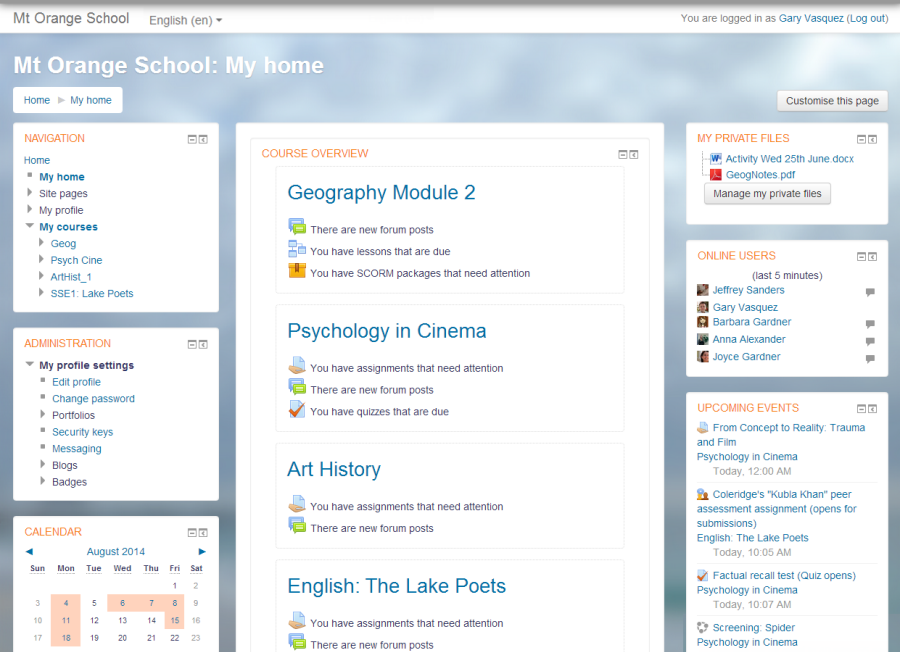
This tailored approach streamlines your workflow. It removes clutter and reduces the risk of accidental changes to sensitive settings outside your purview, ensuring both efficiency and data integrity.
Managing Your Session
Each time you log in, you start a new 'session'. For security, these sessions don't last forever. If your portal is left inactive for a set period, the system will automatically log you out. This is a crucial security feature, called a session timeout, which prevents unauthorised access if you step away from your computer.
Always make sure to manually log out when you have finished your work, especially if you are using a shared or public computer. This immediately ends your session and protects your account.
Ready to check your understanding? Let's review the key concepts for getting started with the portal.
What is the primary purpose of Multi-Factor Authentication (MFA) on the M-TIBA portal?
A benefit manager logs in and can see member enrolment tools but not system administration settings. This is an example of which security principle?
You now have the foundational knowledge to securely access and navigate the M-TIBA portal. You understand the importance of MFA, the layout of the dashboard, and how your role shapes your experience.