Mastering the IFS Variable in Shell Scripting
Shell Variables
Storing Information with Variables
Think of a shell variable as a labeled box where you can store a piece of information. Instead of typing out that information every time you need it, you can just refer to the label on the box. This is incredibly useful for writing scripts or for temporarily holding data you'll use in a series of commands.
Variables are containers that store values.
Variables make your commands more flexible and readable. For example, you could store a long directory path in a variable and then use the short variable name instead of typing the full path repeatedly.
Creating and Using Variables
Creating a variable is straightforward. You give it a name and assign it a value using the equals sign (=). A common convention is to use uppercase letters for variable names to make them stand out.
# Assign the string "/home/user/documents/reports" to a variable named REPORT_DIR
REPORT_DIR="/home/user/documents/reports"
An important rule: there can be no spaces on either side of the equals sign.
REPORT_DIR = "..."will not work.
To access the value stored inside the variable, you preface its name with a dollar sign ($). The echo command is perfect for displaying a variable's value.
# Display the value of the REPORT_DIR variable
echo $REPORT_DIR

# The shell substitutes the variable with its value before running the command.
# This command becomes: echo /home/user/documents/reports
The shell replaces the variable name with its value before the command is executed. This process is called substitution. You can use this anywhere a value is needed.
# List the contents of the directory stored in our variable
ls $REPORT_DIR
Managing and Protecting Variables
Sometimes you're done with a variable and want to remove it. You can do this with the unset command. This completely deletes the variable from the shell's memory for the current session.
GREETING="Hello there"
echo $GREETING
# Output: Hello there

unset GREETING
echo $GREETING
# Output: (nothing is printed, because the variable no longer exists)
What if you want to prevent a variable from being changed? You can make it read-only. Once set, its value cannot be altered, nor can it be unset.
readonly HOSTNAME="server01.example.com"

# Let's try to change it...
HOSTNAME="server02.example.com"
# The shell will return an error: HOSTNAME: readonly variable
Local vs. Environment Variables
Not all variables are created equal. They come in two main flavors: local and environment.
A local variable exists only within the shell session where it was created. If you start a new shell or run a script, that new process won't know about the local variables from the original shell. The variables we've created so far have all been local.
An environment variable, on the other hand, is available to the shell it was created in and to any processes started from that shell (often called child processes). To make a variable an environment variable, you use the export command.
# Create a variable and export it
export API_KEY="xyz123abc"

# Now, any script or program I run from this terminal
# can access the value of $API_KEY
Your system comes with many pre-defined environment variables that control how the shell and other programs behave. You can see all of them by running the env or printenv command. Here are a few common ones:
| Variable | Description |
|---|---|
USER | The username of the current user. |
HOME | The path to the current user's home directory. |
PATH | A list of directories the shell searches for commands. |
SHELL | The path to the current user's login shell program (e.g., /bin/bash). |
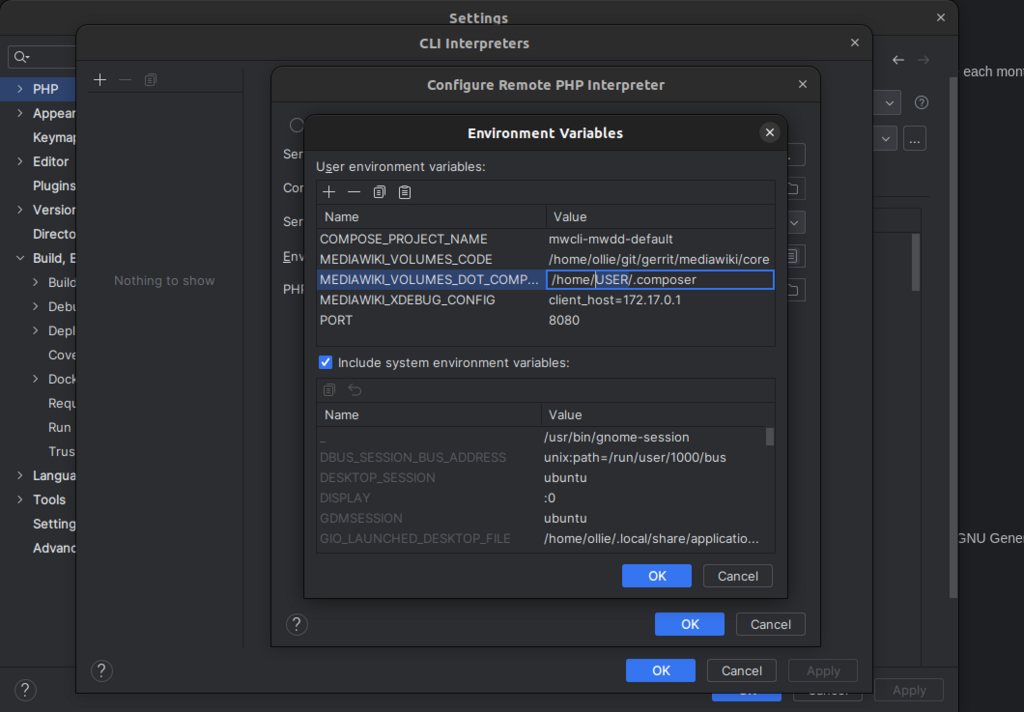
Understanding the difference between local and environment variables is key to writing effective shell scripts and managing your system's behavior.
Ready to check your understanding?
How do you correctly access and display the value of a shell variable named GREETING?
Which of the following commands correctly creates a variable named FILENAME with the value report.txt?
Mastering variables is a big step toward becoming proficient with the command line. They are the building blocks for automating tasks and creating powerful scripts.