Mastering the File System and Terminal Basics
Hierarchical File Structures
Beyond the Desktop
You’re used to organising files in folders on your desktop. But beneath that user-friendly interface is a powerful, logical system called a hierarchical file structure. Think of it not as a collection of folders, but as a single, branching tree.
The Linux filesystem is hierarchical, meaning it has a root directory (/) from which all other files and directories branch out, forming a tree-like structure.
At the very base of this tree is the root directory, represented by a single forward slash: /. Every single file and folder on your system lives somewhere inside this root directory. It's the ultimate container for everything.
From the root, the system branches out. One of the first branches is often /home, which contains the personal files for each user on the system. Your own personal folder, often called your home directory, is where your Documents, Downloads, and Desktop folders live. This is your personal workspace, separate from the core system files.
Navigating the Tree
To find anything in this tree, you need a path. A path is like a set of directions from one point to another.
An absolute path gives the full directions starting from the root directory (/). It's a complete, unambiguous address. For example, a file named report.txt in your Documents folder might have the absolute path /home/jane/Documents/report.txt.
A relative path, on the other hand, gives directions from your current location. If you are already inside your /home/jane directory, the relative path to that same report is simply Documents/report.txt. It's a convenient shorthand when you're working within a specific part of the file system.
Think of it like this: an absolute path is a full mailing address, including the country and postcode. A relative path is just telling someone, "it's two doors down on the left."
A Place for Everything
This structure isn't random. Operating systems like macOS and Linux follow a convention called the Filesystem Hierarchy Standard (FHS) to keep things organised. This standardisation means you can generally predict where to find certain types of files, no matter which Unix-like system you're on. This is crucial for servers, where predictable file locations are essential for software to run correctly.
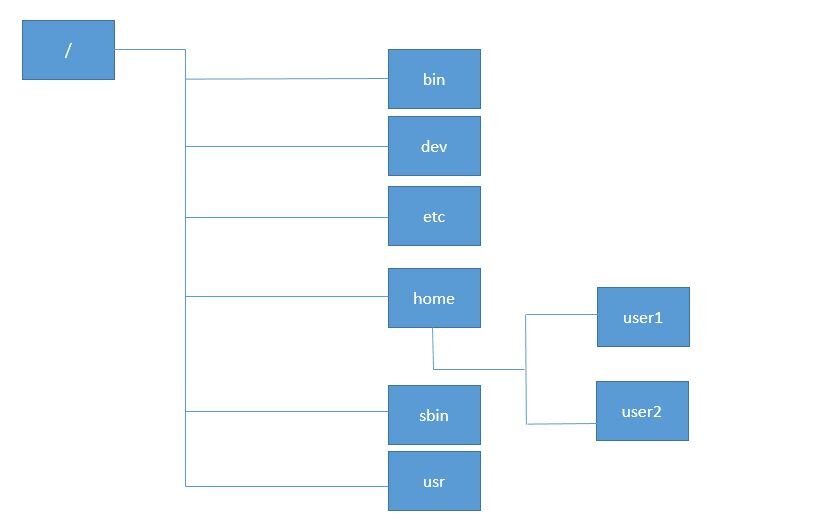
Here are some of the most important directories you'll find branching off the root directory:
| Directory | Purpose |
|---|---|
/bin | Contains essential binary executables (programs) needed for the system to run, like ls and cp. |
/etc | Holds system-wide configuration files. Think of it as the settings folder for the whole OS. |
/usr | Contains user programs and data. This is one of the largest directories. |
/var | Stores variable data, like system logs, mail spools, and temporary files from running applications. |
More Than Just Content
A file is more than just the data inside it. The operating system also stores information about the file. This is called metadata, and it includes details like:
- When the file was created and last modified.
- Who owns the file and who has permission to read or write to it.
- The size of the file.
This metadata is what allows the system to manage files effectively. For example, file extensions like .txt, .jpg, or .mp3 are part of the filename, which is itself metadata. The extension tells the operating system which application should be used to open the file. The system doesn't look inside the file to figure this out; it just reads the label.
Sometimes, configuration settings for specific applications are stored in your home directory. To keep your folder tidy, these files are often hidden. In Unix-like systems, any file or folder that starts with a dot (e.g., .config or .bash_profile) is a hidden file by default. These dotfiles are crucial for customising your environment, but they stay out of sight during normal use.
Now that you understand the structure, let's test your knowledge.
In a Unix-like hierarchical file system, what symbol represents the root directory?
You are currently working in your home directory, which has the absolute path /home/alex. How would you write the relative path to a file named project.docx located inside /home/alex/Documents?
Understanding this hierarchy is key to effectively managing any Unix-like system, from your local machine to a powerful web server.