Mastering the Essential Cybersecurity Toolkit
Advanced Nmap Reconnaissance
Beyond a Simple Port Scan
You already know how to find open ports. Now it's time to learn what Nmap can really do. Advanced reconnaissance isn't just about seeing what doors are unlocked; it's about peeking inside to see who's home, what they're doing, and even what kind of security system they have.
We'll move beyond basic scans to control the timing and intensity of our probes, use a powerful scripting engine to automate discovery, and learn to identify the specific software and operating systems running on target hosts. This is how Nmap becomes the 'eyes' for a security professional, gathering the critical intelligence that informs every subsequent action.
Controlling the Pace
Scanning a network isn't always a race. Blasting a target with thousands of packets per second is noisy and likely to be detected and blocked by a firewall or an Intrusion Detection System (IDS). To perform effective reconnaissance on a protected network, you need to control the timing of your scan.
Nmap's timing templates, accessed with the -T flag, offer a simple way to adjust your scan's speed and stealth. These templates range from paranoid (-T0), which is incredibly slow and designed for evasion, to insane (-T5), which sacrifices accuracy for raw speed.
| Template Number | Template Name | Description |
|---|---|---|
| T0 | paranoid | Extremely slow; used for IDS evasion. |
| T1 | sneaky | Quite slow; also used for IDS evasion. |
| T2 | polite | Slows down to consume less bandwidth and target resources. |
| T3 | normal | The default speed; Nmap's dynamic timing. |
| T4 | aggressive | Assumes a fast and reliable network; speeds up the scan. |
| T5 | insane | Very aggressive; may sacrifice accuracy for speed. |
Choosing the right template depends on your goal and the target environment. On a sensitive corporate network, a -T2 (polite) scan is a good choice to avoid overwhelming the network or triggering alerts. For a Capture The Flag (CTF) competition where speed is key and detection is not a concern, -T4 (aggressive) is more appropriate. You rarely need -T0 or -T1 unless you are specifically attempting to evade a sophisticated IDS.
Unleashing the Scripting Engine
The (NSE) is where Nmap transitions from a simple scanner to a powerful reconnaissance framework. The NSE allows you to automate a wide variety of tasks using scripts written in the Lua programming language. These scripts can discover vulnerabilities, gather more detailed service information, and even perform basic exploitation.
The easiest way to use the NSE is with the -sC flag, which runs a default set of scripts considered safe and useful. They won't crash the target system or be overly intrusive.
# Run the default set of scripts against a target
sudo nmap -sC scanme.nmap.org
For more targeted scans, you can specify script categories. Scripts are grouped into categories like discovery, vuln (vulnerability), auth, and exploit. To run all scripts in the vuln category, for example, you would use the --script flag.
# Scan a target for known vulnerabilities
sudo nmap --script vuln 192.168.1.101
You can even run specific scripts by name or pass arguments to them for more customized behavior. This granular control makes the NSE an indispensable tool for deep reconnaissance.
Identifying the Unseen
Knowing port 80 is open is useful, but knowing it's running Apache 2.4.29 on an Ubuntu server is far better. This level of detail is crucial for identifying potential vulnerabilities. Nmap provides two key flags for this deep-level inspection.
Service version detection (-sV) instructs Nmap to probe open ports to determine the exact service and version running. It uses a database of probes to query services and analyze their responses.
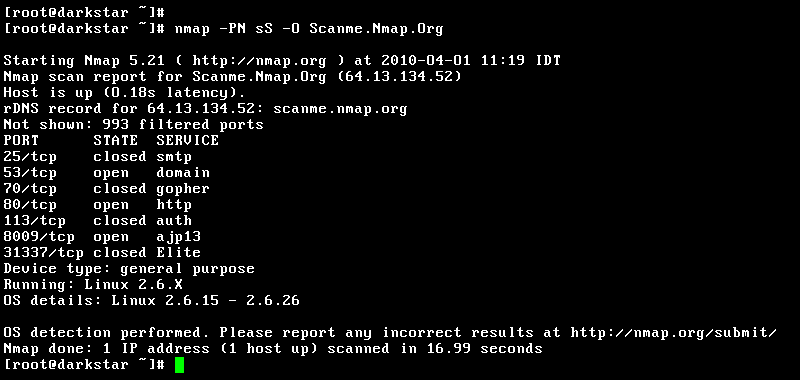
Similarly, OS fingerprinting (-O) analyzes TCP/IP stack characteristics to guess the operating system of the target. It sends a series of specially crafted packets and compares the responses to a database of known OS fingerprints. This can reveal whether you're dealing with a Windows server, a Linux machine, or a network device like a Cisco router.
Combining these flags provides a comprehensive picture. A common and powerful combination is
sudo nmap -sV -O <target>.
While powerful, OS detection isn't foolproof. Firewalls can block the necessary probes, and some systems can be configured to obscure their fingerprints. However, when it works, it provides invaluable context for your next steps.
Formatting for Automation
Human-readable output is great for manual analysis, but for larger assessments, you'll want to feed Nmap's results into other tools. This is where comes in. Nmap supports several output formats that are designed for machine parsing.
Here are the most common formats:
- -oN
: Normal output, which is the same as what you see in the terminal. - -oX
: XML output, the most flexible format for programmatic use. - -oG
: Grepable output, a simple format useful for one-line commands with tools like grep,awk, andsed. - -oA
: Outputs in all three major formats at once (Normal, XML, and Grepable), saving them to <filebase>.nmap,<filebase>.xml, and<filebase>.gnmap.
# Perform an aggressive scan and save the output in all formats
sudo nmap -T4 -A -oA my_scan_results 192.168.1.0/24

# The -A flag enables OS detection, version detection, script scanning, and traceroute.
Using the -oA flag is a best practice. It gives you easily searchable text, machine-readable XML for automated tools, and the familiar terminal view, ensuring your scan results are ready for any type of analysis.
You are tasked with scanning a sensitive corporate network and want to minimize the chances of triggering an Intrusion Detection System (IDS). Which Nmap timing template would be the most appropriate choice?
What is the primary purpose of the Nmap Scripting Engine (NSE)?
With these techniques, you can tailor your Nmap scans to any situation, from stealthy probes on a corporate network to fast, comprehensive scans that feed an entire security toolchain.