Mastering the Cursor for Designers
Cursor Basics
Your Digital Finger
A cursor is the small, movable icon on your screen that shows where the action is. It's your digital finger, pointing to what you want to interact with. Whether you're using a mouse, a trackpad, or your finger on a touchscreen, the cursor translates your physical movements into digital commands.
cursor
noun
A movable indicator on a computer screen that identifies the point of interaction.
This pointer is the cornerstone of any graphical user interface, or GUI. It’s what makes modern computing feel intuitive. Instead of typing text commands for every action, you can just point and click.
From Text to Pointers
Computers didn't always have cursors. Early machines used command-line interfaces (CLIs). Users had to type precise text commands to get the computer to do anything. There was no pointing, no clicking, and no icons. The only "cursor" was a blinking line or block showing where you would type next.
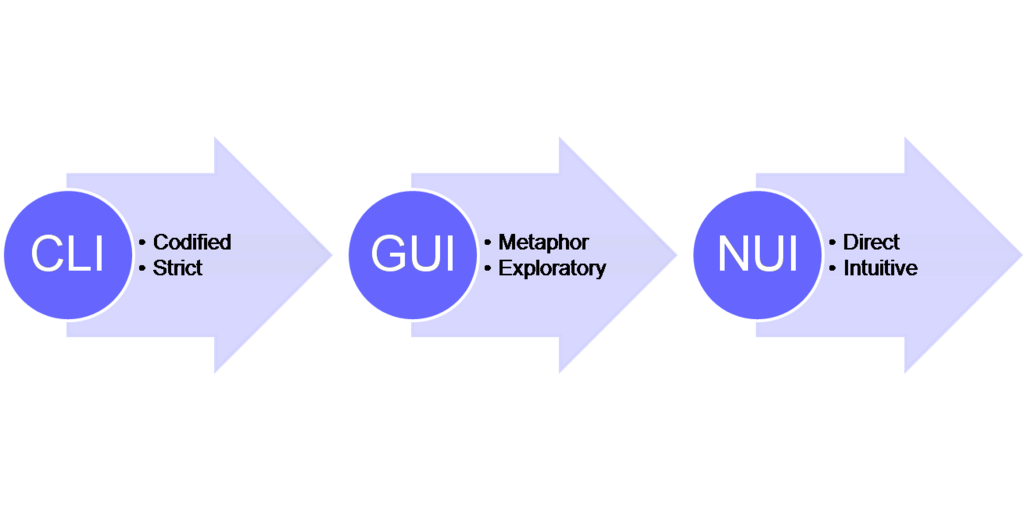
Everything changed in the 1970s when engineers at Xerox PARC developed the first graphical user interface. They also invented the mouse to go with it. Suddenly, users had a way to directly interact with visual elements on the screen. The arrow-shaped pointer was born, becoming a simple and effective tool to navigate this new digital landscape.
The Many Faces of the Cursor
You’ve probably noticed that the cursor changes shape depending on what you're doing. This isn't random. Each shape is a visual cue that tells you what kind of interaction is possible at that moment. It’s a silent conversation between you and the software.
| Cursor | Name | Purpose |
|---|---|---|
| Arrow | Standard Pointer | Used for pointing, selecting, and clicking on buttons or icons. |
| I-Beam | Text Select | Appears over text, indicating you can type or select characters. |
| Hand | Link Select | Shows up when hovering over a hyperlink, ready to navigate. |
| Crosshair | Precision Select | Used for precise selections in drawing, design, or spreadsheet apps. |
| Hourglass/Spinner | Wait/Busy | Indicates that the computer is processing a command. |
These standard types create a universal language across different operating systems and applications, so you intuitively know what to do without needing instructions.
Basic Interactions
The cursor enables a few fundamental actions that are the building blocks of most computer tasks.
Pointing: Simply moving the cursor over an item. This is often called "hovering" and can sometimes reveal more information, like a tooltip.
This simple act of pointing is the first step for any other interaction. It tells the computer which object you're interested in.
Clicking: Pressing and releasing the primary mouse button (usually the left one). This action is used to select an item, press a button, or follow a link.
A close relative is the double-click, which involves clicking twice in rapid succession. This is most often used to open a file or launch an application.
Dragging and Dropping: Pressing and holding down the button over an item, moving the cursor to a new location, and then releasing the button. This is how you move files, resize windows, or select multiple items.
These simple interactions, all guided by the cursor, are the foundation of how we use computers today. They turned complex machines into accessible tools for everyone.