Mastering the Craft of Video Editing
Advanced Timeline Organization
Beyond a Single Track
When you first learn to edit, the timeline feels simple. You drop clips in, trim them, and arrange them in order. But as projects grow from a one-minute social clip to a ten-minute documentary, that single-track approach quickly turns into a digital junk drawer. Finding the right clip becomes a nightmare, and making a small change can trigger a cascade of problems.
Professional editing isn't just about knowing where to cut; it's about building a structured, navigable workspace. Think of yourself as an architect, not just a builder. Your timeline is the blueprint. A clean, organized timeline allows for speed, flexibility, and non-destructive changes, letting you experiment freely without breaking your entire edit.
A Foundation for Order
The first step toward an organized timeline is standardization. This starts with naming your tracks. Instead of the default "Video 1, Video 2," give them specific jobs. This creates a consistent map for every project.
A common professional convention looks like this:
- V1: A-Roll (Primary interviews, main action)
- V2: B-Roll (Cutaways, illustrative footage)
- V3: Graphics (Lower thirds, titles, logos)
- V4: Adjustment Layers/Effects
- A1-A2: Dialogue/Primary Audio
- A3-A4: Sound Effects (SFX)
- A5-A6: Music
This system ensures that anyone opening your project knows exactly where to find each type of asset. The most important rule is to keep your primary storyline, or , on V1 and its corresponding audio on A1 and A2. This is the backbone of your story. Everything else is layered on top to support it.
Treat your V1 track as sacred. It should tell the complete story from beginning to end, even with nothing else layered on top.
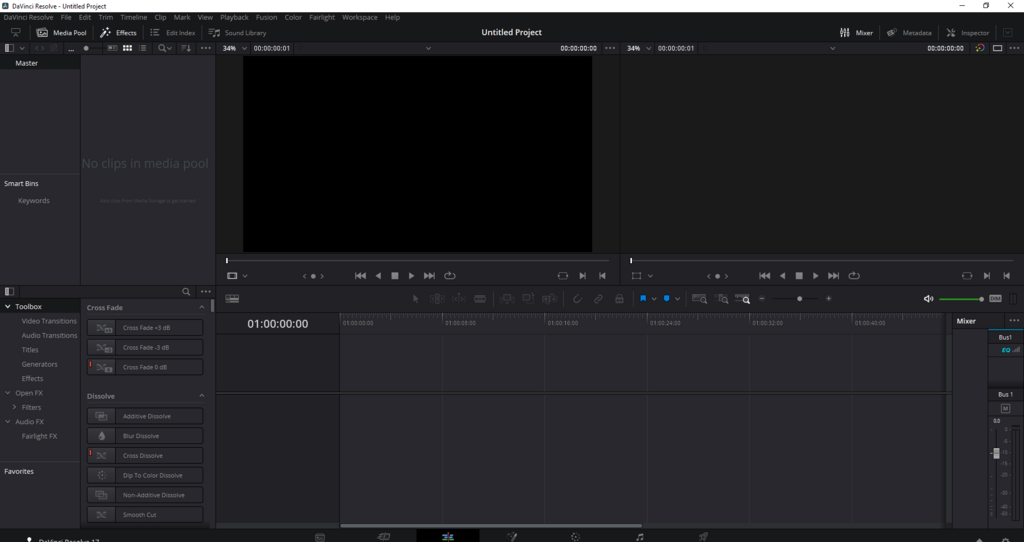
To enforce this structure, editors use tools like track targeting and sync locks. Track targeting (or patching) tells the software where to place clips you insert from your source monitor. By setting your source video to target V2, you can drop B-Roll onto the timeline without disturbing your main V1 track.
Sync locks are even more critical. When enabled, they lock all tracks together vertically. If you ripple delete a clip on V1, all corresponding clips on the tracks above and below will be cut by the same amount, ensuring your video, graphics, and sound effects never fall out of sync.
Taming Complexity
Even with named tracks, a complex sequence with dozens of graphics, sound effects, and B-roll clips can become unwieldy. This is where grouping comes in. In Premiere Pro, this is called Nesting; in DaVinci Resolve, they're known as Both tools do the same thing: they let you collapse a selection of clips into a single, new clip on your timeline.
Imagine you've built a detailed title sequence with five layers of text and graphics. Instead of managing five separate clips, you can nest them. Your timeline now shows a single, clean clip representing that entire sequence. If you need to make a change, you simply double-click the nested sequence to open it in its own timeline, make your edits, and the changes will automatically update in your main edit. This is a form of non-destructive editing, as the original clips remain untouched.
As projects grow, your media pool can become just as messy as your timeline. Sifting through hundreds or thousands of files is a huge time sink. This is where metadata becomes your best friend. Instead of just relying on file names, you can add descriptive tags, comments, and keywords to your clips.
Most professional NLEs allow you to create Smart Bins (or Search Bins). These aren't regular folders you manually drag clips into. Instead, they are saved searches that automatically populate based on metadata criteria you define. For example, you could create a Smart Bin that automatically gathers every clip that meets the criteria:
- Scene = "Interview"
- Camera Angle = "Wide"
- Keyword = "Key Point"
Now, all relevant clips appear in that bin automatically, no manual sorting required. This workflow is essential for documentaries, feature films, and any long-form project where clip retrieval is a constant task.
Let's test what you've learned about structuring a professional editing timeline.
What is the primary benefit of maintaining a structured and organized editing timeline?
According to professional convention, which video track is typically reserved for A-Roll (primary interviews, main action)?
Adopting these architectural habits—standardized tracks, strategic grouping, and metadata-driven organization—transforms your editing process. It shifts you from simply assembling clips to purposefully designing a robust, flexible, and efficient narrative structure.